



Workspace updates
Try it first
Find the right place to continue#
You need A game you want to work on.
- Open Games and choose the game.
- Find the workflow below that matches your task.
- Use its guide for the exact steps.
Check your result You can get back to your build, test or review from the same game page.
November 20, 2026
One workspace for every game#
Open Games and choose a game. Use Builds to add a URL or upload a browser ZIP and manage versions. Edit the listing in Game details and talk to Playmos reviewers in Release feedback.
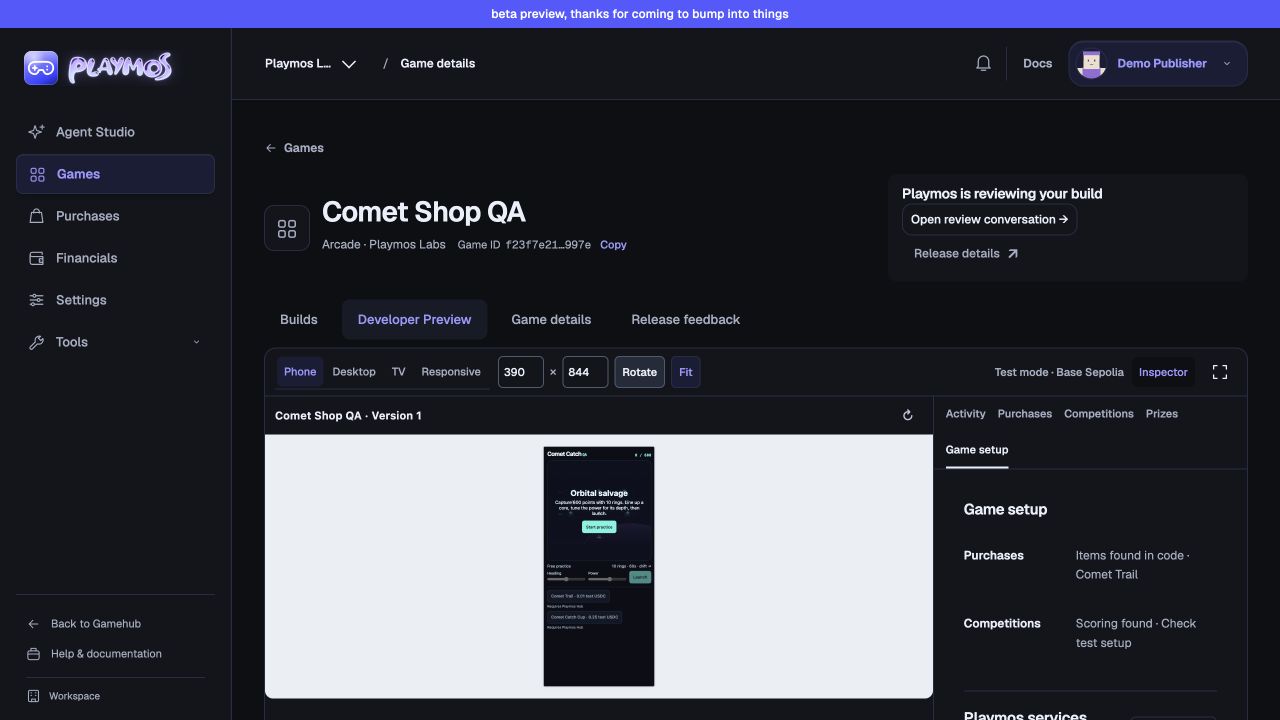
Use Developer Preview to play the selected build on phone, desktop or TV sizes. Open Inspector for activity, purchases, competitions and prizes. Use the fullscreen icon to give the game the whole screen.
See what your build already includes#
Open Developer Preview → Inspector → Game setup to see the selected build’s items and competition. Agent Studio also shows services found in the saved version.
Connect the items your game already defines. Keep their existing SKUs. For a competition, use the existing rules and follow the setup step shown. If a score verifier is missing, keep free practice available while you add it.
Connect and test in-game purchases →
Test purchases and competitions#
Open the game in Developer Preview and check that it says Test mode · Base Sepolia. Start a purchase in the game, then check that the item arrived. Use Purchases to find the saved items.
Use Competitions to prepare an entry. Confirm the test payment, play a full round and check the accepted score. For a round with managed prizes, check Prizes after it closes. Prizes shows the current round’s payout status and shows its receipt once paid. If a payment is pending, check the same entry before paying again.
Find or archive a draft in Agent Studio#
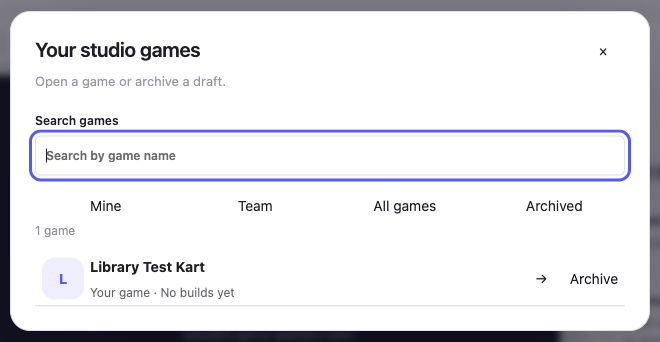
Open the game picker and select More games… to see your studio’s games. Select Archive beside a draft you can manage. Open Archived and choose Restore to bring it back. Delete draft is available for eligible drafts that have never had a locked version.
To build with a coding agent, open the game, choose Connect your own agent and select Copy agent setup. Paste it into your coding agent. The agent gets this game’s build context and a link to the skills.
Connect an agent and install skills →
If it did not work#
If the draft is missing, check the Archived filter in Agent Studio.
Try one variation
Continue with the next guide →