


Set up your studio.
Try it first
Connect your own studio safely#
You need Studio credential access and your intended payout address.
- Open Keys & webhooks and create or connect matching test keys.
- Keep the secret and recovery credential on your server; confirm the intended API host.
- Create a studio-owned test purchase and verify it using the matching secret.
Check your result The receipt belongs to your studio and no secret appears in game code.
Move from the shared demo to your own test keys, payout wallet and studio-owned receipts.
Start with the public sandbox#
The public IAP key is enough for the first-payment guide. It belongs to the demo studio. A payment created with it is not visible to a different studio’s secret key.
Use https://api.sandbox.playmos.io/v1, the published SDK’s default Base Sepolia API. Keep key setup, payments, verification and CLI commands on the same API host: different hosts can expose different routes and records. A pk_test_ or sk_test_ prefix selects the test network; it does not move records between hosts.
For the Hub publisher workspace, sign in and create a studio immediately; Playmos reviews each game before publication. SDK key setup below is a separate service configuration.
1. Issue your test keys#
curl --fail-with-body -X POST https://api.sandbox.playmos.io/v1/keys \-H 'Content-Type: application/json' \-d '{"label":"your-studio","payoutAddress":"0xYOUR_STUDIO_WALLET"}'
Replace the wallet placeholder with your studio’s actual address. Store keys.secret as PLAYMOS_SECRET on your backend. Only the publishable key belongs in a browser. Do not commit the response, paste secrets into the playground, or expose them in logs.
2. Set your payout wallet#
If you minted without payoutAddress, configure it with the server-only payouts.setAddress helper or the server API before creating studio IAP payments. A later wallet change remains pending until independent approval; the active recipient stays in use until approval.
curl --fail-with-body -X POST https://api.sandbox.playmos.io/v1/studio/payout \-H "Authorization: Bearer $PLAYMOS_SECRET" \-H 'Content-Type: application/json' \-d '{"address":"0xYOUR_STUDIO_WALLET"}'
3. Keep payment and verification in the same studio#
Create a new payment using your publishable test key, then verify that ID with your matching server secret. The service maps the game_sandbox_iap catalog alias to the studio’s own demo game on this setup path. Keep the returned resource IDs; do not assume aliases are the final IDs.
What belongs where#
| You configure | Where |
|---|---|
| Managed IAP SKUs, prices and availability | Playmos payment service. Import or sync from your existing catalogue. |
| Item effects, player orders and inventory grants | Your game and trusted fulfillment backend. |
| Scores and contest results | Your trusted backend and database. |
| Publisher drafts and release review | Playmos portal publisher workspace. |
| API keys and payment records | Playmos SDK service, scoped to your studio. |
| Own-pool signing keys | Your local admin / operator signing environment. |
| Entry price, clock and split | An immutable series on your own registered pool. |
Taking IAP payments is a complete integration. Add contests and economies when your game needs them.
Visibility and version controls#
Use Your games → Catalog games to hide or show a game and open its version history. Hiding removes it from discovery, search and public profile shelves and blocks new Hub launches. Existing runs, contest obligations and trophies stay intact. A publisher cannot undo a Playmos hide.
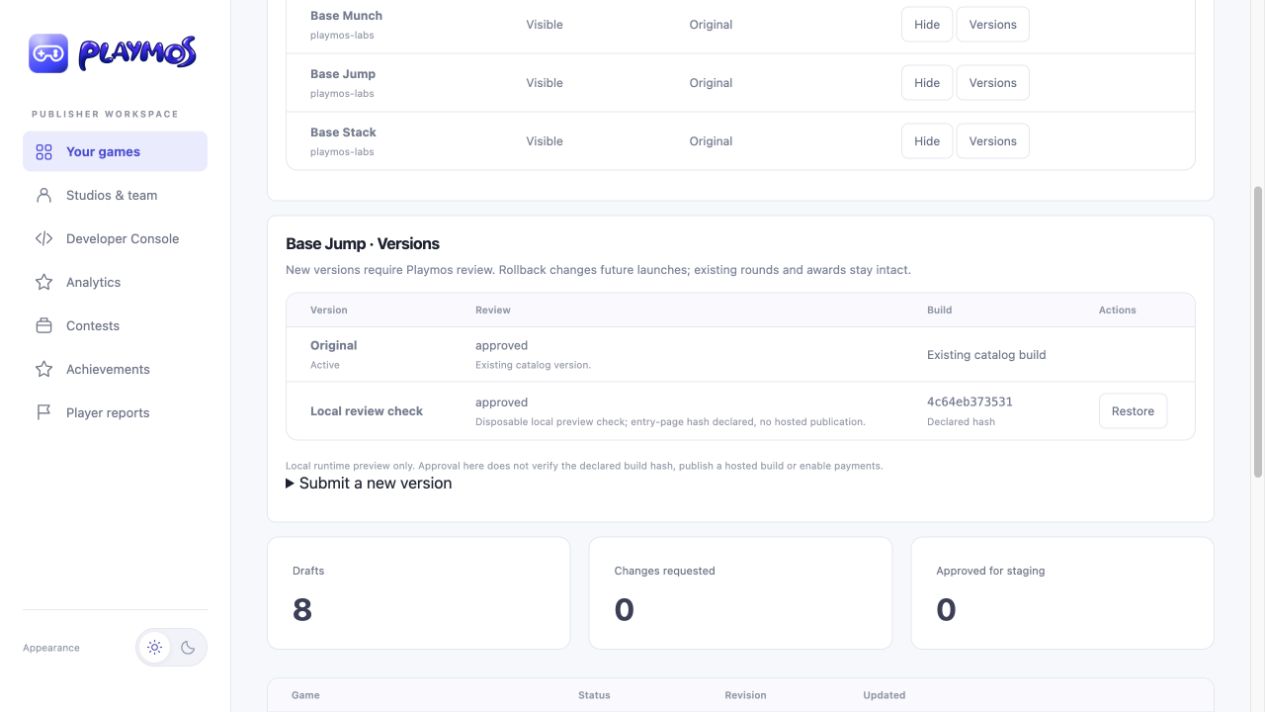
Submit each new version with a unique name, configured Playmos runtime URL and declared SHA-256. Playmos reviews the immutable submission. In the local preview, only Playmos can activate an approved candidate; both Playmos and authorized studio publishers can restore a previously active, approved version. Declared hashes are not independent build verification. This is the legacy configured-origin version flow. Managed ZIP hosting has its own exact-artifact review, publisher activation, restore and receipt; follow Host and publish your game. Its free-game mode requires no paid SDK receipt.
Credentials for Studio and external games#
In Keys & webhooks → Game credential access, choose a saved Studio build and its registered SDK catalogue, then select Playmos managed services or My external server. Only studio credential administrators can change this binding. New builds get their own binding; earlier builds can keep their reviewed setup or have access disabled.
Managed services resolve current SDK credentials on the server for the bound studio, game and exact build. The game, MCP prompts and client bundles receive no server secret. External servers keep their authenticated order and fulfillment routes and signed HTTPS callback; use the browser, Privy and backend helpers in In-app purchases. API credential hosting does not transfer wallet ownership or permit custodial signing.
Publisher-controlled wallets still sign through their connected provider. Privy Server Wallets is the selected provider for preparing custodial signing. Account configuration, wallet ownership, transaction policies and hosted testnet acceptance are still required; the existing service signer is Base Sepolia-only. These source changes do not activate mainnet or publish a game.
Manage sandbox access in the Hub#
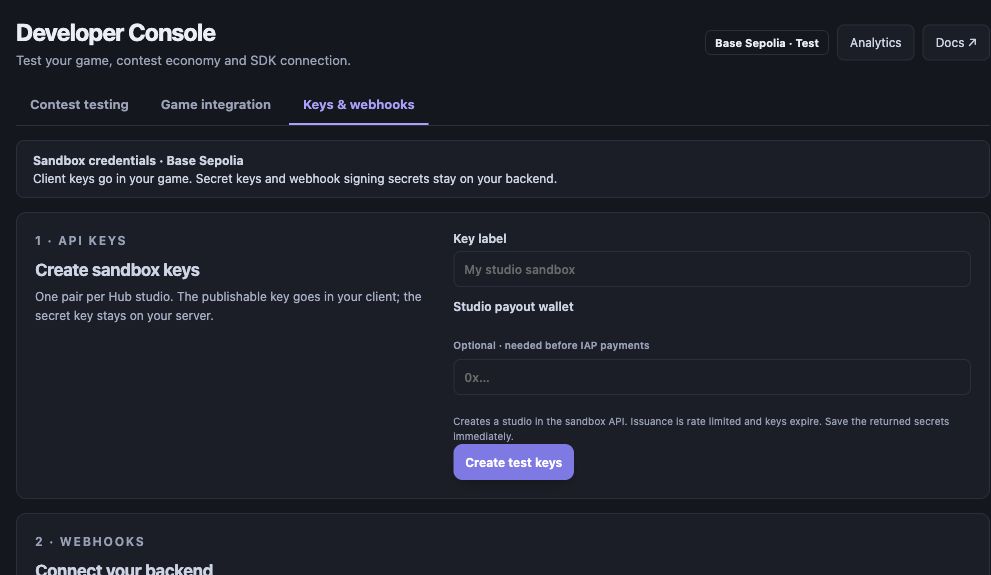
Approved Hub publishers can use the Developer Console in the local preview to create a test key pair, save their studio payout wallet, revoke keys, and register webhook endpoints. Save secrets when shown; the portal never reads them back into a list. Hub drafts and SDK game IDs are separate.
Choose your active studio, open Keys & webhooks, enter a key label and optional payout wallet, then select Create test keys. Save the returned secret on your backend when it is shown.
Console payment setup and recovery#
Open Manage → Keys & webhooks to create test keys or connect an existing matching test pair. The SDK generates each API key from 32 random bytes; the SDK stores salted hashes. Save the separate recovery credential like a server secret: it can replace API keys. The Hub encrypts its server connection and shows a newly issued secret once. These API keys are separate from the player’s Privy wallet keys.
Use Use my linked Privy wallet to fill the payout address, then review and submit it. An active wallet change remains pending until independent approval. Reconnecting an existing pair preserves the SDK studio and payment IDs; revoking and minting a new pair creates a different studio. Use Rotate API keys or Renew expiry to replace both keys without replacing the studio. Save the recovery credential offline; it can renew expired keys. Resume saved operation recovers an interrupted mint or rotation. Update the game and backend with the new pair, then acknowledge delivery. Revocation permanently disables recovery.
Continue to Product catalogs for a Privy-funded test checkout and Payments & settlement to find the original payment by ID or saved purchase key. Listed status is not fresh verification; select Check authoritative receipt. Only confirmed receipts with a transaction, fresh chain provenance and enabled chain reads receive the chain-verified label. Fulfillment still belongs to the studio backend.
The hosted testing workspace keeps keys, catalog and payment reads on api.test.playmos.io; the local preview uses api.sandbox.playmos.io. These stores are separate. A missing key route is platform setup required, not a reason to change hosts or create duplicate studios. Live keys require platform approval.
If it did not work#
A demo-studio ID cannot be verified as your own. Check studio, host and matching keys before minting again.
Try one variation Compare the public demo’s studio with your own. Explain why their receipts cannot be interchanged.
Continue with the next guide →