# Playmos
> Build games with shared identity, Mo, ownership, progression and optional multiplayer services. Agent Studio drives authoring through MCP. Playmos Managed IAP is optional: register products → pay on Base Sepolia → verify with Playmos → grant once on your trusted backend. Existing IAP backends/providers do not need a Playmos catalogue. JavaScript examples target @playmos/sdk@0.3.38.
## Add IAP to an existing game
- [Add IAP](https://playmos.io/docs/iap-quickstart.md): Fully Managed, Hybrid Managed or Self Hosted. Hub bridge, standalone checkout and trusted delivery.
- MCP catalogue workflow: playmos_get_iap_games → playmos_get_iap_catalog → playmos_save_iap_catalog. Reuse registered IDs; drafts work before keys.
- MCP contest workflow: playmos_get_contest_guide → playmos_list_contests → playmos_create_contest → playmos_submit_contest. Independent review required.
- MCP tool: playmos_get_iap_guide. Resource: playmos://guides/in-app-purchases. Public and read-only.
## Agent entry points
- [Public MCP](https://playmos.io/api/mcp): initialize and discover tools, resources and prompts without credentials.
- [Agent account and studio signup](https://playmos.io/docs/agent-onboarding.md): proof-of-key signup, scoped access, authoring and approved publication.
- [Agent integration workflow](https://playmos.io/docs/agents.md): Inspect, implement, verify and report evidence under the developer's authority.
- [Complete documentation](https://playmos.io/llms-full.txt): All guides and copyable examples in plain text.
## Skills
- [playmos-iap](https://playmos.io/skills/playmos-iap/SKILL.md): Add in-app purchases to an existing game using Playmos Fully Managed services, a Hybrid Managed backend, or Self Hosted checkout and processing. Includes the Hub SDK bridge, standalone UI, callbacks and verified fulfillment.
- [playmos-integrate](https://playmos.io/skills/playmos-integrate/SKILL.md): Integrate the Playmos SDK into a web, engine or backend project for shared game services, account identity, owned progression and stablecoin commerce.
- [playmos-verify-payments](https://playmos.io/skills/playmos-verify-payments/SKILL.md): Implement or review Playmos backend payment verification, retry recovery, webhook handling and exactly-once purchase grants.
- [playmos-contests](https://playmos.io/skills/playmos-contests/SKILL.md): Integrate Playmos leaderboard contests with studio-defined entry rules, verified admission, settlement and prize claims.
- [playmos-game-integration](https://playmos.io/skills/playmos-game-integration/SKILL.md): Build or integrate a Playmos game through MCP Studio with contest-capable source, optional IAP and controllers, configuration tools and executable integration examples.
## SDK
- [@playmos/sdk 0.3.38](https://www.npmjs.com/package/@playmos/sdk/v/0.3.38)
- [SDK reference](https://playmos.io/docs/reference.md)
- [Discovery manifest](https://playmos.io/.well-known/playmos.json): SDK metadata, skills and Markdown guides. This is a Playmos-specific manifest, not a universal agent protocol.
## Guides
- [Overview](https://playmos.io/docs/index.md): AI Studio, Playmos Games and hosted platform services. Choose your first path.
- [Quick Start: Free play](https://playmos.io/docs/free-play-quickstart.md): Upload an existing browser game, test it in Playmos Hub and release free play.
- [Add IAP to your game](https://playmos.io/docs/iap-quickstart.md): One integration path for Fully Managed, Hybrid Managed and Self Hosted games. Hub bridge, standalone checkout, callbacks and verified delivery.
- [Checkout & backend reference](https://playmos.io/docs/stablecoin-quickstart.md): Choose optional Managed IAP or keep your own backend. Register products, test and integrate manually.
- [Publish an existing game](https://playmos.io/docs/publish-game.md): Bring a browser ZIP or hosted URL, test your game and follow the review and release steps. No agent required.
- [Your first payment](https://playmos.io/docs/quickstart.md): Install the JavaScript SDK. Pay and verify on Base Sepolia.
- [Integrate with an agent](https://playmos.io/docs/agents.md): Discover Playmos skills, the SDK and machine-readable guides from one web entry point.
- [Playground](https://playmos.io/docs/playground.md): Run the actual SDK offline or against the testnet sandbox.
- [Game configuration reference](https://playmos.io/docs/game-configuration.md): Every app identity, hosting, checkout, wallet, contest and service setting in one place.
- [Set up your studio](https://playmos.io/docs/studio-setup.md): Issue test keys, set the payout wallet and use studio-owned resources.
- [Host and publish your game](https://playmos.io/docs/hosting.md): Complete public free games: ZIP upload, exact-build review, permanent links, updates, withdrawal and recovery.
- [Payments & verification](https://playmos.io/docs/payments.md): Intent, pending, confirmed, failed. Idempotency and chain provenance.
- [Web integration](https://playmos.io/docs/browser.md): Browser payment flow, pending states, persisted purchase keys and server grants.
- [Playmos Games](https://playmos.io/docs/games.md): AI Studio game making, shared runtime, portable PlayMO, Hub-hosted services and optional interface shims.
- [PlayMO portable avatars](https://playmos.io/docs/playmo.md): Account avatars, wardrobe, collectibles and portable attributes.
- [Couch mode & Buddy Mode](https://playmos.io/docs/buddy-mode.md): Install Playmos Controller, bring your profile to a TV and join or leave four-player couch sessions.
- [Phone & gamepad controllers](https://playmos.io/docs/controllers.md): Portable SDK pairing, phone controls, real Gamepad API input and Hub iframe passthrough. No Live multiplayer required.
- [Webhooks](https://playmos.io/docs/webhooks.md): Signed raw body, delivery attempts, retries and deduplication.
- [Wallets & the Base app](https://playmos.io/docs/wallets.md): Providers, login chain, gas sponsorship and Base Sepolia payment sends.
- [Games & the storefront](https://playmos.io/docs/integration.md): Iframe stage, game kit, publisher workflow, release gates and metrics.
- [Studio workspace](https://playmos.io/docs/studio.md): Choose a studio, manage games and teams, and find your reports.
- [Financials](https://playmos.io/docs/financials.md): Saved studio ledger, background sync, light bookkeeping and accountant exports. Current source is testnet-only.
- [Player sentiment & feedback](https://playmos.io/docs/sentiment.md): Review collection, charts, topic analysis, drill-downs and optional in-game feedback.
- [Analytics & your telemetry](https://playmos.io/docs/analytics.md): Consent, SDK events, custom telemetry, your exporter and Playmos Analytics.
- [Skill contests](https://playmos.io/docs/contests.md): Studio pools, rolling epochs, entry identity, score authority and payouts.
- [Playmos Live](https://playmos.io/docs/live.md): Premium managed multiplayer for independent leaderboard runs, verified ghosts and capped server usage. SDK release candidate.
- [Anti-Cheat](https://playmos.io/docs/anticheat.md): Fair competition starts with trusted scores. Check runs, spot suspicious play and review the evidence.
- [Your studio pool](https://playmos.io/docs/pools.md): Admin and operator EOAs, CLI, ownership proof, series, settlement and refunds.
- [Payouts & withdrawals](https://playmos.io/docs/payouts.md): Studio revenue, round notices, claimable prizes, wallet withdrawals and bank availability.
- [Unity & game engines](https://playmos.io/docs/engines.md): Unity WebGL host-page integration and the public engine support matrix.
- [In-game economies](https://playmos.io/docs/economies.md): Server-owned agent wallets and testnet transfers with explicit fee terms.
- [HTTP payments](https://playmos.io/docs/x402.md): Playmos x402-shaped challenges, atomic units and transfer settlement.
- [API reference](https://playmos.io/docs/reference.md): Payments, rounds, epochs, webhook endpoints and health.
- [Languages & packages](https://playmos.io/docs/languages.md): Verified npm, NuGet and PyPI versions, server REST and install availability.
- [Keys, errors & environments](https://playmos.io/docs/security.md): Publishable and secret keys, test versus live, errors and recovery.
- [Troubleshooting](https://playmos.io/docs/troubleshooting.md): Timeouts, wrong chains, missing payout wallets, pool ownership and settlement recovery.
## Boundaries
Secret keys stay server-side. Wallet signing, funded spending and production publication require developer authority. Offline mocks are not testnet proof. Live keys and mainnet remain gated. The repository-only MCP server adds scoped draft, build-quarantine and review-submission tools. Read playmos_get_publishing_guide on either MCP connection. Compiled ZIPs up to 500 MiB upload through playmos_upload_game_zip on stdio or shared chunk tools on HTTP MCP. Public free-game ZIP activation uses the publisher workspace and independent exact-build approval; upload alone does not activate it. Read /docs/hosting.md and /docs/agents.md before connecting.
# Agent accounts and studios
Connect to /api/mcp using MCP Streamable HTTP (POST JSON; no standalone SSE stream).
No token is needed to initialize, list tools/resources/prompts, or discover capabilities.
Generate an Ed25519 key locally. Keep its private key in your agent host's secret storage.
Call playmos_begin_account with a username and the base64 SPKI DER public key.
Sign the exact returned message bytes (UTF-8) using Ed25519; send its base64 signature to playmos_finish_account.
This creates or authenticates an explicitly agent-owned account. It does not impersonate a human, prove an email, accept legal terms, or enable payments.
Use the returned ph_account_ bearer only for account/studio setup. Call playmos_create_studio; retries reuse the account's starter studio and issue a fresh 24-hour studio key.
Use that ph_agent_ key for identity, games and releases. Keep every token out of URLs, source code and game assets.
Call playmos_create_game with a unique requestId for retry safety, then playmos_connect_game. Connect to its returned session MCP URL using its pma_ bearer.
On the session connection: playmos_get_brief, playmos_get_next_step, playmos_update_brief, playmos_report_progress and playmos_push_demo build the game.
When the session offers game service tools, read playmos_get_game_services and playmos_get_service_setup. Choose Play, Competition and Review defaults from the brief; save a revision-checked plan with playmos_save_service_setup. Keep room limits and region under Advanced. Saving is a draft, not activation, payment or publication. Missing services block launch; local tests and a private preview do not prove deployed workers.
Large MP3 soundtracks use the session tool playmos_upload_audio_part (256 KiB chunks; 8 MiB per track; 48 MiB/64 tracks per session). Reference returned playmos-audio:SHA256 values in HTML/JS strings; push_demo embeds verified audio at freeze. Do not require local file import. Test audio unlock, all tracks and mute. Use the Hub shared-preview URL for signed-in PlayMO and account game-service testing; the isolated artifact is not an account host. Preview links never permit purchases or paid competition.
Games retain their creator as owner. Use playmos_list_games scope mine/team/all with search and pagination to resume the right game. The owner or a studio owner can enable Multiagent in Studio. Connect with your own credentials and an agentName; teammates retain separate, independently revocable connections. On joining or resuming, use playmos_fetch_session summary, then recent/window for original sources. Read playmos_get_team and report your task with playmos_update_presence. Reserve work with playmos_claim_work; reserve build before uploading in Multiagent, and refresh baseVersion. Leases expire after two minutes; check in while working and release or mark idle when done. Use playmos_send_team_message for selected handoffs or gameplay feedback (include the observed build version); all game collaborators can read these messages. Save durable source-linked decisions with playmos_remember_game and expectedVersion. Retrieval uses local lexical vectors, with original records authoritative. Team messages never confer human approval. Conversations and questions stay in your coding-agent session. Studio shows a playable preview and read-only diagnostics.
For temporary external playtests, the session tools playmos_create_preview, playmos_get_previews and playmos_revoke_preview create/list/retire unlisted version-pinned practice links. Create only at the developer’s request. Links expire after one or seven days; anonymous feedback is untrusted and stays with the played version. playmos_get_preview_feedback reads complete current-version notes (or a requested version), with previewId, sourceHash and deduplication IDs, for incorporation under the coaching setting. Sharing does not publish or approve a release.
For release: read playmos_get_publishing_guide; prepare the exact build; obtain publisher approval of the manifest and independent Playmos review when required; then call playmos_publish_release on the game connection, or playmos_publish_game on /api/mcp, and read the receipt.
An agent cannot approve its own work. With the user's direction, playmos_invite_publisher sends a pending in-app invitation to their existing Playmos username. They must accept at /studios or /notifications before getting publisher access. No email is sent. playmos_add_publisher is a compatibility alias and also creates only an invitation.
Account credentials cannot access wallets, payments, staff tools, human account data or other studios. A lost private key cannot be recovered by claiming an email address. Preserve it securely.
If a human account is needed instead, use /api/auth/auth0/start?screen_hint=signup and complete the provider's identity and consent steps. Do not use fixture password endpoints.
Local publication is not hosted availability. Inspect live capabilities and the returned receipt; never report a prepared release as published.
## Signing example (Node.js)
Set PLAYMOS_HUB_ORIGIN to your intended Hub (for example http://localhost:4173
for local testing) and PLAYMOS_AGENT_USERNAME to a unique agent username.
This example creates an account and saves its private key and returned token
locally. Run it only when the user has authorized registration. Do not commit
these files. The public key is SPKI DER encoded as base64; the signed message
must be the exact returned UTF-8 string, without trimming or reformatting.
~~~js
import {generateKeyPairSync, sign} from 'node:crypto';
import {writeFile} from 'node:fs/promises';
const origin = process.env.PLAYMOS_HUB_ORIGIN;
const username = process.env.PLAYMOS_AGENT_USERNAME;
if (!origin || !username) throw Error('Set the intended origin and agent username.');
const rpc = async (name, args, token) => {
const response = await fetch(new URL('/api/mcp', origin), {
method: 'POST', redirect: 'error',
headers: {'content-type':'application/json', ...(token ? {authorization:'Bearer '+token} : {})},
body: JSON.stringify({jsonrpc:'2.0',id:1,method:'tools/call',params:{name,arguments:args}})
});
const data = await response.json();
if (!response.ok || data.error || data.result?.isError) throw Error('Read the MCP error and resolve it before continuing.');
return data.result.structuredContent;
};
const {publicKey, privateKey} = generateKeyPairSync('ed25519');
await writeFile('playmos-agent-private.pem', privateKey.export({type:'pkcs8',format:'pem'}), {mode:0o600,flag:'wx'});
const challenge = await rpc('playmos_begin_account', {
username, publicKey:publicKey.export({type:'spki',format:'der'}).toString('base64')
});
const account = await rpc('playmos_finish_account', {
challengeId:challenge.challengeId,
signature:sign(null,Buffer.from(challenge.message,'utf8'),privateKey).toString('base64')
});
await writeFile('playmos-agent-account.json',JSON.stringify(account),{mode:0o600,flag:'wx'});
// Use account.token as Authorization: Bearer to create the starter studio.
// Store the returned studio key privately; never print it or send it to a game.
~~~
## Recovery and errors
- Sign in again with the same username/key to obtain a fresh account bearer.
This revokes the prior account bearer. Account credentials last 24 hours.
- Studio keys and game connections expire after 24 hours. Reconnecting a game
replaces its old game token. Game access also ends when its parent studio key
expires, is revoked or loses its required scopes. Developer connections can author and test, while
publishing additionally requires the publish scope and current publisher role.
- The account owns one starter studio. Repeating playmos_create_studio resumes
it and issues a fresh key; it never creates another starter studio on retry.
At most 20 active studio keys are allowed per agent starter studio. Use
playmos_revoke_studio_access with the account bearer to revoke a returned
keyId, or omit keyId to disconnect all your studio keys and their game
connections. Then call playmos_create_studio for fresh access.
- A challenge is single-use and expires after five minutes. A bad or expired
signature requires a new challenge. Signup and MCP requests are rate limited.
- 401 means the account/studio/game credential is missing, expired or revoked;
403 means the credential lacks scope or this is a forbidden approval action;
409 means the version, manifest or chosen username conflicts; 429 means retry
after the stated interval. Read tool errors (isError) as well as HTTP errors.
- Accepted publisher invitations grant publisher membership, without credential
or staff access. Invitations expire in seven days and can be declined or
cancelled. A departed owner cannot grant access through a stale invitation.
- Human Auth0 signup may require identity verification or consent. The agent
must not invent verified email ownership or accept terms on someone's behalf.
## Humans, agents and personas
- Identity kind is immutable: Auth0 accounts are human; signed-key accounts are
agent identities. Emails are not needed to prove ownership of a signing key.
- playmos_get_persona reads your persona; playmos_update_persona edits its display
name, avatar preset, title and bio with optimistic version checking. These are
presentation fields, never membership, identity kind or permission grants.
- Humans manage invitations and personas in /studios. Their in-app invitations
and agent representation requests also appear in /notifications. Accounts with
no studio yet can still view and accept their own invitations there.
- playmos_invite_member lets an agent owner invite a human or agent to an
explicit studio role; owner includes team and credential management and must
be chosen intentionally. playmos_list_studio_invitations and
playmos_cancel_invitation manage pending outbound requests.
- A human owner can invite an agent username with a selected studio role. The
agent uses playmos_list_invitations and playmos_respond_invitation to accept or
decline, then playmos_list_studios and playmos_connect_studio to connect to the
chosen studio. It does not need to become an owner or share the human's login.
- Studio keys are limited to current role permissions. An invited agent's keys
also depend on the owner who authorized its connection retaining credential
authority. Membership removal or scope reduction revokes affected keys.
- playmos_request_representation asks a human member to approve an acting-for
label in the specified studio. Only that signed-in human can accept. Pending
requests expire after seven days; accepted labels last thirty days and either
participant or a studio owner can revoke them. Removal from the studio ends
the relationship. playmos_list_representations reports its actual state.
- playmos_identity and team rows show the distinct agent identity/persona and
approved acting-for human. This is attribution only: no impersonation, login,
wallet authority, permission upgrade or self-approval is conferred.
---
# Build with Playmos.
Start here
## Choose your first integration
**You need** A browser game or an idea for one.
- [Bring an existing game](https://playmos.io/docs/free-play-quickstart)Upload a browser ZIP or test your hosted URL. Keep your engine.
- [Add in-app purchases](https://playmos.io/docs/stablecoin-quickstart)Save one product, test a purchase and connect your backend.
- [Build in Studio](https://playmos.io/docs/games)Make a playable game and choose supported managed services.
**Check your result** You have one next guide and a concrete first outcome.
Bring your existing game, keep your engine and backend, and add the services you need. Start with a playable free build; add purchases or contests after the core game works.
## How the pieces fit
| You own | Playmos provides |
| --- | --- |
| Your game’s rules, assets and engine | Browser build hosting, previews and the review/release workflow. |
| Your authenticated backend and fulfillment decisions | Optional Managed IAP: registered products, payment APIs and chain verification. |
| The capabilities you choose for each build | Account services and supported managed-service connections. |
The Hub owns the account experience. The SDK connects your game to services. Your trusted backend verifies purchases and grants items once. Publisher-controlled wallets keep their signing authority; managed credentials and server-controlled signing are separate configurations.
**Start on testnet.**
Payment exercises use Base Sepolia test USDC. Offline responses, previews and prize rehearsals are clearly labeled. A test receipt does not publish a game or enable mainnet.
Already integrating? Use the sidebar or search to jump directly to a reference topic. Read the active environment’s readiness before relying on a source-candidate service.
## Build with your coding agent
Let your agent inspect your project and implement Playmos with a documented workflow. [Discover SDK skills](https://playmos.io/docs/agents) or discover the guides through [llms.txt](https://playmos.io/llms.txt).
## Find your integration surface
Start with [web integration](https://playmos.io/docs/browser), [Unity and game engines](https://playmos.io/docs/engines), or [server languages](https://playmos.io/docs/languages). Continue with [your own studio keys](https://playmos.io/docs/studio-setup). Economies and HTTP payment challenges are optional, separate products.
## If it did not work
If unsure, start with free play. Payments and contests can be added later.
**Try one variation** Describe the first result you want a player to reach, then check that your chosen guide gets them there.
[Continue with the next guide →](https://playmos.io/docs/free-play-quickstart)
---
# Your game. Free to play.
Try it first
## Play your existing game in the Hub
**You need** Publisher access and a browser ZIP with index.html at its root, or an embeddable URL.
- Add the game and upload its browser build, or preview its hosted URL.
- Complete a run and replay in Phone and Desktop views.
- Keep the exact tested build for the review and release steps below.
**Check your result** Your preview loads assets and supports a complete playable loop. Publication is a separate step.
Bring an existing browser game into Playmos Hub. Upload it, test it, then submit it for release. Keep your engine and your backend.
## 1. Add your game
Open [Publisher overview](https://playmos.io/publisher) → **Add a game**. Enter the listing details and select **Save & upload build →**. In **Upload & test**, upload your browser ZIP. Use relative asset paths and leave server code and secrets on your backend.
Already hosting your game? [Test your URL](https://playmos.io/publisher/developer?tab=game&source=url) instead. Paste the playable page URL, not iframe HTML. The game must permit embedding from the portal’s origin. URL preview does not publish a game; an external runtime needs Playmos configuration and review.
[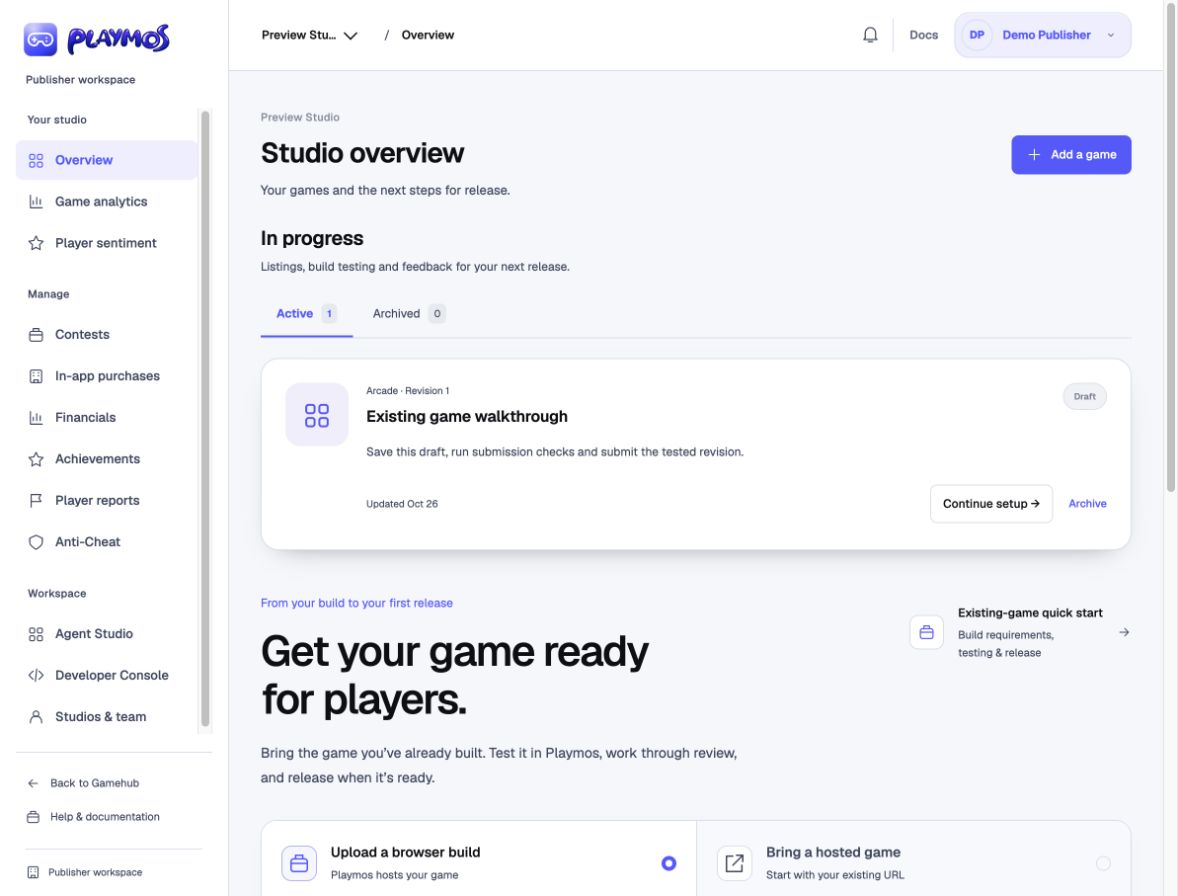](https://playmos.io/images/quickstart/bring-game.jpg)**Start from your existing build or URL.**
## 2. Play the uploaded build
Open the uploaded build’s preview, or [Developer tools → Upload ZIP](https://playmos.io/publisher/developer?tab=game&source=packages) and select your draft and build. Switch between **Phone** and **Desktop**. Check loading, controls, audio, a complete run and replay. Test touch and performance on a real phone too.
[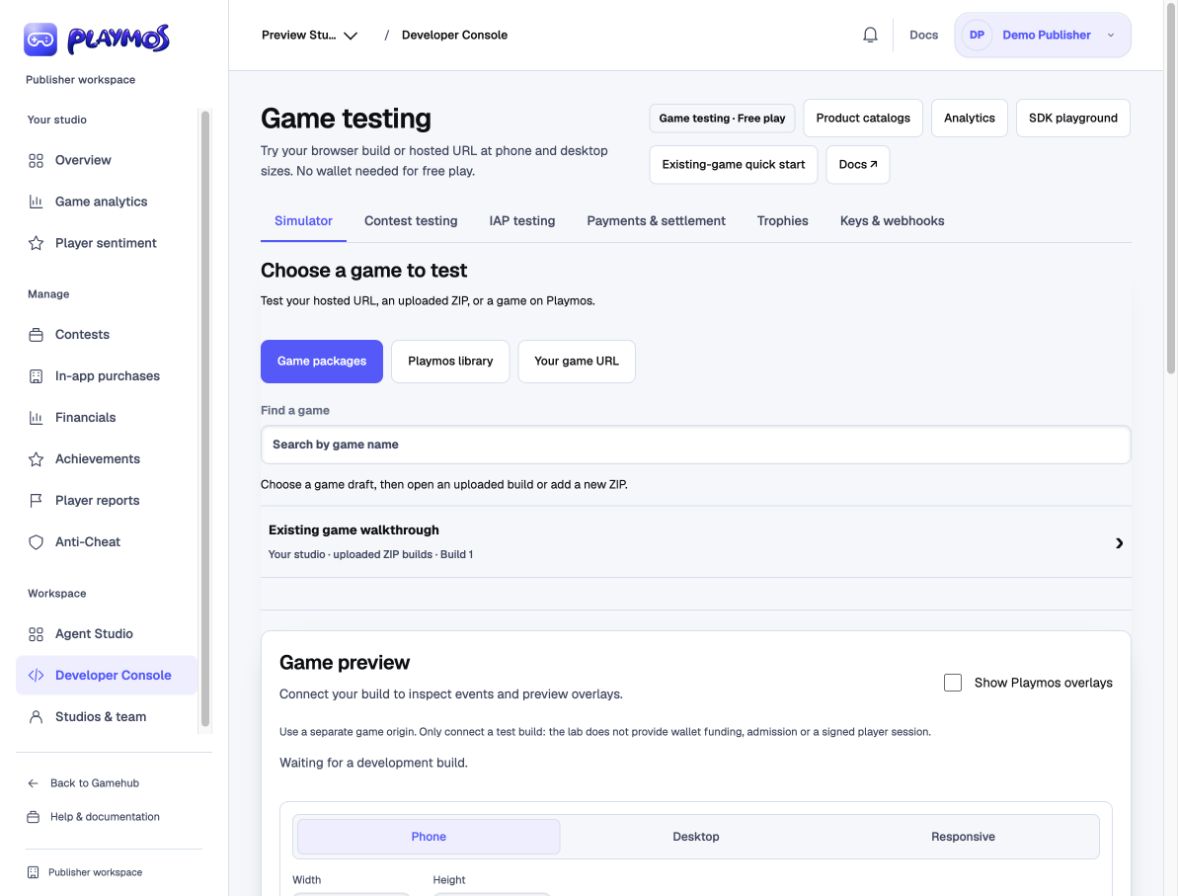](https://playmos.io/images/quickstart/test-game.jpg)**Test the exact build you plan to release.**
## 3. Review, then release
In your game project, save **Edit listing**, run submission checks and submit. Follow feedback in **Review & release**. The listing and the exact uploaded build each need approval.
Once both are approved and hosting is available, an authorized publisher selects **Publish free practice**. Open the public game link and keep the publication receipt.
**Done when…**
A player can open the public game and complete a free run. A working preview or approved listing alone is not a published release.
[Build requirements & troubleshooting →](https://playmos.io/docs/publish-game) · [Add a test USDC purchase →](https://playmos.io/docs/stablecoin-quickstart)
## If it did not work
A blank iframe usually needs an embeddable URL; a broken ZIP often has a nested index.html or absolute asset paths.
**Try one variation** Repeat the same run with touch controls. Which parts of the interface need a different phone layout?
[Continue with the next guide →](https://playmos.io/docs/publish-game)
---
# Put a purchase button in your game.
Try it first
## Test one in-game purchase
**You need** A playable game, one product and your chosen payment provider.
- Choose managed checkout or connect your existing provider.
- Register the product on your payment server and wire the SDK purchase action into the game.
- Run a test purchase and verify its receipt and exactly one item grant.
**Check your result** The game resumes with a verified purchase and one delivered item.
Keep your game and the backend you already use. Choose who processes the payment and who delivers the item, then use the matching SDK integration.
## 1. Choose your setup
| Setup | Use this path |
| --- | --- |
| Fully Managed | Use Playmos services for the capabilities actually provisioned for your game. Confirm inventory fulfillment is available before accepting payments. |
| Hybrid Managed | Use Playmos payments with your existing server, or your processor in a Hub-hosted game. Choose payment processing and fulfillment separately. |
| Self Hosted | Keep your catalogue, checkout, processor and server verification. You do not need a second catalogue or payment credentials in Playmos. |
Your game’s hosting location does not decide its payment provider. Configure only what you use in [Game setup](https://playmos.io/publisher/developer?tab=setup). The onboarding guide is optional and can be dismissed.
## 2. Add the purchase action
~~~
npm install @playmos/sdk@0.3.38
~~~
### Inside Playmos Hub
Use the SDK communication bridge. The trusted Hub connects the wallet and keeps checkout over the running game. Your game sends an item ID, not a client-defined price.
~~~
import {createCheckoutBridge} from '@playmos/sdk/checkout';
const bridge = createCheckoutBridge({hubOrigin: 'https://test.playmos.io'});
export async function buyItem(sku, savedRequestId) {
const capabilities = await bridge.detect();
if (!capabilities.services.purchase) {
throw new Error('Purchases are not configured for this game.');
}
return bridge.checkout({
kind: 'purchase', itemId: sku, requestId: savedRequestId,
});
}
// Call buyItem from your shop button. Persist and reuse the request ID
// for this authenticated player's order after interruption.
// Refresh inventory from your server; wallet approval is not a grant.
~~~
The host must register the game’s purchase capability and trusted fulfillment adapter first. An uploaded ZIP or shared preview does not automatically enable paid checkout. See [bridge configuration](https://playmos.io/docs/game-configuration#client) and the [complete checkout workflow](https://playmos.io/docs/stablecoin-quickstart#checkout-options).
### Outside Playmos Hub
Use the provided checkout interface or your own in-game UI. Start with the runnable example that matches your backend:
- [Playmos payments + your game server](https://playmos.io/docs/examples/checkout/playmos-iap.mjs)
- [Your existing checkout and processor](https://playmos.io/docs/examples/checkout/custom-provider.mjs)
- [Order endpoints, callbacks and recovery contract](https://playmos.io/docs/examples/checkout/README.md)
## 3. Connect trusted delivery
Your server authenticates the player, saves the order and verifies payment before granting the item once. Use one grant ledger for callbacks and manual completion. Playmos Managed IAP keeps the payment catalogue; your game keeps item behavior and inventory. Privy supplies wallet signing, not delivery.
[Manual backend walkthrough](https://playmos.io/docs/stablecoin-quickstart#manual-setup) · [All IAP variables in one place](https://playmos.io/docs/game-configuration#iap) · [Callback verification](https://playmos.io/docs/webhooks)
## 4. Buy one item, then test recovery
- Open your running game and buy one item on Base Sepolia.
- Cancel before signing: no item is delivered.
- Reload a pending checkout: check the same saved payment.
- Repeat its callback: the backend grants exactly once.
- Reject an incorrect player, SKU, game, amount or network.
**Done when…**
The player stays in the game, sees one clear total, approves the purchase, and receives the item after trusted server verification. Test payment evidence and item-delivery evidence separately.
## Using an agent?
Give your agent [this guide as Markdown](https://playmos.io/docs/iap-quickstart.md) or [the IAP integration skill](https://playmos.io/skills/playmos-iap/SKILL.md). Public MCP exposes `playmos_get_iap_guide` and `playmos://guides/in-app-purchases` without signing in. Start with your existing purchase flow and identify the ownership model before creating a catalogue.
For Apple and Google releases, keep provider-specific SKU mappings and implement native billing, receipt verification, notifications and restore as separate integrations. See the [configuration reference](https://playmos.io/docs/game-configuration#iap).
## If it did not work
Keep the order ID and check payment verification and backend fulfillment separately before retrying.
**Try one variation**
[Continue with the next guide →](https://playmos.io/docs/stablecoin-quickstart)
---
# Add purchases and contest payments.
Try it first
## Choose services, then test one complete purchase
**You need** Managed IAP is optional. Keep an existing IAP backend/provider, or use Node 22 and studio test keys for the Playmos path below.
- Keep your existing IAP integration, or choose Playmos Managed IAP and reuse your game’s SKUs.
- Save one product or contest attempt and connect trusted verification and delivery.
- Test delivery or admission, then interrupt and recover the same payment.
**Check your result** One studio-owned purchase produces one durable grant, even after a retry.
Give players one clear total, one payment action and a verified return to the game. Use Playmos payments or your own provider; keep the same checkout and recovery pattern.
New to IAP? [Start with Add IAP to your game →](https://playmos.io/docs/iap-quickstart)
## One checkout. Your choice of backend.
Start with **Playmos Managed IAP** when you want Playmos to keep trusted products and prices and verify payments. Your trusted game service delivers the item. For contests, that service verifies admission to the exact paid attempt before accepting a score.
| Setup | Payments and verification | Items and contest admission |
| --- | --- | --- |
| **Hub services** | Playmos payment service; checkout stays in the trusted Hub host. | A game-specific trusted service. Wire and verify the host bridge and delivery/admission adapter before accepting payments. |
| **Self-hosted** | Your provider and server; keep your existing catalogue. No Playmos payment credentials are required. | Your server. The checkout controller can call your provider for either an item or a contest entry. |
| **Mixed** | Playmos payments with your own backend, or your provider with a Hub-hosted game. | One authoritative backend and grant ledger for each order. The game’s hosting location does not choose its payment provider. |
**Hub integration prerequisite:** the standard uploaded-game practice path does not automatically install a paid checkout bridge or inventory service. These integrations require explicit host/backend wiring; shared previews remain free practice. The walkthrough below demonstrates the checkout component, not a deployed Hub inventory service.
**Having your own server does not mean you need your own payment system.** The common mixed setup is Playmos payments plus your existing game server. Keep the same SKU for gameplay and payment records; read the price from the payment server instead of maintaining it twice.
### Follow the same five steps
- **Choose your services.** Decide who owns the trusted catalogue, who verifies the payment, and which backend delivers the item or admits the contest attempt. Keep server secrets in that backend’s vault/environment. Privy supplies a wallet; it does not deliver inventory.
[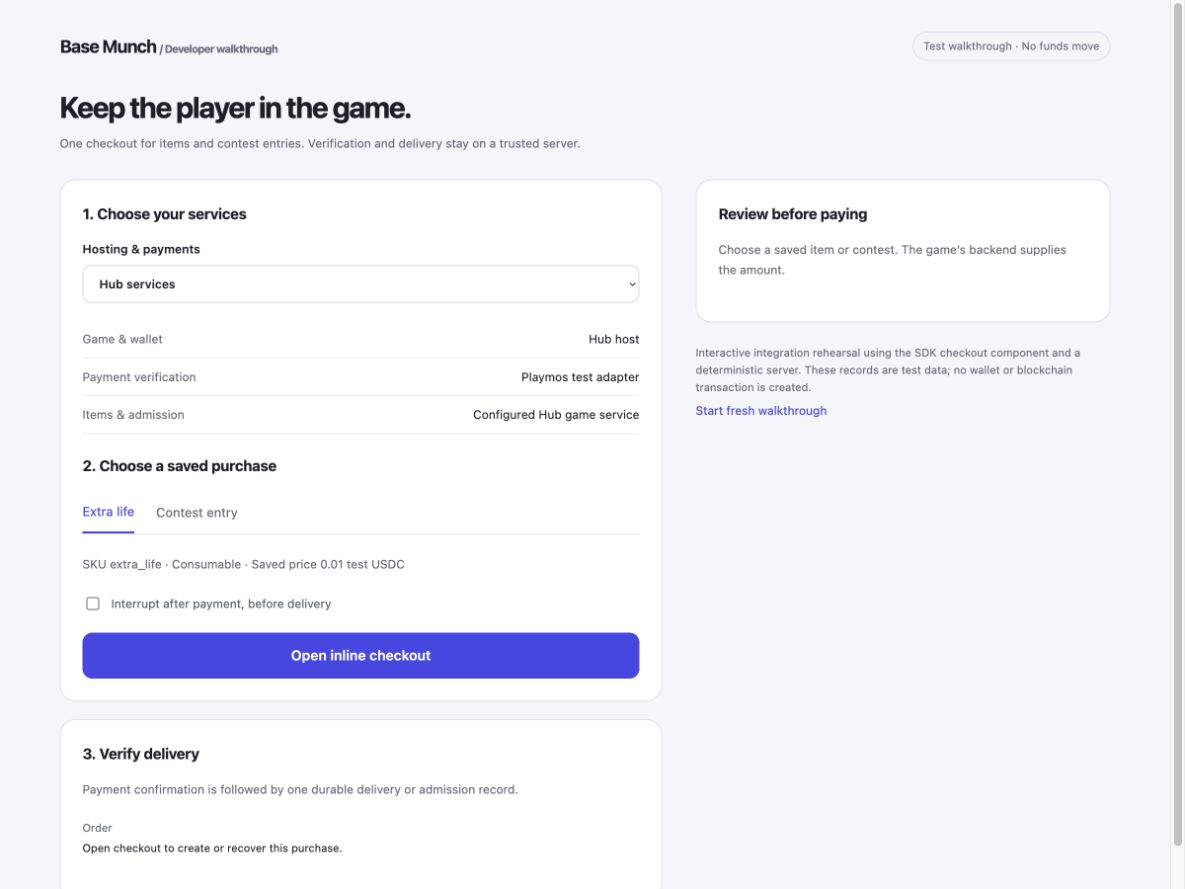](https://playmos.io/images/quickstart/commerce-setup.jpg)1. Choose the services once. Keep checkout inside the game.
- **Save the product or contest.** For Managed IAP, use [Products](https://playmos.io/publisher/commerce) to import CSV / Excel, review changes and save. For your own provider, retain its catalogue. For a contest, save the pool, series or round, entry fee, player and attempt identity on your server. The purchase button sends an item or attempt ID, never an editable price.
[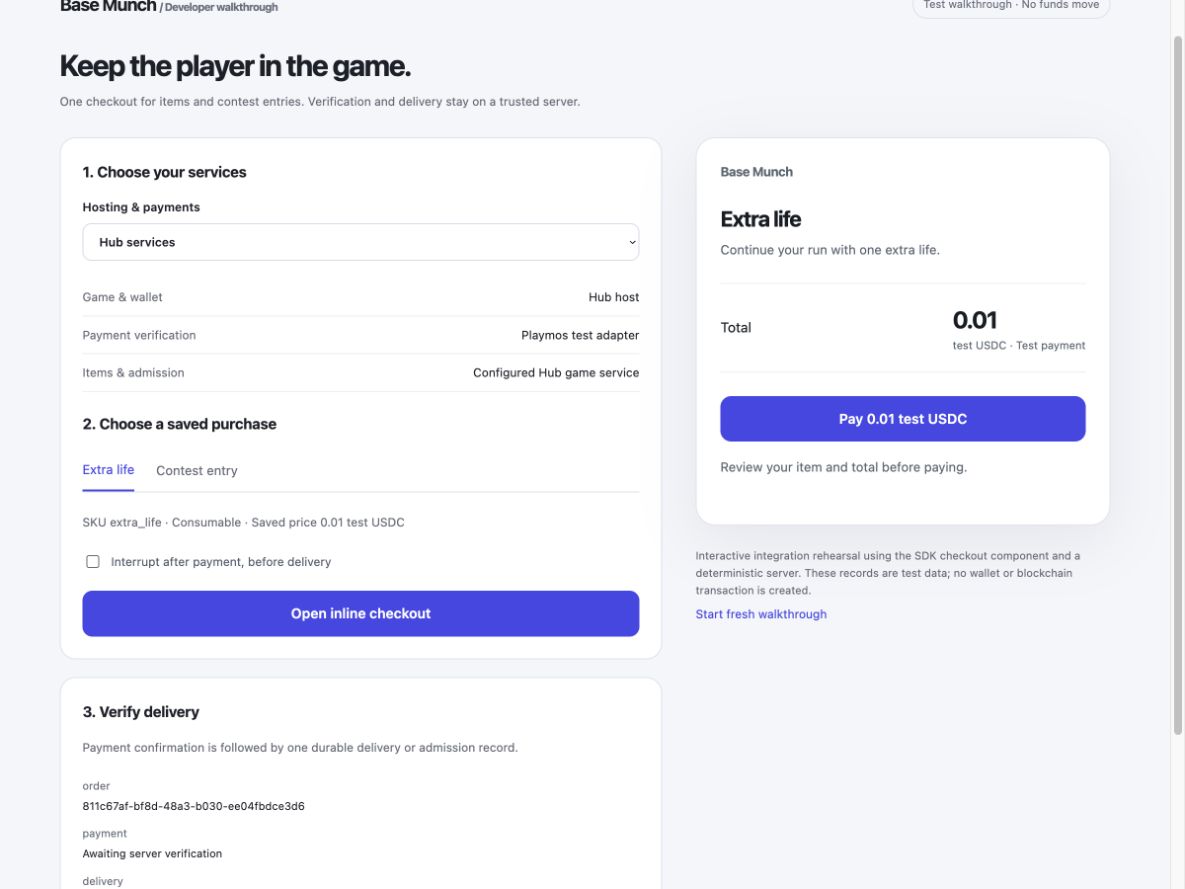](https://playmos.io/images/quickstart/commerce-quote.jpg)2. Show the server’s saved item, price and currency before payment.
- **Connect delivery.** For Playmos plus your server, use the [backend, HTTP and worker helpers](https://playmos.io/#manual-setup). Register the HTTPS callback and verify its original signed body. For your provider, use the [custom-provider adapter](https://playmos.io/docs/examples/checkout/custom-provider.mjs). The backend freezes the quote, authenticates the player, binds the payment before signing and atomically records delivery. Manual completion and callbacks share the same ledger.
[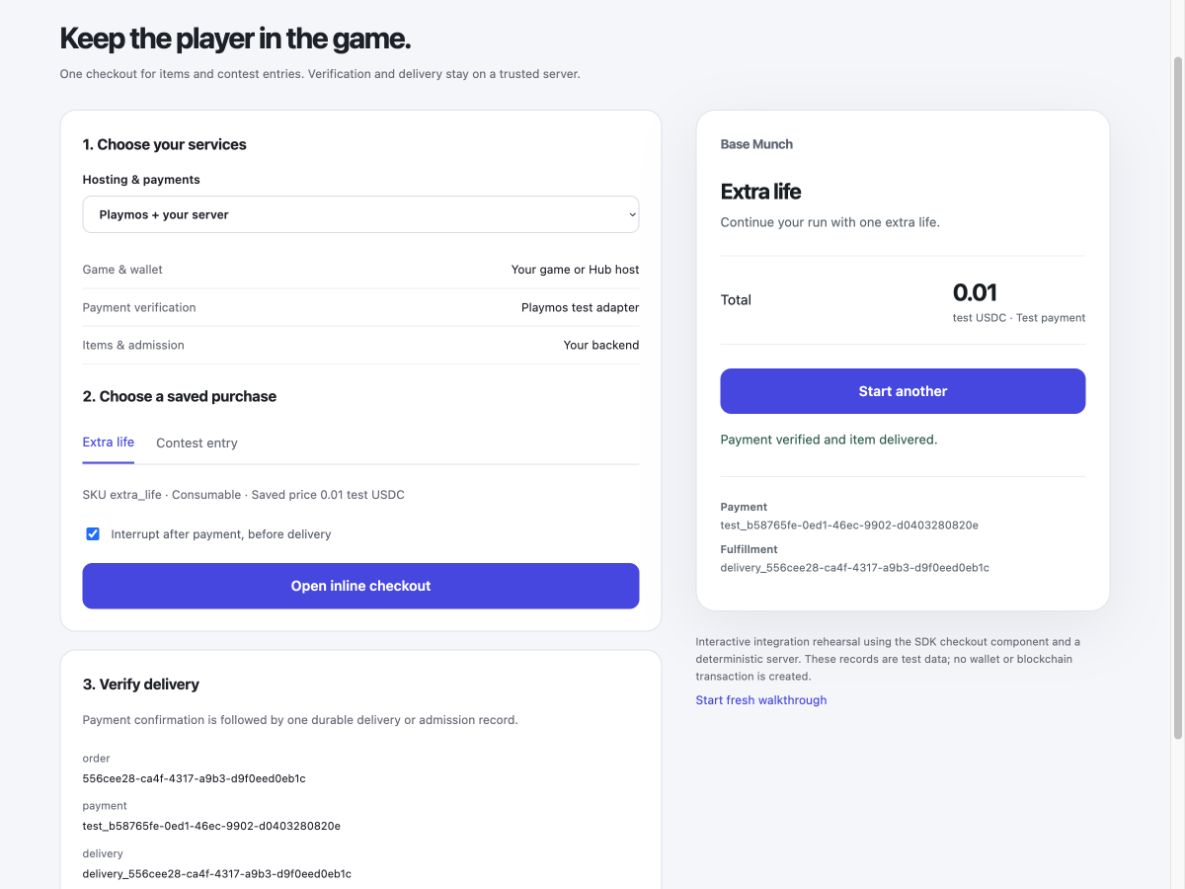](https://playmos.io/images/quickstart/commerce-delivery.jpg)3. A payment and an inventory grant are separate records. Complete checkout after delivery.
- **Test one complete checkout.** Review the total and select Pay once. Keep the saved order through wallet signing and payment verification. An item ends with a delivery reference; a contest entry ends with server-verified admission to that exact attempt. Never unlock gameplay from the browser’s payment-success callback.
[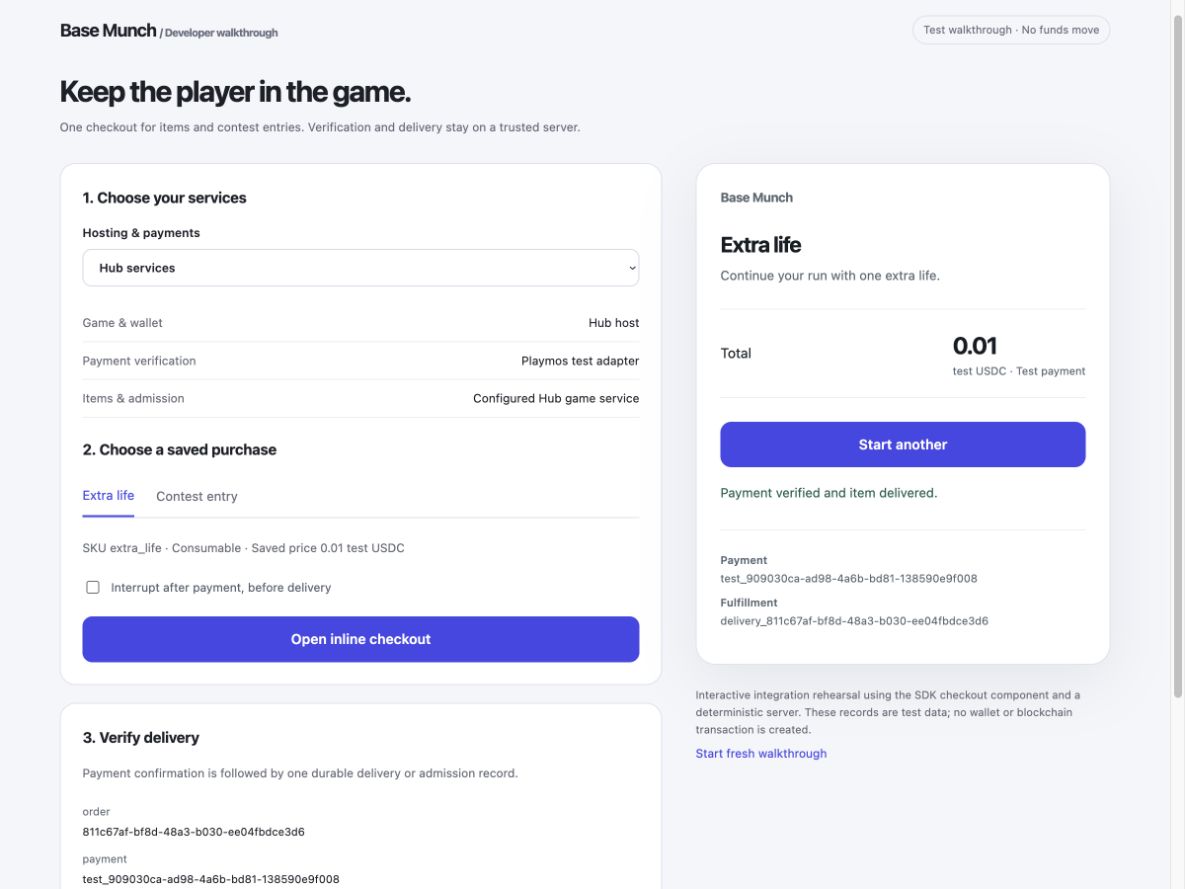](https://playmos.io/images/quickstart/commerce-complete.jpg)4. Return to the game only after your backend acknowledges delivery or admission.
- **Interrupt it and recover.** Reload while payment is pending, check the same saved order and replay the callback. You must get one payment and one delivery. Test a cancelled wallet, insufficient funds, an expired quote, a different player, a wrong amount, callback delay and server outage. Keep uncertain payments pending; do not ask the player to pay again.
[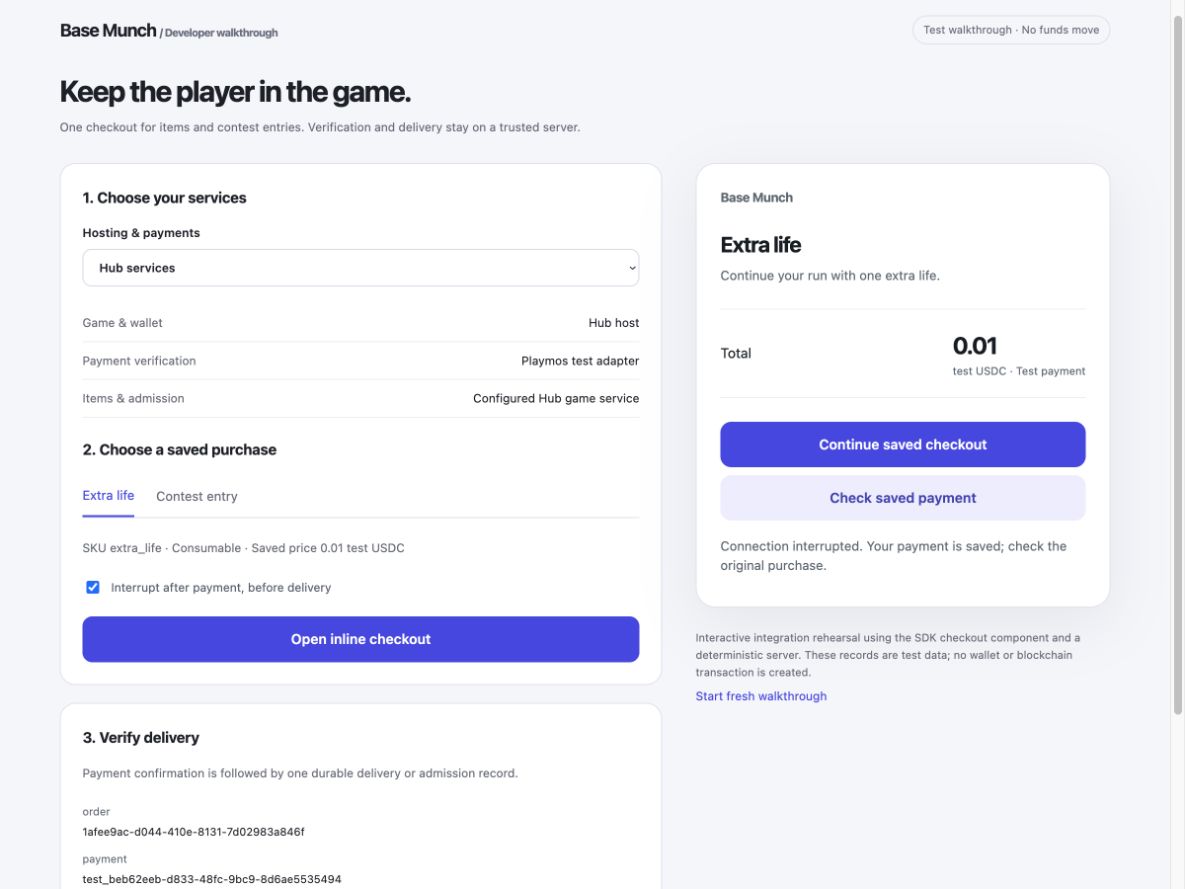](https://playmos.io/images/quickstart/commerce-recovery.jpg)5. Check the original purchase after an interruption. A retry must not charge again.
## Contest payments use the same checkout
Use [the Playmos contest adapter](https://playmos.io/docs/examples/checkout/contest-entry.mjs) for a registered Playmos round, or the custom adapter with `kind: 'contest-entry'` for your own server/provider. Your backend freezes and verifies the original round or epoch, pool, identity, payer, currency and fee. Keep legacy rounds and epoch series separate. It must reject an attempt for another round even if the payment is genuine.
[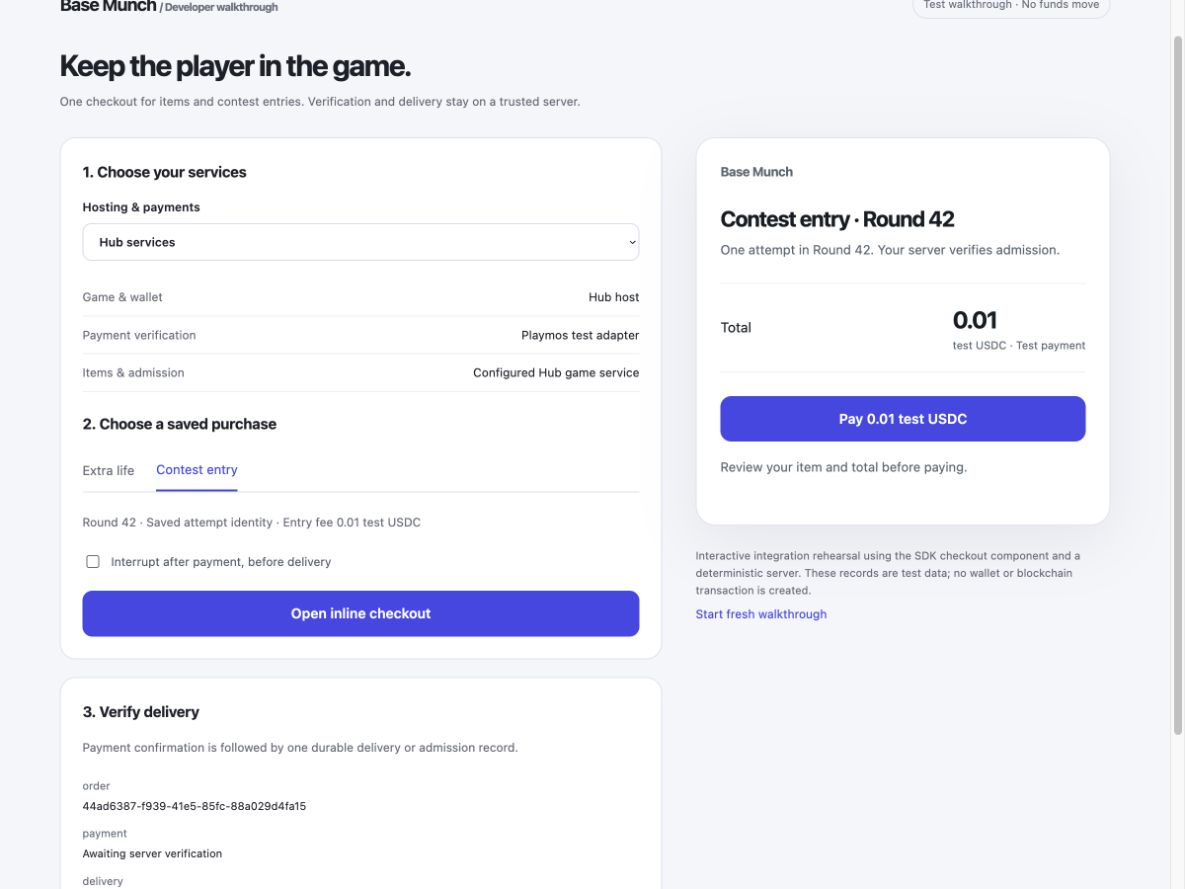](https://playmos.io/images/quickstart/commerce-contest.jpg)Contest entry: show the round and fee, then wait for verified admission.
**Admission is the first checkpoint.** Also test trusted scoring, round close, settlement and the winner’s actual payout or withdrawal. A payment receipt or leaderboard row does not prove a prize was transferred. [Contest setup and settlement →](https://playmos.io/docs/contests)
## Watch the variations
These short, silent walkthroughs use the actual checkout component with a deterministic test backend. They demonstrate integration and recovery without moving funds. The separate [Base Sepolia receipts](https://playmos.io/#payment-evidence) show real testnet payment evidence.
Hub services: item purchase, contest admission and retry recovery. [Download video](https://playmos.io/videos/checkout/hub.mp4)Self-hosted provider: item purchase, contest admission and retry recovery. [Download video](https://playmos.io/videos/checkout/external.mp4)Playmos + your server: item purchase, contest admission and retry recovery. [Download video](https://playmos.io/videos/checkout/mixed.mp4)
## Prepare once for Apple and Google
Keep one internal SKU and map it to the App Store product ID and Google Play product ID. The catalogue editor already stores these optional mappings. Select the provider for the distribution channel; a native store price and currency come from that store. Do not convert a store receipt into a USDC transaction or assume web checkout is permitted in every store or region.
| Keep stable | Add in the native adapter |
| --- | --- |
| Game, signed-in player, internal SKU, product type, order and delivery ledger | Apple StoreKit purchase or Google Play Billing purchase; provider-specific product ID, environment and transaction identity |
| Server verification before delivery; atomic replay protection; pending and recovery UI | Verify Apple-signed transactions or Google purchase tokens on the trusted backend; bind them to the authenticated account |
| Restore permanent ownership and reconcile refunds without a second grant | Store notifications, cancellation/revocation handling and store-required finishing, acknowledgement or consumption after delivery |
**Native store checkout adapters are not available yet.** Product mappings and the provider boundary prepare the integration; Apple/Google sandbox purchase, recovery, restore and notification tests remain required before claiming support. Contest eligibility and payment rules require separate store review; a reusable adapter does not make paid contests automatically eligible.
Follow [Apple’s transaction verification and finishing guidance](https://developer.apple.com/documentation/storekit/transaction), [App Store Server Notifications](https://developer.apple.com/documentation/appstoreservernotifications) and [Google Play Billing verification and acknowledgement guidance](https://developer.android.com/google/play/billing/integrate) when implementing those adapters.
## Choose your checkout experience
Use Playmos Managed IAP with your fulfillment server, or keep your existing checkout and provider. The SDK offers a compact checkout interface or hooks for your own game UI. It prepares a saved server quote before payment, retains interrupted purchases and waits for trusted fulfillment. It does not require a second Playmos catalogue when your provider manages IAP.
Install `@playmos/sdk@0.3.38` and import `@playmos/sdk/checkout`. Choose the example that matches your backend, replace the game and product details, and connect your existing session.
- [Playmos payments + your fulfillment server](https://playmos.io/docs/examples/checkout/playmos-iap.mjs): use the provided checkout with your wallet and the authenticated routes above.
- [Your checkout + your payment provider](https://playmos.io/docs/examples/checkout/custom-provider.mjs): keep your existing catalogue and server; no Playmos payment credentials are needed.
- [Contest entry](https://playmos.io/docs/examples/checkout/contest-entry.mjs): save the exact round and player identity, then wait for your server to verify admission.
Use `mountCheckout` for the provided interface, or `prepare`, `pay`, `check` and `startNew` with your own UI. [Integration guide and backend contract →](https://playmos.io/docs/examples/checkout/README.md)
For the Playmos path, save the first module as `playmos-iap.mjs`, add `` to your page, and call it after sign-in and wallet connection:
~~~
import {showPlaymosPurchase} from './playmos-iap.mjs';
const view = await showPlaymosPurchase({
root: document.querySelector('#checkout'),
provider: walletProvider, // Your connected Privy or EIP-1193 provider.
publishableKey: 'YOUR_STUDIO_PUBLISHABLE_KEY',
gameId: 'YOUR_GAME_ID',
playerId: session.playerId,
sku: 'extra_life',
title: 'Extra life',
});
// Call view.dispose() when leaving this screen.
~~~
[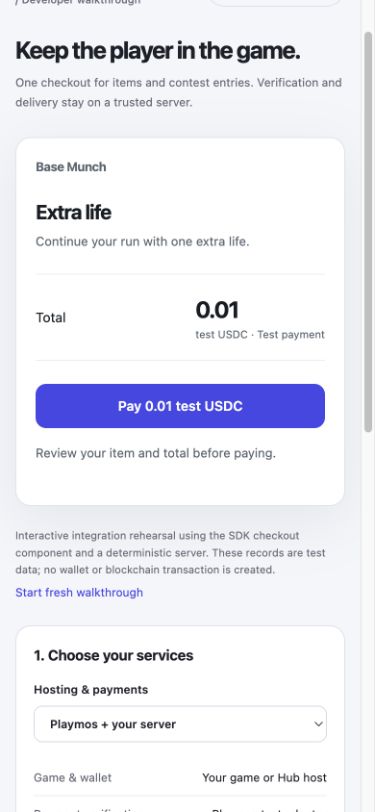](https://playmos.io/images/quickstart/commerce-phone.jpg)Purchases: review the saved quote, then pay.[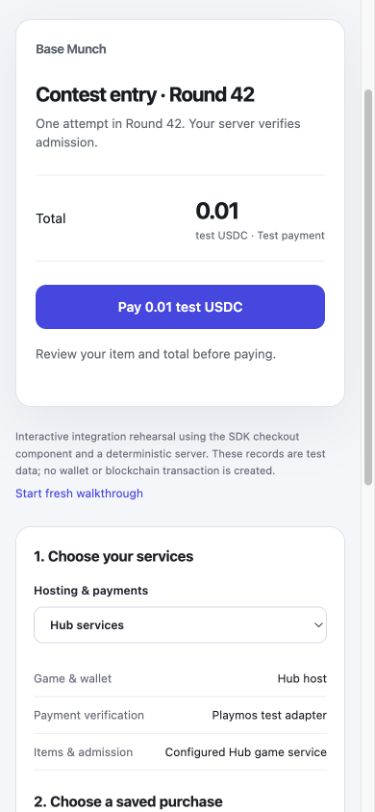](https://playmos.io/images/quickstart/commerce-phone-contest.jpg)Contests: pay for admission to the original round.
Inside the Hub, the trusted parent keeps the wallet; an embedded game requests an allowed product or contest. Standalone games supply their own wallet or provider. Your backend owns session identity, payment verification and fulfillment in either case. Keep wallet access in the host and verify fulfillment on your server before returning the player to the game.
## From the game to payment and back
- Open Shop or Contest inside the game. The game requests a registered item or competition; the Hub owns wallet connection and checkout.
- Review the saved product, price and test network. If needed, connect your wallet as part of checkout. The game stays in place.
- Approve in your wallet. A compatible batching wallet executes token permission and payment together. The first payment can include account authorization; a separate setup screen is not required. Wallet software may still show more than one approval.
- Wait for your trusted backend to verify the receipt and grant the item or admit the attempt once. Return to the game with the result.
Canceling before submission grants nothing. If a payment might have been submitted, keep its original order and check status. Only a definite rejection before broadcast can offer payment retry for that same intent. Your game must never treat closing a wallet window, a callback or a browser success message as admission.
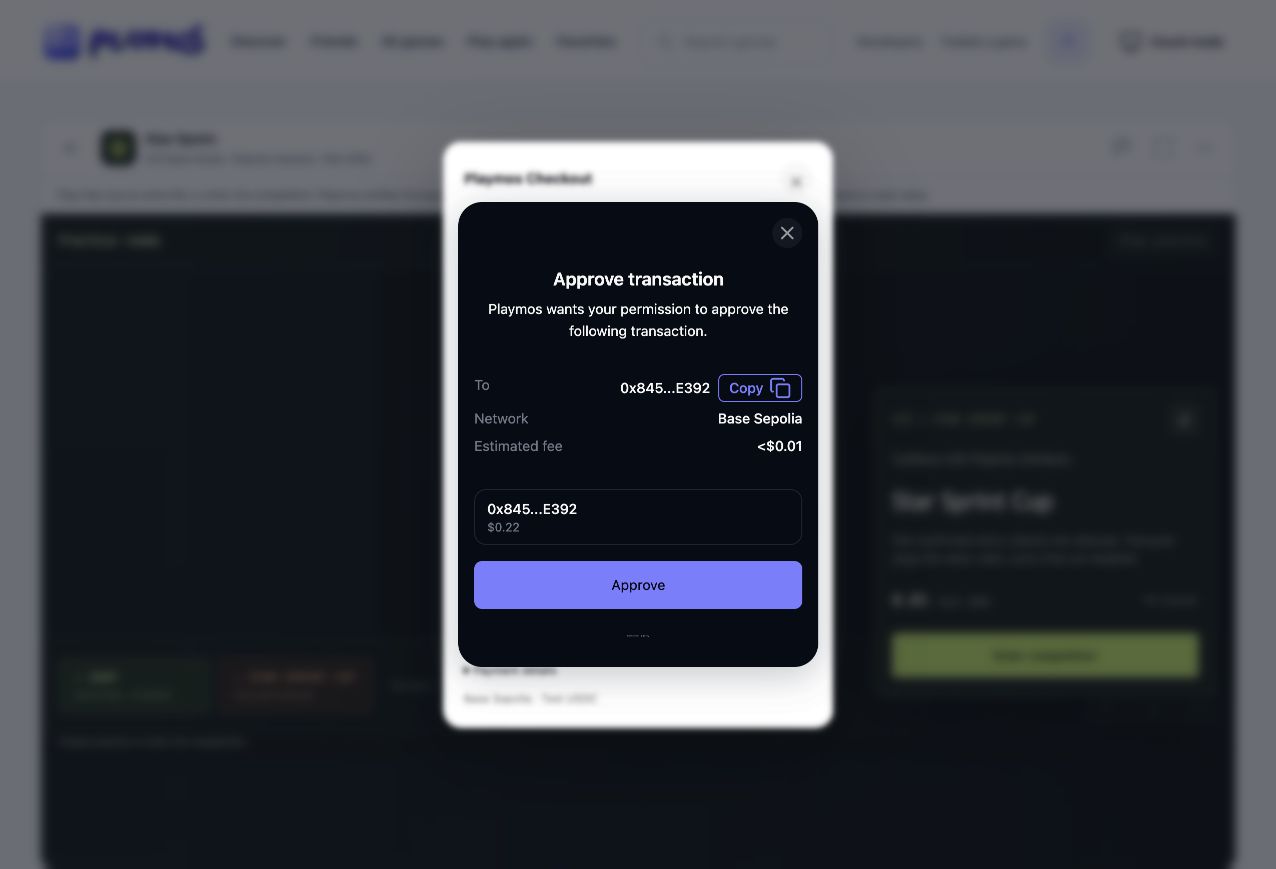Wallet approval stays over the running game.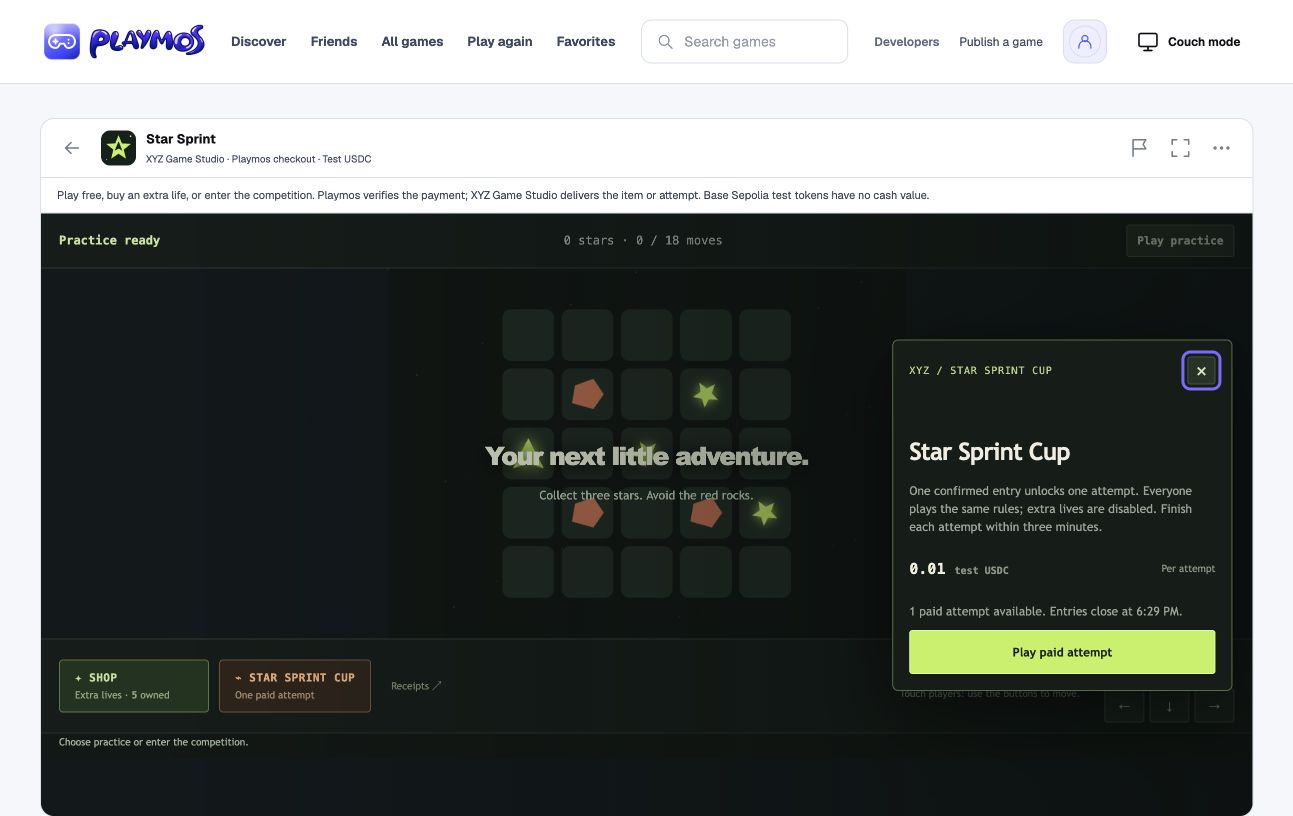Verified admission unlocks play; the competition has a closing time.
## Paid replay without carrying entries forever
For replayable contests, your server blocks another entry purchase while a run is active or an unused paid attempt is available. After finishing, the player may buy another attempt until the competition closes. Bind admission to the exact competition and its server-owned closing time. Unused entries expire at closing and cannot unlock a different competition; keep their receipts in history. Recheck the deadline before wallet signing, even for an old quote. Restore active runs after reload and release expired sessions. An already started run follows the published bounded completion and scoring policy.
The Star Sprint example uses these rules with configurable competition duration and bounded attempts. These admission checks do not settle a prize pool or prove winner payouts. Define how late-confirmed payments are admitted or refunded in your contest terms.
## Testnet payment evidence
On October 26, 2026, a fresh public SDK sandbox purchase of **0.01 test USDC** returned `confirmed` and `verifiedVia: 'chain'`. A separate Base Sepolia RPC read confirmed the successful transaction and USDC transfers. [Inspect the IAP transaction →](https://sepolia.basescan.org/tx/0xf1ec6702017053228f3ccd7e51f96deea532dfb12ff36e1b9d7d152265fd9046)
[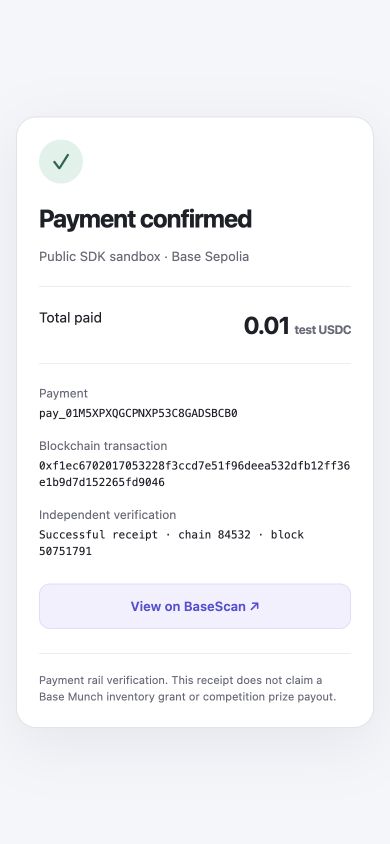](https://playmos.io/images/quickstart/testnet-payment-receipt-phone.jpg)Payment `pay_01M5XPXQGCPNXP53C8GADSBCB0`. Payment-rail evidence, not a Base Munch inventory grant.
A separate **0.01 test USDC** entry through the public Base Munch SDK sandbox also returned confirmed; an independent contract read returned `hasEntered: true` for the exact saved round key and identity. [Inspect the entry transaction →](https://sepolia.basescan.org/tx/0x5d0ea4d7ec0372caa37594418879fd2223cfcb35cd6f91a65b1011a504398f66)
On October 27, 2026, Star Sprint in the local Hub completed a real Privy-funded entry using the same saved payment after recovery: one Base Sepolia type-4 transaction contained USDC approval and contest entry. An independent chain read and the game backend verified admission. [Inspect the atomic Star Sprint entry →](https://sepolia.basescan.org/tx/0x88b668fe549dd62cae7a9282616d0db122e235435c85e540589b3c9b945f047b). This proves the local Hub bridge and testnet admission, separately from hosted-account rollout and prize distribution.
These public sandbox receipts prove the payment rail and entry admission. Your own studio’s catalogue, hosted game fulfillment, authoritative scoring, contest settlement and actual winner payout or withdrawal must pass separately before release.
Product registration and manual backend setup
## Choose who manages your purchases
**Managed IAP is optional.** Use Playmos when you want us to register purchasable products, process payments and verify their blockchain receipts. If your own backend or another provider already manages IAP, keep that integration; you do not need a second catalogue in Playmos.
| Your path | What to do |
| --- | --- |
| Playmos Managed IAP | Register the products you sell through Playmos. Use our checkout and receipt verification; connect fulfillment to your backend or a supported managed game service. |
| Your existing IAP backend / provider | Keep your product catalogue, checkout, server verification and fulfillment there. Skip this workspace and its catalogue. Playmos does not automatically verify or import purchases made outside its IAP integration. |
Having a server does not force either choice. You can host your own game backend and still use Playmos for payments. If you choose Playmos checkout, its products must be registered with Playmos.
## Why register an item in Playmos?
The payment server needs a trusted record of the SKU, price, currency and availability so it can reject altered purchase requests. A browser’s price label is not payment authority. Your game separately needs to know what `extra_life` does: its icon, description and the gameplay effect to grant.
**Keep the same SKU in both places, not two hand-maintained price lists.** Import your existing catalogue or publish it from your build tools through the API. Read Playmos’s catalogue for shop prices and availability. Keep gameplay effects in your game. Freeze the quoted terms with each server-side order so a later price edit does not change a purchase already in progress.
For example, Playmos records that `extra_life` costs 0.01 test USDC. Your game maps that same SKU to one extra life. After payment verification, trusted fulfillment code adds the life once. The game can display the server’s price rather than storing another editable copy.
## What Playmos manages — and what your game manages
Playmos handles its payment records and chain verification, so your game does not need to build a blockchain receipt indexer for this path. Your trusted fulfillment code still authenticates the player, matches the order and grants the right item once. A confirmed payment is not an inventory grant.
No backend yet? Choose a supported managed game service and verify its fulfillment capability for your build, or deploy the backend helper below. Saving a catalogue or uploading a browser ZIP does not deploy a custom server or automatically grant inventory. Privy supplies a wallet; it does not replace the product catalogue, payment verification or fulfillment.
## Manual setup · your own tools and server
No agent or MCP is required. This is the same Playmos Managed IAP service used by the dashboard; you can configure and integrate it entirely from your own project. Self-hosting your game backend does not self-host the Playmos payment service.
- **Prepare studio test credentials.** Follow [manual studio setup](https://playmos.io/docs/studio-setup#keys), configure the payout wallet and keep its secret in your server’s environment. Only the publishable key belongs in the game.
- **Register products.** Install `@playmos/sdk@0.3.38`. Save the example as `setup-iap.mjs`, edit the game name / external ID and item to match your game, then run `node setup-iap.mjs`. Retain the returned game ID. The sandbox alias uses your studio’s configured test rail.
~~~
import { Playmos } from '@playmos/sdk';
// Run on your server or workstation, never in a browser or uploaded ZIP.
// Set PLAYMOS_SECRET_KEY securely in the process environment; do not log it.
if (!process.env.PLAYMOS_SECRET_KEY?.startsWith('sk_test_'))
throw new Error('Set your studio test secret key.');
const client = new Playmos({ apiKey: process.env.PLAYMOS_SECRET_KEY,
apiBaseUrl: 'https://api.test.playmos.io/v1', network: 'base-sepolia' });
// Reuse your existing external ID. Keep it stable when rerunning this script.
const game = await client.commerce.registerGame({ externalId: 'my-game',
name: 'My game', sourceGameId: 'game_sandbox_iap' });
const catalog = await client.commerce.catalog(game.id);
// Reuse the SKU from your game. Keep other products; update only this one.
const item = { sku: 'extra_life', name: 'Extra life', description: 'One extra life',
amount: '0.01', type: 'consumable', active: true };
const existing = catalog.products.find(product => product.sku === item.sku);
if (existing && existing.type !== item.type)
throw new Error('Saved product types cannot change. Use a new SKU.');
const products = catalog.products.filter(product => product.sku !== item.sku);
products.push({ ...existing, ...item });
const saved = await client.commerce.saveCatalog({ ...catalog, products });
console.log({ gameId: saved.gameId, revision: saved.version, sku: item.sku });
// A stale revision (409) requires a fresh read and review, not a blind overwrite.
~~~
For a larger catalogue, load your existing server-side product export into the same `products` array; keep one source of truth. Read `catalog(gameId)` before `saveCatalog(...)` and preserve products you are not changing. Archive with `active: false`; saved SKUs and types remain fixed for receipt history. On `409`, reread and review the changes before retrying.
- **Host your order and fulfillment routes.** Download the [Node backend helper](https://playmos.io/docs/examples/iap/playmos-store.mjs). Replace `YOUR_GAME_ID`, set `PLAYMOS_SECRET_KEY` securely (the studio setup guide calls the same server secret `PLAYMOS_SECRET`) and persist `PLAYMOS_ORDER_DB`. Use the [Node HTTP adapter](https://playmos.io/docs/examples/iap/playmos-store-http.mjs) for the order, completion and callback routes. Set `APP_ORIGIN` to your game’s exact origin and `SESSION_MODULE` to an absolute module path exporting `playerFromRequest(request)`; resolve your existing signed session to its player ID, or return `null`. Start `node playmos-store-http.mjs` behind your HTTPS reverse proxy. The adapter binds to loopback, rejects cross-origin player requests and never trusts a player ID in the body. Adapt the helper’s inventory transaction to your database.
- **Connect your game.** Download the [browser helper](https://playmos.io/docs/examples/iap/playmos-buy.js), replace the game ID, SKU and publishable key, and bind it to your buy button and wallet provider. Prices come from the saved server quote. For Privy, use the optional [React wrapper](https://playmos.io/docs/examples/iap/playmos-privy.jsx) inside your configured Privy provider.
- **Recover missed completions.** Register your external HTTPS endpoint using the [manual webhook instructions](https://playmos.io/docs/webhooks#setup-details). Pass the raw body and signature to `receivePlaymosWebhook`, keep its signing secret on the server, and run the [recovery worker](https://playmos.io/docs/examples/iap/playmos-store-worker.mjs) with `node playmos-store-worker.mjs`. Use the same persistent database and environment as the server. Register `https://your-server.example/api/store/webhook`; the adapter passes the unmodified body to the signature verifier. Webhooks and manual completion share the same grant ledger.
- **Test the whole purchase.** On Base Sepolia, buy one saved SKU and check that the server verifies it and grants once. Reload after interrupting checkout; recover the same order. Replay completion and a webhook; the inventory must not increase twice. A wrong player, SKU or amount must never grant. See [receipt verification and recovery](https://playmos.io/docs/payments).
## Using your existing IAP server instead
Skip Playmos catalogue registration, `createPlaymosIapProvider` and these Playmos-specific helpers. Keep the purchase button connected to your current backend/provider. That backend owns the trusted products and prices, authenticates orders, verifies receipts with its provider or chain, and records one atomic inventory grant per payment. Do not send another provider’s receipt to Playmos’s verifier.
For a direct blockchain integration, your server must verify the intended chain, contract, recipient, asset, amount, successful receipt and confirmation policy, then bind that payment to the stored player/order and prevent reuse. A client-supplied transaction hash or wallet signature alone is not proof of payment. Test cancellation, pending receipts, RPC outages, reloads and duplicate callbacks before release.
This describes bringing your own IAP backend. It does not provision a self-hosted Playmos payment service or automatically connect an external checkout to Hub purchase history. Game review and release requirements still apply.
**Ready when…**
Your studio-owned purchase delivers one item, your paid attempt admits the correct player and round, and both recover without a second charge. Verify contest scoring, settlement and winner payout separately.
## If it did not work
Pending means check the saved payment again. Do not create a replacement charge to resolve uncertainty.
**Try one variation** Repeat completion for the saved payment. Explain why inventory must stay unchanged.
[Continue with the next guide →](https://playmos.io/docs/browser)
---
# Bring your game to Playmos.
Try it first
## Prepare one build for review
**You need** An existing browser export and permission to edit your studio game.
- From My Games → Add a game, enter the details, select a browser ZIP and choose Create & test game.
- Test the exact uploaded version on desktop and a real phone.
- Open Review & release to follow the submitted build review and resolve requested changes.
**Check your result** You can identify the reviewed build and its review state. Approval alone does not publish it.
Already have a browser game? Keep your engine, source and development tools. Upload a ZIP or test your existing URL, play it in the portal, then follow review and release. No agent required.
For Unity, export a Web/WebGL build and ZIP the exported folder with its HTML entry, Build and TemplateData assets. Uncompressed assets, gzip, Brotli and Unity decompression-fallback files are supported. Keep the generated filenames together; do not upload the Unity editor project or a desktop executable.
[Add your game →](https://playmos.io/publisher/game/new) [Test a game URL →](https://playmos.io/publisher/developer?tab=game&source=url)
## 1. Bring a playable game
| You have | Start here | Release path |
| --- | --- | --- |
| A browser build folder | Open My Games → Add a game. Enter a name and description, select the ZIP and choose Create & test game. To upload later, choose Create draft. | Playmos hosts the reviewed client build. |
| A game already hosted at a URL | Open Developer tools → Use a URL. Paste the playable page URL, not iframe HTML. | URL testing is available now. New external runtime publication needs Playmos configuration and review; a simulator connection does not create a listing. |
| A game already on Playmos | Open its game project for a replacement ZIP, or Apps & versions → Manage game for a configured-runtime update. | Keep the existing version active while its replacement is reviewed. |
**For a ZIP:** export your engine’s browser/WebGL build. Put `index.html` at the ZIP root and keep asset paths relative. Upload client files only; keep servers, private keys and databases on your own backend. See [build limits and supported files](https://playmos.io/docs/hosting#artifact) and [engine integration](https://playmos.io/docs/engines).
**For an iframe:** serve the game on a separate origin from the portal. Use HTTPS for hosted builds; HTTP is supported only on localhost for development. Your server’s `Content-Security-Policy: frame-ancestors` and `X-Frame-Options` must allow the actual portal origin. If the frame is blank, check the browser console and these response headers. A page opening in a browser tab does not prove it permits embedding.
## 2. Play the exact build
- For an uploaded ZIP, open the game’s **Upload & test** tab and preview the uploaded build. Or open [Developer tools → Upload ZIP](https://playmos.io/publisher/developer?tab=game&source=packages), choose your game draft and select a build.
- For a hosted URL, open [Developer tools → Use a URL](https://playmos.io/publisher/developer?tab=game&source=url), enter the URL and select **Connect game**.
- Choose **Phone** and **Desktop**. Play from start to finish, check touch and keyboard controls, win/loss, replay, loading, audio and layout. Confirm assets and any backend requests work inside the frame.
- If you use integration events, open **Activity & diagnostics**. The adapter instructions are under **Connect an older game or add simulator events**. Missing events do not by themselves mean the game is unplayable; a frame loading does not prove SDK integration.
**Start with free play.**
Free practice does not need a wallet, paid contest or payment receipt. It is a complete free-game release mode. The simulator does not fund wallets, grant paid admission or publish your game.
## Testing on testnet: which test do you need?
| Goal | Where to go | What proves it worked |
| --- | --- | --- |
| Play my game in the portal | [Developer tools → Use a URL](https://playmos.io/publisher/developer?tab=game&source=url), or Upload ZIP for an uploaded game. | A completed playthrough of the chosen build at the target screen sizes. No blockchain transaction is needed. |
| Try an SDK payment | [Your first payment](https://playmos.io/docs/quickstart), then [SDK playground](https://playmos.io/docs/playground) in Base Sepolia mode. | The same saved payment ID verifies with chain provenance and a transaction hash. Offline/mock mode is a simulation. |
| Connect my own payment backend | [Manage → Keys & webhooks](https://playmos.io/docs/studio-setup#self-service); use studio test keys and server-side verification. | Your backend verifies the expected player, product and amount, then grants once. Keep secret keys off the client. |
| Test contest rules | [Contest testing](https://playmos.io/publisher/developer?tab=contests), then the [contest integration guide](https://playmos.io/docs/contests). | A rehearsal shows expected results only. Paid admission and settlement require separate chain and backend evidence. |
Base Sepolia is the test network (chain ID `84532`); payment tests use test USDC. Check **Sandbox readiness** in the console before SDK testing. If a test needs funds or configuration, resolve that requirement first. A successful free preview is not a payment test, and a testnet payment does not enable live payments.
## 3. Submit, review and release
- Open your game project’s **Game details** tab. Save the details. They are included in the build submission; there is no separate listing approval.
- Upload the final ZIP in **Upload & test** and test that exact build. The upload submits that exact build for review and opens its private preview; you do not need to submit the listing separately.
- Open **Review & release** for feedback. Resolve requested changes. If Mo! agent is unavailable, your submitted game is flagged for approval by a Playmos team member. Mo! reviews eligible complete-source game builds and records its decision against the exact build. Issues, unavailable reviews and builds needing human inspection appear in Notifications. Source review does not claim browser playtests or a malware scan. Studio vetting always remains with a live Playmos reviewer.
- When the build is approved and hosting is available, an authorized publisher selects **Publish free practice**. Keep the publication receipt and open the public game link to verify the release.
For a new externally hosted runtime, Playmos must configure and review the integration before publication. For an existing configured game, use **Apps & versions → Manage game → Launch a new version** with its configured build URL and exact SHA-256. Playmos completes release verification before activation. See [the hosted-runtime update guide](https://playmos.io/docs/hosting#existing-games).
Paid contests and IAP have their own integration and approval requirements. Start with a free release if you do not need them. See [updates, restore and withdrawal](https://playmos.io/docs/hosting#updates) for your next version.
## If you get stuck
| What you see | Next action |
| --- | --- |
| No uploaded builds | Save a game draft first, then upload its browser ZIP in Upload & test. |
| Two uploads already in progress | Keep your selected ZIP. The recovery panel appears beside it: wait for active transfers, or choose **Cancel interrupted upload** for one of your own interrupted transfers and retry. Ask a teammate to finish or cancel their own transfer. |
| Preview expired or session ended | Reopen the build preview. For an expired sign-in, [sign in in another tab](https://playmos.io/docs/hosting#session) before retrying unsaved work. |
| Build approved, but no public game | Open Review & release and publish the approved build. Approval alone does not make a game public. |
| Waiting for Playmos | Read and reply in Review & release with the build or URL being reviewed and the blocker. |
## If it did not work
Keep the failed check and build version together; uploading different bytes requires another build review.
**Try one variation** Change one asset in a new build. Explain why the earlier approval cannot approve these new bytes.
[Continue with the next guide →](https://playmos.io/docs/hosting)
---
# Make your first payment.
Try it first
## Run a recovery-safe test payment
**You need** Node 22 and a new folder for this sandbox exercise.
- Install the pinned SDK and save the complete example as t0.mjs.
- Run node t0.mjs and keep .playmos-demo-purchase.json.
- Run it again and compare the payment ID.
**Check your result** The second run verifies the original purchase instead of creating a second payment.
Install the SDK, make a test payment and inspect a real receipt. No wallet is needed for the public sandbox IAP path.
## 1. Install the SDK
~~~
npm install @playmos/sdk@0.3.38
~~~
Examples target SDK 0.3.38. For Node, use a runtime supported by the package’s engines; Node 22 is supported. The browser entry is `@playmos/sdk`. Webhook verification uses the server-only entry.
## 2. Create a payment
Save the complete example as `t0.mjs` in your project. It saves a purchase key before calling `pay()`. The public sandbox key and `settle: 'server'` use the service’s Base Sepolia test signer.
~~~
node t0.mjs
~~~
The runner keeps `.playmos-demo-purchase.json`. After a payment ID exists, running it again verifies that same ID. Keep this file for recovery; intentionally use a new purchase file only for a new purchase.
## 3. Inspect the receipt
Check the payment ID, status, transaction hash and verification source. If verification remains pending or degraded, retry the read; do not create another purchase.
**A client receipt does not grant an item.**
Your backend verifies the payment with its own secret key, matches the expected player, product and amount, then records a single durable fulfillment.
[Run this example](https://playmos.io/docs/playground)
## 4. Connect your backend
Continue with [payment verification](https://playmos.io/docs/payments) and [signed webhooks](https://playmos.io/docs/webhooks). Sandbox requests are bounded and rate limited. Real testnet IAP is capped at 1.00 test USDC per request; the playground defaults to 0.01.
**Wait for the receipt, not a timing estimate.**
Sandbox confirmation time varies. Keep an ID returned in error.detail.paymentId and verify it again. A successful health check, created/cache result or transaction hash alone does not prove a successful payment. A real successful receipt requires confirmed with fresh chain verification.
## If it did not work
After a timeout, keep the purchase file. Verify its saved ID or retry with its original key.
**Try one variation** Rerun the saved example. Explain why its payment ID must stay the same.
[Continue with the next guide →](https://playmos.io/docs/payments)
## t0.mjs · runnable Node example
~~~
import { Playmos } from '@playmos/sdk';
import { randomUUID, createHash } from 'node:crypto';
import { readFile, writeFile } from 'node:fs/promises';
import { pathToFileURL } from 'node:url';
// A local demo purchase file holds no API secrets. Keep it for recovery.
export async function firstPayment(
client = new Playmos({ apiKey: 'pk_test_playmos_sandbox', settle: 'server' }),
purchaseFile = '.playmos-demo-purchase.json',
) {
const mode = client.config.mock ? 'offline' : 'sandbox';
const apiBaseUrl = new URL(client.config.apiBaseUrl || 'https://api.sandbox.playmos.io/v1').href.replace(/\/$/, '');
if (!/^pk_test_/.test(client.config.apiKey) || client.config.network && client.config.network !== 'base-sepolia') {
throw new Error('This exercise requires a publishable test key and Base Sepolia.');
}
if (!client.config.mock && !['https://api.test.playmos.io/v1', 'https://api.sandbox.playmos.io/v1'].includes(apiBaseUrl)) {
throw new Error('This exercise requires a Playmos test API host.');
}
const connection = createHash('sha256').update(JSON.stringify([apiBaseUrl, client.config.apiKey])).digest('hex');
let purchase;
try {
purchase = JSON.parse(await readFile(purchaseFile, 'utf8'));
if (!purchase || typeof purchase.key !== 'string' || purchase.mode !== mode || purchase.connection !== connection) {
throw new Error('Invalid purchase file or mismatched mode / API connection. Keep the original for recovery.');
}
} catch (error) {
if (error.code !== 'ENOENT') throw error;
purchase = { key: randomUUID(), mode, connection };
await writeFile(purchaseFile, JSON.stringify(purchase), { flag: 'wx', mode: 0o600 });
}
if (!purchase.paymentId) {
try {
const payment = await client.pay({
gameId: 'game_sandbox_iap', amount: '0.01',
sku: 'extra-life', playerId: 'sandbox-player',
idempotencyKey: purchase.key, settleTimeoutMs: 45_000,
});
purchase.paymentId = payment.id;
} catch (error) {
const id = error.detail?.paymentId;
if (typeof id !== 'string') throw error;
purchase.paymentId = id; // The service created it before the timeout.
}
await writeFile(purchaseFile, JSON.stringify(purchase), { mode: 0o600 });
}
// Rerunning with a saved ID verifies it; it does not create another purchase.
const receipt = await client.verify(purchase.paymentId);
return { mode, receipt };
}
if (process.argv[1] && import.meta.url === pathToFileURL(process.argv[1]).href) {
try {
const result = await firstPayment();
console.log(JSON.stringify(result, null, 2));
if (result.receipt.status !== 'confirmed' || result.receipt.verifiedVia !== 'chain') {
console.error('Not chain-confirmed. Keep the purchase file and run again to verify this ID.');
process.exitCode = 1;
}
// Demo display only. Your studio backend verifies and grants once.
} catch (error) {
console.error(error.message);
process.exitCode = 1;
}
}
~~~
---
# One URL. Your agent can take it from here.
Try it first
## Give your agent a bounded first task
**You need** An agent with access to this project; no secrets in its prompt.
- Copy the integration prompt below into your agent.
- Ask it to inspect the current project and available SDK capabilities first.
- Have it return a runnable test and describe the remaining setup.
**Check your result** You can run the change yourself and identify which results are simulated or testnet verified.
## Add purchases to an existing game
Start with [Add IAP](https://playmos.io/docs/iap-quickstart.md) and [the focused IAP skill](https://playmos.io/skills/playmos-iap/SKILL.md). Public MCP provides `playmos_get_iap_guide` and `playmos://guides/in-app-purchases`. Choose Fully Managed, Hybrid Managed or Self Hosted before changing the catalogue or backend.


## AI Studio Game Maker
Bring Your Own Agent, Publish Today!
[Open AI Studio](https://playmos.io/publisher/agent-studio)
**Build with your agent. Play it in Studio.**Connect an MCP-capable agent, iterate on a playable version and submit your chosen build for review. Publication follows the required approvals.
## Soundtracks that travel with your game
Give your agent the audio files. It uploads MP3 tracks through Studio, which checks their hashes and packages the verified audio into the exact game build. The soundtrack works in Studio, shared previews and exports without a local-file picker or an external music host. Start audio on a player interaction and keep volume, mute and track selection in Options.
The upload tool is `playmos_upload_audio_part`. It accepts 256 KiB chunks, up to 8 MiB per track and 48 MiB across 64 tracks per session. Use the returned `playmos-audio:SHA256` reference in an HTML or JavaScript string before pushing the demo. Missing or incomplete tracks block that build; retries with identical bytes are safe. HTML authoring stays within 512 KB, while the frozen artifact includes its audio bytes.
## Test the real share link
Open the Hub’s shared-preview link to test keyboard, touch, audio and your Mo together. Sign in there to use your own saved garage and the services configured for that exact build. Guests can practice. Preview expiry or revocation retires service access too; a link never grants access to another player’s data.
A working preview is not proof of activated race servers. Check service readiness and perform a server-admitted race and restart test before launch. Shared previews cannot purchase items or enter paid competitions.
Give your agent the Playmos web entry point. It can discover the SDK, choose a skill and read the integration guides directly.
START HERE[/llms.txt](https://playmos.io/llms.txt)
A lightweight index of the SDK, skills and guides. No account or Playmos CLI needed to read them.
[View discovery manifest →](https://playmos.io/.well-known/playmos.json)
## AI Studio Game Maker: bring your own agent
Open [Workspace → Agent Studio](https://playmos.io/publisher/agent-studio), start a game and copy its scoped MCP setup into your agent host. Your agent reads the brief, calls `playmos_get_games_framework`, edits the project and returns versioned playable demos. You play and give feedback in Studio. No separate Games CLI is required.
The [Playmos Games guide](https://playmos.io/docs/games) explains the shared runtime, portable Mo and default Hub-hosted services, plus the optional self-hosted interface shim. Browser/Three.js is the current adapter; Unity is planned. The managed-results service is a source candidate awaiting hosted acceptance. Use live capability discovery rather than assuming every service is enabled.
## Agent-native signup and publishing
Connect an MCP client to `/api/mcp` using Streamable HTTP. No repository checkout or token is needed for discovery. Call `playmos_discover` to inspect live capabilities. Tools have validated JSON schemas; onboarding and publication are also exposed as MCP resources and a `build-a-game` prompt.
An AI can create its own account: generate an Ed25519 key locally, call `playmos_begin_account`, sign the returned message, then call `playmos_finish_account`. Keep the private key in the agent host. This creates an agent identity, without claiming human identity or a verified email. Human accounts continue through Auth0 signup.
Use the returned account bearer with `playmos_create_studio`, then use the studio key with `playmos_create_game` and `playmos_connect_game`. The game connection describes discovery, design directives, playable builds and release tools. Use `playmos_invite_publisher` to invite a human; they accept in Studios or Notifications before access begins. Humans can also invite agent usernames with a limited role. Persona editing changes presentation only. An acting-for label requires the human’s explicit acceptance and grants no additional permissions.
The AI can prepare and publish a game through MCP. The exact frozen manifest needs publisher approval and independent Playmos review when required. `playmos_publish_game` returns a real receipt after those gates pass. Runtime configuration, local versus hosted availability and payments are reported separately. Read the [complete agent signup contract and signing example](https://playmos.io/docs/agent-onboarding.md).
## Repository authoring MCP
The stdio MCP package requires access to the [Playmos Hub repository](https://github.com/playmos-labs/playmos-game-hub); it is not a public npm package. If you lack repository access, use Agent Studio’s session-scoped MCP connection in Workspace → Agent Studio.
The local MCP server uses scoped studio access to scaffold a free game, build its SDK integration, freeze assets in Hub quarantine and submit a tested declaration for Playmos review. The publisher can delegate these steps once. Hosted activation remains gated; quarantine is not a published game.
- In the [Developer Console](https://playmos.io/publisher/developer), create an agent connection. Only studio owners can grant it. Choose whether the agent may submit releases and roll back approved versions.
- In your authorized [Playmos Hub checkout](https://github.com/playmos-labs/playmos-game-hub), run `npm ci --workspace packages/agent-mcp --include-workspace-root` with Node 22. The MCP package is currently repository-only, not an npm release.
- Copy the MCP configuration shown with your new key. Replace the server path and game-project directory with your local absolute paths. Keep the key in your agent host’s secret storage; never commit it or put it in the game.
- Ask the agent to read `playmos_get_publishing_guide`, then call `playmos_identity`, then scaffold, build, create the Hub declaration, test its saved rules, upload the exact build and submit it for review. Read `playmos_release_status` before reporting publication.
Keys are bound to one studio, expire, and can be disconnected immediately. They cannot approve their own releases, manage credentials, connect wallets, spend, or use staff APIs. The template collects gameplay events only after the Hub supplies consented player context. Standalone play does not silently opt players in.
The read-only guide is also available through the stdio MCP resource `playmos://guides/game-publication`. It details full free-game publication, exact ZIP/manifest hashes, independent staff review, permanent links, replacement, restore, withdrawal and session recovery. Read live capabilities separately; instructions are not an approval or publication receipt.
**Complete games can be published on Playmos.**
Use the managed browser ZIP workflow in the publisher workspace for full public free games. The mode name practice means no paid contest or IAP, rather than a QA build. Use the stdio convenience tool `playmos_upload_game_zip`, or the shared begin/part/finish upload tools, for the managed ZIP track and `playmos_publish_hosted_build` to activate the exact approved build with publishing scope. The legacy asset upload/release tools concern a different track; do not substitute them for ZIP publication. External studios need independent staff review of the exact ZIP. The configured first-party studio has a narrowly scoped internal-review path for free, no-IAP builds; scan, device checks and exact-build evidence still apply.
Follow [Host and publish your game](https://playmos.io/docs/hosting) for upload, standard listing/share previews, phone/desktop testing, public receipt and anonymous launch checks. Browser sessions last one hour: keep an unsaved editor open, sign in in another tab and retry the save before reloading.
## Browse skills
Each skill is a focused workflow with a name, description and links to the relevant SDK examples. Your agent can read it from the web; saving it in your agent’s skill folder is optional.
[SKILL.md Add IAP to an existing game Add in-app purchases to an existing game using Playmos Fully Managed services, a Hybrid Managed backend, or Self Hosted checkout and processing. Includes the Hub SDK bridge, standalone UI, callbacks and verified fulfillment. Read skill →](https://playmos.io/skills/playmos-iap/SKILL.md)[SKILL.md Integrate Playmos Integrate the Playmos SDK into a web, engine or backend project for shared game services, account identity, owned progression and stablecoin commerce. Read skill →](https://playmos.io/skills/playmos-integrate/SKILL.md)[SKILL.md Verify and fulfill Playmos purchases Implement or review Playmos backend payment verification, retry recovery, webhook handling and exactly-once purchase grants. Read skill →](https://playmos.io/skills/playmos-verify-payments/SKILL.md)[SKILL.md Integrate leaderboard contests Integrate Playmos leaderboard contests with studio-defined entry rules, verified admission, settlement and prize claims. Read skill →](https://playmos.io/skills/playmos-contests/SKILL.md)[SKILL.md Integrate a game through Playmos MCP Build or integrate a Playmos game through MCP Studio with contest-capable source, optional IAP and controllers, configuration tools and executable integration examples. Read skill →](https://playmos.io/skills/playmos-game-integration/SKILL.md)
## Build and release in Agent Studio
[Open Agent Studio](https://playmos.io/publisher/agent-studio), resume or start a game, then copy its agent setup. Coaching starts on; the agent handles discovery. Keep coding and chatting in your agent; playable revisions arrive in the Studio for you to test.
Read `playmos_get_creation_guide` once with `section=start`, then focused sections as needed. The authored playbook covers far-seat TVs, handheld phones, game feel, meaningful replay and Playmos services. Before handoff, use `playmos_get_quality_checklist` for the current build and collect real evidence. Neither tool calls a hosted model or approves a release.
Start with what sounds fun. Your agent helps choose a distinct way to play, fills in the mechanics and visual direction, and builds a small complete game. Coaching develops meaningful choices, skill-based scoring and a reason to try a new tactic on replay. You can keep an existing style or ask for a remix. Playtests establish what players understand and enjoy; automated checks establish technical behavior.
Read `playmos_get_publishing_guide` on this connection too. Your agent can use `playmos_prepare_release` to freeze the latest version and its release settings, then `playmos_get_release` to check progress. A publisher reviews and approves that exact version in the Studio before `playmos_publish_release` can publish it. Choose a playable link alone or a Hub listing.
The local release flow supports self-contained HTML games and free play on an isolated game host. Hosted HTML releases require their own configured origin, persistent artifact storage and independent Playmos review before publisher approval; managed ZIP hosting does not enable that track. Use the returned receipt to distinguish local publication from hosted availability. Withdraw in Studio; restoring HTML requires new publisher approval. Paid competition stays gated on SDK admission and trusted score verification.
## Choose the services your game needs
In Studio, open Game services: Play, Competition, Review. Choose solo or multiplayer and whether the game needs a leaderboard or USDC prizes. Managed hosting is the default; room limits and region live under Advanced. Your agent reads and saves the same draft through MCP using its revision. Missing providers remain launch blockers. Saving neither starts a server nor moves money. These service tools are a source candidate until the matching Hub release and providers are deployed. See [Playmos Games](https://playmos.io/docs/games) for the shared runtime and service boundaries.
## The SDK, directly
JavaScript integrations use [@playmos/sdk@0.3.38](https://www.npmjs.com/package/@playmos/sdk/v/0.3.38). Browse the [SDK reference](https://playmos.io/docs/reference), [browser guide](https://playmos.io/docs/browser), [Unity, Unreal & Godot](https://playmos.io/docs/engines) or [server language guides](https://playmos.io/docs/languages).
~~~
npm install @playmos/sdk@0.3.38
~~~
## How web discovery works
- **Read the index.** [llms.txt](https://playmos.io/llms.txt) links to the skill catalog and SDK docs.
- **Choose a skill.** [The JSON manifest](https://playmos.io/.well-known/playmos.json) lists names, descriptions, skill URLs, SDK version and Markdown guides. This manifest is Playmos-specific.
- **Load only what you need.** Fetch a linked `SKILL.md`, then its guides. [llms-full.txt](https://playmos.io/llms-full.txt) includes all documentation examples when you need the full context.
Every resource is readable without JavaScript or sign-in. Agents need URL-reading capability; automatic skill installation depends on your agent. The website supplies the discovery path and instructions.
**You stay in control.**
Skills guide implementation in your project. Wallet signing, funded spending and production publication require explicit authority. Keep credentials server-side; distinguish local tests from real testnet proof.
## If it did not work
If a tool or capability is missing, keep the existing engine and use the documented manual integration.
**Try one variation** Ask the agent to explain how it verified its result, then run that check yourself.
[Continue with the next guide →](https://playmos.io/docs/games)
## Prompt for your coding agent
~~~
Integrate Playmos into this project.
Start at https://playmos.io/llms.txt and discover the available skills
from https://playmos.io/.well-known/playmos.json.
Read the matching SKILL.md and linked SDK guides before editing.
Inspect my stack and existing purchase flow, then implement
and test the integration. Start with Base Sepolia.
Keep secrets server-side and report what you verified.
Ask for missing studio details. Signing, spending and publishing
require my authorization.
~~~
---
# SDK playground.
Try it first
## Compare simulated and testnet receipts
**You need** A browser; no studio secret or wallet is needed for the public demo.
- Run an Offline request and inspect its simulated response.
- Select Sandbox and run a 0.01 test USDC request.
- Use Verify again on the returned payment ID.
**Check your result** You can distinguish mock output, a pending request and a fresh chain receipt.
Run SDK 0.3.38 in your browser. Start offline, then make a real testnet payment on Base Sepolia.
## Request
IAP · pay → verify
Environment**Offline**No network or transaction**Sandbox**Base Sepolia · test USDCAmount (test USDC)0.010.100.251.00Public sandbox keyPurchase IDGenerated before your first request
Offline mode runs the actual SDK with mock enabled. It does not contact Playmos or move funds.
## Response
No request yet
Run a request to see the SDK response.
## Sandbox service
Checks the real SDK service, independently of the storefront API.
Each request keeps one purchase ID for retries. “New request” creates a separate test purchase. Production fulfillment must happen on your backend after verification.
## If it did not work
Rate limits or degraded reads need a later retry of the same purchase, not a new charge.
**Try one variation** Compare Offline and Sandbox responses. Identify the fields that distinguish simulation from chain evidence.
[Continue with the next guide →](https://playmos.io/docs/stablecoin-quickstart)
## Published SDK
~~~
import { Playmos } from '@playmos/sdk';
export async function sandboxPayment(idempotencyKey: string) {
const playmos = new Playmos({
apiKey: 'pk_test_playmos_sandbox',
settle: 'server', // Base Sepolia only; no player wallet required.
});
const payment = await playmos.pay({
gameId: 'game_sandbox_iap',
amount: '0.01',
sku: 'extra-life',
playerId: 'sandbox-player',
idempotencyKey, // Persist once per purchase. Reuse on retry.
});
const verified = await playmos.verify(payment.id);
return { payment, verified };
}
~~~
---
# One app. One configuration reference.
Try it first
## Configure one game and its services
**You need** A studio-owned game and a choice of managed, self-hosted or hybrid services.
- Confirm the selected app and its unique Game ID.
- Configure browser settings and keep server secrets in your backend or vault.
- Test a purchase and contest entry beside the running game; inspect verification and delivery separately.
**Check your result** Each enabled service has an owner, configuration and a tested integration path.
Start with your selected app in Developer tools → Game setup. Configure only the services your game uses. Keep the same game, studio, environment and player identity through checkout, verification and fulfillment.
## 1. Decide who runs each part
| Mode | Payment processing | Trusted game backend | Wallet responsibility |
| --- | --- | --- | --- |
| Self Hosted | Your processor, or Playmos by explicit choice | Your server creates orders, verifies receipts, grants items and validates scores | Player approves purchases; your authorized operator manages server signing. |
| Hybrid Managed | Playmos Managed IAP / contest payment rail | Your server owns fulfillment and admission; callback server can be yours | Player checkout and studio payout wallets remain separate. |
| Fully Managed | Configured Playmos services | Provisioned services must explicitly support the game’s inventory, admission and scoring | Managed custody needs a configured signing provider; vaulted API keys do not authorize signing. |
Hosting the browser page, processing money, granting inventory and signing server operations are four separate capabilities. The game’s service readiness checks show what is actually configured. An uploaded ZIP or successful payment does not enable the other capabilities automatically.
## 2. App identity and hosting
| Value | Required when | Where it comes from / where it belongs |
| --- | --- | --- |
| App name | Every game | Your studio app record. Visible above the testing tabs. |
| Game identifier / externalId | Creating a Managed IAP app connection | Choose 1–80 letters, numbers, dashes or underscores. Availability is checked within your SDK studio; saving claims it atomically. Keep it stable. |
| gameId / registered SDK game ID | Playmos payment calls | Use the exact server-returned ID. Do not substitute a draft UUID, Studio session ID, product ID or display name. |
| Studio session + build version / buildSha256 | Studio managed credential access | Select the exact saved build. New builds require their own credential binding. |
| Draft ID + package build ID | Uploaded browser game | Your Publisher draft and the uploaded build record. These identify the game release, not its payment rail. |
| entryPath / entryQuery | ZIP hosting | Relative HTML entry file, usually index.html, and optional public launch parameters. No credentials in query strings. |
| Playable URL / selfHostedOrigin | External hosting | Separate-origin HTTPS page. Local HTTP is supported for development. |
| backendOrigins | Uploaded builds calling a backend | Exact HTTPS API origins allowed by the build’s CSP. Never wildcard an authenticated API. |
| Hub / portal origin | SDK checkout bridge or development adapter | Exact parent origin, such as https://test.playmos.io. Your frame-ancestors policy must permit it. |
## 3. Browser-safe SDK values
| SDK value | Required when | Rule |
| --- | --- | --- |
| apiKey: pk_test_… | Playmos payment processing | Publishable key from the same studio as the registered game. An external processor needs no Playmos payment credentials. |
| network: base-sepolia | Test payments | Base Sepolia chain ID 84532. Test USDC has no cash value. |
| apiBaseUrl | Explicit test service routing | SDK API base including /v1, currently https://api.test.playmos.io/v1 on the test Hub. Keep the same environment on client and server. |
| playerId | Each paid order / attempt | Authenticated game player from your server. Do not trust a player ID supplied by an arbitrary browser. |
| wallet.provider | Wallet-funded standalone / parent-host checkout | Your EIP-1193 provider. Embedded Hub games request checkout through createCheckoutBridge; no wallet provider crosses the iframe. |
| wallet.delegatedBatch | Same-address atomic Base Sepolia checkout | Pinned implementation + bytecode hash, payer, chain reads, receipt lookup and authorization hook. SDK batches approval and payment; no sequential fallback. |
| gas.mode / paymasterUrl | Choosing who pays gas | Player-funded gas or an explicitly configured sponsored provider. Never switch payer after uncertainty. |
| services.purchase / services[contest-entry] | Registered Hub checkout host | Declare processing and fulfillment independently. The host registers these capabilities; the iframe does not choose its own authority. |
~~~
npm install @playmos/sdk@0.3.38
~~~
## 4. IAP catalogue and fulfillment
| Value / contract | Required when | Owner and behavior |
| --- | --- | --- |
| sku, name, amount, type, active | Managed IAP product | Payment server catalogue. CSV / Excel import manages these records; the game keeps item effects and inventory logic. |
| catalogVersion | Freezing an order | Server-returned catalogue revision. The saved quote pins the product and amount before payment. |
| App Store / Google Play product IDs | Native store integration | Keep native IDs mapped to the same logical SKU. Native billing, server receipt verification, notifications and restore remain separate provider integrations. |
| order ID + idempotencyKey / requestId | Every checkout | Create and persist before signing. Retry the same order and payment; do not create a replacement on timeout. |
| onIntent / onSigning / onWalletCalls | Wallet checkout recovery | Durably bind the intent, signing uncertainty and wallet batch before the next operation. |
| Create / bind / complete backend methods | Self-hosted or hybrid fulfillment | Authenticated game backend creates the frozen quote, binds its exact payment and verifies before granting once. Route names are yours. |
| Callback URL + webhook signing secret | Webhook delivery | HTTPS receiver on your backend. Verify raw bytes with verifyWebhook from @playmos/sdk/server and X-Playmos-Signature, then deduplicate. A callback acknowledgement is not inventory delivery. |
[Manual backend walkthrough](https://playmos.io/docs/stablecoin-quickstart#manual-setup) · [Checkout variants](https://playmos.io/docs/stablecoin-quickstart#checkout-options) · [Webhook verification](https://playmos.io/docs/webhooks)
## 5. Contests and prize pools
| Value | Required when | Keep it consistent |
| --- | --- | --- |
| poolAddress / prizePool contract | Playmos contest payments | Use your registered pool and its chain. Legacy rounds and epoch series have different APIs. |
| series + epoch OR roundId / roundKey | Your chosen contest contract | Persist the exact server-created round identity. Never mix an epoch ID with the legacy enterRound API. |
| identity / attempt ID | Paid entry | Unique server-owned paid attempt, bound to player, round and payment. Reconcile that same identity before admission. |
| Entry price, round duration / closesAt | Competition rules | Server clock and immutable saved fee. A game’s displayed timer cannot extend admission. |
| Pool, next seed, studio and platform split | Creating a contest series | Third-party default: 60% current, 30% next, 9% studio, 1% Playmos. Playmos game default: 60/30/10. Your saved contract configuration is authoritative. |
| Winner shares + score verifier + settlement operator | Prizes | Trusted backend validates gameplay, ranks accepted scores and locks payouts. A simulation or confirmed entry is not a winner payout. |
| Attempt lifecycle / expiry | Paid replays | No new entry during an active run or unused paid attempt. Paid replay after completion is allowed until closing. Unused entries expire at closing. A running attempt may finish under its server deadline and score in the then-current round. |
[Contest integration](https://playmos.io/docs/contests) · [Pool and series setup](https://playmos.io/docs/pools)
## 6. Server secrets and wallet roles
| Value | Where it lives | What it authorizes |
| --- | --- | --- |
| PLAYMOS_SECRET_KEY | Your backend, or the studio-bound managed vault | Server verification / catalogue administration within the configured SDK studio. Never ship an sk_ key in the game. |
| APP_ORIGIN / SESSION_MODULE | Manual backend example | Trusted application origin and your authenticated session adapter. These are example application environment names, not automatically loaded SDK settings. |
| Webhook signing secret | Receiver secret store | Authenticates raw callback bodies; it is not a wallet key. |
| Player checkout wallet | Player wallet / parent Hub checkout | Pays entry and IAP amounts after approval. Test payer selection does not relink the account. |
| Studio payout address | Studio payment setup | Receives studio revenue on its configured rail. Replacement review does not rewrite old pool sinks or saved orders. |
| Privy appId | Standalone wallet connection, when using Privy | Public connection configuration. Hub games inherit the host’s wallet flow. |
| Privy server credentials / signing authorization | Authorized backend signing provider only | Custodial or delegated server signing. Provision through the provider/vault; never put signing authority in frontend variables. Non-custodial publishers can retain their signer. |
**Environment names are application conventions.**
The SDK consumes explicit configuration objects; it does not automatically read your VITE_ or .env values. Map public values into the browser SDK and secret values into the server only. Wallet custody is independent of where API credentials are hosted.
## 7. Optional services
| Service | Additional configuration | Owner / guide |
| --- | --- | --- |
| JavaScript diagnostics | portalOrigin + development adapter for external URLs | Studio builds and uploaded test previews connect automatically. Error, rejected-promise and console.error / warn reports remain in the current tab; disconnected does not mean error-free. |
| Analytics | Consent, analytics.logger, context, optional meter/exporter | Your browser instrumentation and configured telemetry destination. [Analytics setup](https://playmos.io/docs/analytics) |
| Anti-Cheat | anticheat.transport: begin / checkpoint / submit / get; authenticated run and ruleset | Your trusted game backend. Browser errors or telemetry never verify scores. [Anti-Cheat setup](https://playmos.io/docs/anticheat) |
| Live multiplayer | Session token, input reader, simulation and snapshot/state mapping | Backend provisioned room / session; short-lived player token in memory. [Live setup](https://playmos.io/docs/live) |
| Controllers / Mo / trophies | Registered host bridge, current player/session and game event hooks | Use host-provided capabilities inside the Hub; configure standalone adapters explicitly. [Controllers](https://playmos.io/docs/controllers) · [Mo](https://playmos.io/docs/playmo) · [Game services](https://playmos.io/docs/games) |
| Streaming / media | Configured provider, authorized stream/source and playback/session policy | Backend provisioning and provider secrets; only authorized playback data in the client. [Streaming API reference](https://playmos.io/docs/reference) |
## 8. Verify the complete configuration
- Open the exact game build and confirm the app name and Game ID at the top.
- Check diagnostics are connected; exercise gameplay, cancellation and rejected promises.
- Make one test item purchase. Confirm the same receipt on the payment server and one inventory grant on the game backend.
- Buy one entry, confirm admission, finish the run, then test paid replay and expiry. Pending or cancelled payment must not admit a run.
- Restart / reconnect and recover the original order. Check a real callback separately from browser-only completion.
- Verify the deployed build, network and service configuration before recording or releasing. Store compatibility requires testing native billing and restore separately.
## If it did not work
If a service is unavailable, check its registered Game ID, environment and backend credentials before retrying the saved order.
**Try one variation** Disable one optional service and confirm free play still works without a wallet.
[Continue with the next guide →](https://playmos.io/docs/stablecoin-quickstart)
---
# Set up your studio.
Try it first
## Connect your own studio safely
**You need** Studio credential access and your intended payout address.
- Open Keys & webhooks and create or connect matching test keys.
- Keep the secret and recovery credential on your server; confirm the intended API host.
- Create a studio-owned test purchase and verify it using the matching secret.
**Check your result** The receipt belongs to your studio and no secret appears in game code.
Move from the shared demo to your own test keys, payout wallet and studio-owned receipts.
## Start with the public sandbox
The public IAP key is enough for the [first-payment guide](https://playmos.io/docs/quickstart). It belongs to the demo studio. A payment created with it is not visible to a different studio’s secret key.
Use `https://api.sandbox.playmos.io/v1`, the published SDK’s default Base Sepolia API. Keep key setup, payments, verification and CLI commands on the same API host: different hosts can expose different routes and records. A `pk_test_` or `sk_test_` prefix selects the test network; it does not move records between hosts.
For the Hub publisher workspace, sign in and [create a studio](https://playmos.io/studios) immediately; Playmos reviews each game before publication. SDK key setup below is a separate service configuration.
## 1. Issue your test keys
~~~
curl --fail-with-body -X POST https://api.sandbox.playmos.io/v1/keys \
-H 'Content-Type: application/json' \
-d '{"label":"your-studio","payoutAddress":"0xYOUR_STUDIO_WALLET"}'
~~~
Replace the wallet placeholder with your studio’s actual address. Store `keys.secret` as `PLAYMOS_SECRET` on your backend. Only the publishable key belongs in a browser. Do not commit the response, paste secrets into the playground, or expose them in logs.
## 2. Set your payout wallet
If you minted without `payoutAddress`, configure it with the server-only `payouts.setAddress` helper or the server API before creating studio IAP payments. A later wallet change remains pending until independent approval; the active recipient stays in use until approval.
~~~
curl --fail-with-body -X POST https://api.sandbox.playmos.io/v1/studio/payout \
-H "Authorization: Bearer $PLAYMOS_SECRET" \
-H 'Content-Type: application/json' \
-d '{"address":"0xYOUR_STUDIO_WALLET"}'
~~~
## 3. Keep payment and verification in the same studio
Create a new payment using your publishable test key, then verify that ID with your matching server secret. The service maps the `game_sandbox_iap` catalog alias to the studio’s own demo game on this setup path. Keep the returned resource IDs; do not assume aliases are the final IDs.
**Portal login and SDK keys are separate.**
The publisher workspace exists in the Playmos portal. Its demo login does not mint SDK credentials or configure a payout wallet. The SDK service uses the HTTP setup above. There is no public POST /v1/games provisioning route.
## What belongs where
| You configure | Where |
| --- | --- |
| Managed IAP SKUs, prices and availability | Playmos payment service. Import or sync from your existing catalogue. |
| Item effects, player orders and inventory grants | Your game and trusted fulfillment backend. |
| Scores and contest results | Your trusted backend and database. |
| Publisher drafts and release review | Playmos portal publisher workspace. |
| API keys and payment records | Playmos SDK service, scoped to your studio. |
| Own-pool signing keys | Your local admin / operator signing environment. |
| Entry price, clock and split | An immutable series on your own registered pool. |
Taking IAP payments is a complete integration. Add [contests](https://playmos.io/docs/pools) and [economies](https://playmos.io/docs/economies) when your game needs them.
## Visibility and version controls
Use **Your games → Catalog games** to hide or show a game and open its version history. Hiding removes it from discovery, search and public profile shelves and blocks new Hub launches. Existing runs, contest obligations and trophies stay intact. A publisher cannot undo a Playmos hide.
Playmos · Your games · Versions
[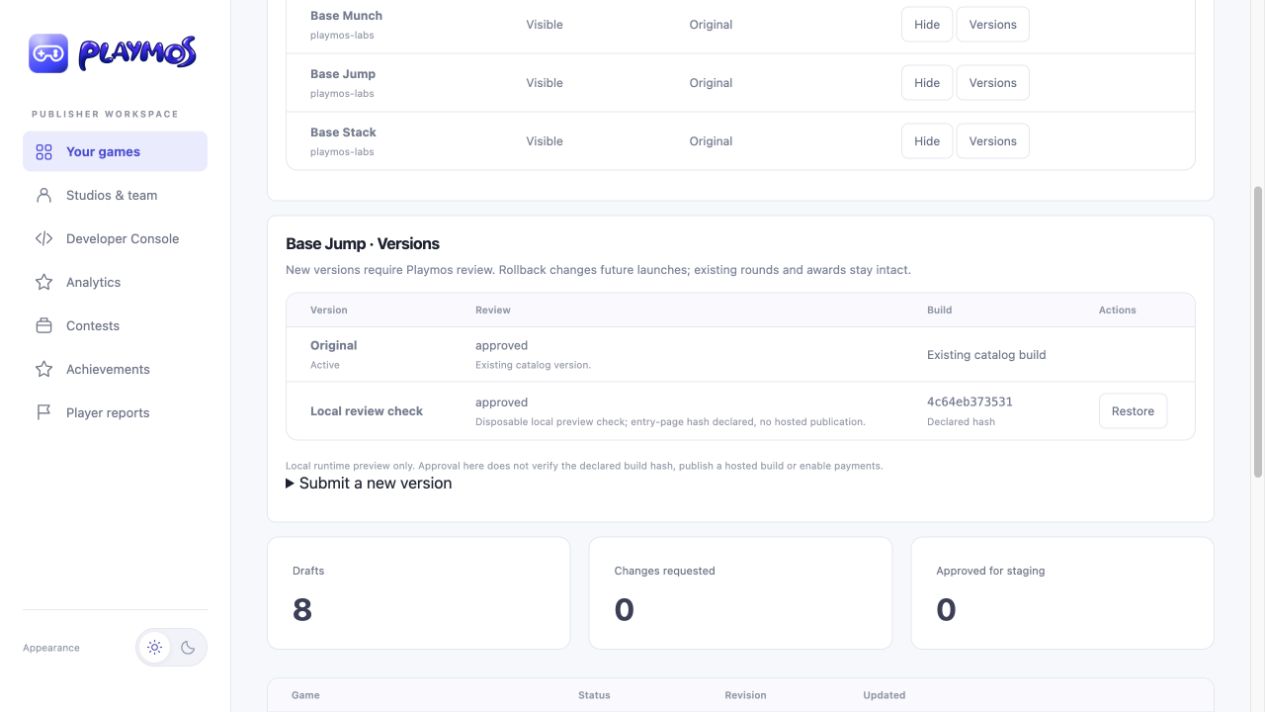](https://playmos.io/images/portal/game-version-controls.png)
**Keep approved versions within reach**The actual local publisher history after restoring Original. The test version remains available for rollback; its declared hash is not hosted-build verification.[View full size ↗](https://playmos.io/images/portal/game-version-controls.png)
Submit each new version with a unique name, configured Playmos runtime URL and declared SHA-256. Playmos reviews the immutable submission. In the local preview, only Playmos can activate an approved candidate; both Playmos and authorized studio publishers can restore a previously active, approved version. Declared hashes are not independent build verification. This is the legacy configured-origin version flow. Managed ZIP hosting has its own exact-artifact review, publisher activation, restore and receipt; follow [Host and publish your game](https://playmos.io/docs/hosting). Its free-game mode requires no paid SDK receipt.
## Credentials for Studio and external games
In **Keys & webhooks → Game credential access**, choose a saved Studio build and its registered SDK catalogue, then select **Playmos managed services** or **My external server**. Only studio credential administrators can change this binding. New builds get their own binding; earlier builds can keep their reviewed setup or have access disabled.
Managed services resolve current SDK credentials on the server for the bound studio, game and exact build. The game, MCP prompts and client bundles receive no server secret. External servers keep their authenticated order and fulfillment routes and signed HTTPS callback; use the browser, Privy and backend helpers in In-app purchases. API credential hosting does not transfer wallet ownership or permit custodial signing.
Publisher-controlled wallets still sign through their connected provider. Privy Server Wallets is the selected provider for preparing custodial signing. Account configuration, wallet ownership, transaction policies and hosted testnet acceptance are still required; the existing service signer is Base Sepolia-only. These source changes do not activate mainnet or publish a game.
## Manage sandbox access in the Hub
Approved Hub publishers can use the [Developer Console](https://playmos.io/publisher/developer) in the local preview to create a test key pair, save their studio payout wallet, revoke keys, and register webhook endpoints. Save secrets when shown; the portal never reads them back into a list. Hub drafts and SDK game IDs are separate.
Choose your active studio, open **Keys & webhooks**, enter a key label and optional payout wallet, then select **Create test keys**. Save the returned secret on your backend when it is shown.
Playmos · Publisher workspace
[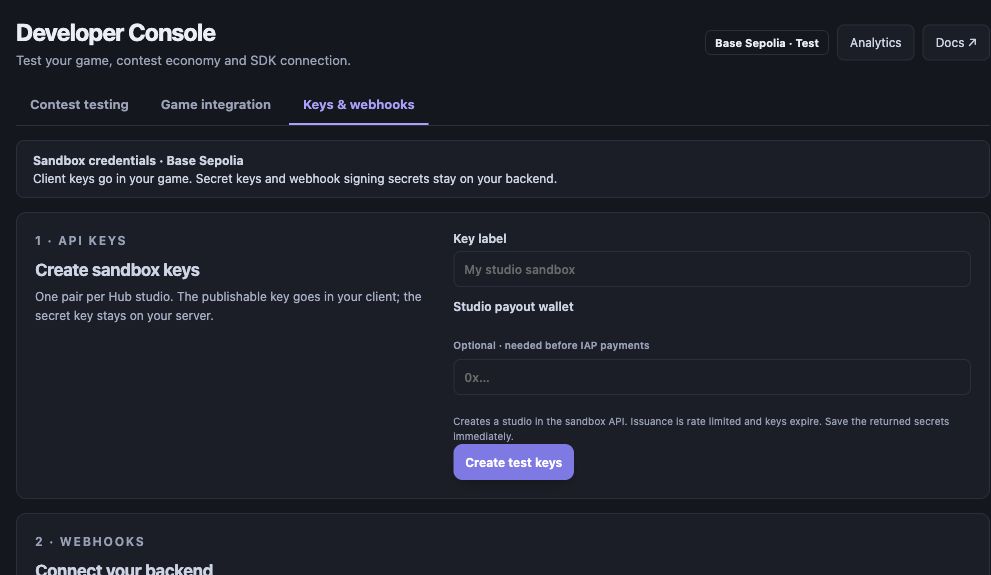](https://playmos.io/images/portal/studio-keys.jpg)
**Your studio’s sandbox connection**Manage → Keys & webhooks. Local preview before provisioning; no secrets displayed.[View full size ↗](https://playmos.io/images/portal/studio-keys.jpg)
## Console payment setup and recovery
Open [Manage → Keys & webhooks](https://playmos.io/publisher/keys) to create test keys or connect an existing matching test pair. The SDK generates each API key from 32 random bytes; the SDK stores salted hashes. Save the separate recovery credential like a server secret: it can replace API keys. The Hub encrypts its server connection and shows a newly issued secret once. These API keys are separate from the player’s Privy wallet keys.
Use **Use my linked Privy wallet** to fill the payout address, then review and submit it. An active wallet change remains pending until independent approval. Reconnecting an existing pair preserves the SDK studio and payment IDs; revoking and minting a new pair creates a different studio. Use Rotate API keys or Renew expiry to replace both keys without replacing the studio. Save the recovery credential offline; it can renew expired keys. Resume saved operation recovers an interrupted mint or rotation. Update the game and backend with the new pair, then acknowledge delivery. Revocation permanently disables recovery.
Continue to [Product catalogs](https://playmos.io/publisher/commerce) for a Privy-funded test checkout and [Payments & settlement](https://playmos.io/publisher/developer?tab=payments) to find the original payment by ID or saved purchase key. Listed status is not fresh verification; select **Check authoritative receipt**. Only confirmed receipts with a transaction, fresh chain provenance and enabled chain reads receive the chain-verified label. Fulfillment still belongs to the studio backend.
The hosted testing workspace keeps keys, catalog and payment reads on `api.test.playmos.io`; the local preview uses `api.sandbox.playmos.io`. These stores are separate. A missing key route is platform setup required, not a reason to change hosts or create duplicate studios. Live keys require platform approval.
## If it did not work
A demo-studio ID cannot be verified as your own. Check studio, host and matching keys before minting again.
**Try one variation** Compare the public demo’s studio with your own. Explain why their receipts cannot be interchanged.
[Continue with the next guide →](https://playmos.io/docs/security)
## Your studio · server verification
~~~
import { Playmos } from '@playmos/sdk';
export async function verifyOnYourServer(
secretKey: string, paymentId: string,
expected: { playerId: string; sku: string; amount: string },
) {
if (!/^sk_(test|live)_\S+$/.test(secretKey)) {
throw new Error('Use your server-only secret key.');
}
const server = new Playmos({ apiKey: secretKey }); // sk_… stays on your server.
const result = await server.verify(paymentId);
if (result.status !== 'confirmed' || result.verifiedVia !== 'chain'
|| result.id !== paymentId || result.playerId !== expected.playerId
|| result.sku !== expected.sku || result.amount !== expected.amount) {
return { readyToGrant: false, result };
}
// Use canonical decimal strings for expected amounts.
// Atomically record a single grant for this payment ID in your database.
return { readyToGrant: true, result };
}
~~~
---
# Publish on Playmos. Use the hosted platform by default.
Try it first
## Trace one exact build to its release record
**You need** A complete browser ZIP and an editable studio game.
- Upload and inspect the frozen build manifest.
- Complete listing and exact-build review.
- When authorized and hosting is ready, publish free practice and open the public link.
**Check your result** The public link serves the intended reviewed bytes and you retain its publication receipt.
## Share a playtest before release
Studio builds and uploaded browser games use **Share preview**. In Agent Studio, share the version you are viewing. For an uploaded game, open **Upload & test → Browser build** and share the latest build or choose an exact older build. Select 24 hours or 7 days, create the link, then copy it. Anyone with the link can play and leave feedback without an account. Revoke it from the same dialog.
The link stays pinned to that build. Shared previews are unlisted, expire automatically and do not publish a game. Upload previews serve bundled files from an isolated origin; external backend access and paid transactions are not enabled. Feedback is unverified playtest input. Your normal hosting and payment configuration is unchanged.
Publish a complete browser game for public free play from the publisher workspace. No repository checkout is needed. The mode name **practice** means no paid contest or IAP; it does not limit the game to QA builds. Sign in and [create a studio immediately](https://playmos.io/studios), then configure your game. Playmos reviews the exact submitted build before publication. Game details stay editable; there is no separate listing approval.
## Find your next publishing task
Open **Publisher → My Games** and choose **Continue setup** or **Open publishing plan** on your game. Games with requested changes or unread feedback appear first. The game card shows build review and live publication status; open the game for details.
The **Overview** shows a confirmed requirement count, your next action and the full publishing plan. Completed requirements have a check mark. **Your action** means your studio can continue; **Waiting for Playmos** means a reviewer owns the next step. **Unavailable** means the status could not be confirmed. Refresh or retry rather than treating it as complete.
| Workspace tab | What to do there |
| --- | --- |
| Game details | Add the name, description, category and optional artwork, then save. Game details stay editable; the saved details accompany the build review. |
| Upload & test | Upload or replace a browser ZIP, test its exact contents in Developer Console at phone and desktop sizes, and read build feedback. Upload recovery appears beside your selected ZIP when needed. |
| Review & release | Read and reply to Playmos feedback. When the submitted build is approved, an authorized publisher can publish the build. |
If the upload says **Uploads are busy**, keep the selected ZIP in the form. Wait for active uploads to finish, or use **Cancel interrupted upload** beside one of your own interrupted transfers, then retry. A teammate must finish or cancel their own transfer. This recovery keeps completed builds and published games.
From **My Games → Add a game**, enter the name and description, select the ZIP and choose **Create & test game**. Playmos saves one private draft, uploads the build for review and opens that exact build in Developer Console. To upload later, choose **Create draft**, then use **Upload & test**. **Awaiting build review** means the ZIP has been received and is ready for private testing. Publication is confirmed only by the active build and its receipt; the overview keeps those states separate.
**Clear unwanted projects:** In Your games, select Archive on a game project. Use the Archived view and Restore to bring it back. Editing permission is required. Archiving preserves builds and review history; it does not cancel reviews, withdraw published games or cancel unfinished uploads. Cancel unfinished uploads in Upload & test to free their slots.
## Manage an existing game and launch an update
On the publisher dashboard, **Apps & versions** is always visible. Select a game name or **Manage game** to open its dedicated management page. This page serves ongoing operations; the separate game-project page guides a new submission.
**Overview** identifies the active version and any candidate waiting for review. Choose **Launch a new version**, enter a unique version name, the build URL on the game’s configured runtime and its exact SHA-256 fingerprint, then select **Send version for review**. The dashboard’s **New version** action opens this form directly.
Read review decisions under **Version history**. A submission or approval does not activate a hosted version; Playmos must complete release verification. The current version remains selected until activation. To restore an older version, it must have been approved and active previously. Use **Game details** for the listing, artwork, sharing and availability. A game hidden by Playmos remains hidden until Playmos restores it.
For an existing managed ZIP release, upload a replacement through that game project’s **Upload & test** tab and follow the exact-build review and publication steps. The existing-runtime version form does not upload a ZIP.
## Share a temporary Studio preview
In Agent Studio, choose **Share preview** on the version you want tested. Create a link that expires in seven days (default) or 24 hours, then copy it for friends, family and contributors. Anyone with the link can play without a Hub account and leave notes for that exact build. The link stays pinned when a new build is pushed.
Revoke it from the same dialog. Expiry blocks new loads and retires the shared playable copy on access or the next one-minute cleanup batch; revocation removes it immediately. Feedback and version history stay in Studio. This is unlisted free practice, with no catalog listing, score verification or release approval. The session MCP exposes `playmos_create_preview`, `playmos_get_previews`, `playmos_get_preview_feedback` and `playmos_revoke_preview`. Agents read full version-pinned notes through MCP and incorporate them under the selected coaching setting. Read live sharing capabilities; local URLs work only on that computer. Sharing uses the managed game origin and does not enable the separate Studio HTML publishing track.
## From draft to playable listing
- Create a draft and choose **Free practice · no contest required**. Add the name, description and preview art, then save before uploading the build. Use the shared 1200 × 630 preview, with artwork contained rather than cropped.
- ZIP your browser build with a root `index.html` and relative asset paths. In **Upload & test**, upload it, declare the entry HTML, optional practice query and public HTTPS score/API origins.
- Save your game details, upload the ZIP, and preview that exact build at Phone and Desktop sizes. The build manifest binds the saved details and ZIP bytes; these fingerprints have different scopes from contest terms.
- Playmos reviews the submitted build, including its saved game details. An independent reviewer records security scan evidence, both playtests, any implemented backend score calls and lifecycle signals, and free-only behavior. For external studios, the reviewer must be a different staff actor from the uploader. The configured first-party studio may use the explicit internal-review path for free, no-IAP builds, retaining scan and playtest evidence. A client-only free game can have no backend; record that honestly rather than inventing score or SDK evidence.
- With approval, select **Publish free practice**. The publication receipt identifies the exact artifact and environment. The complete game then appears in the Hub catalog and can be played publicly without a preview token.
Practice needs no paid contest, treasury or payment receipt. A planned IAP catalog may remain on the draft, but checkout must stay disabled in the reviewed practice build. ZIP checks validate structure and a limited credential heuristic; they do not constitute a malware scan or game test. Hosting must be configured on the Hub before publication is available.
## Permanent game links and share previews
The stable game ID is `hosted-`. Verify the catalog, `/game/`, `/play/` and `/api/games//share.png` anonymously. The receipt URL serves the actual reviewed entry and assets on the build’s separate UUID origin. Keep its receipt ID, archive and manifest hashes, environment and URL. A hosted-test receipt proves that environment.
Private preview links expire after ten minutes. Public build links remain available while the build is active; the stable game links follow its replacement. Check the published title, description and contained artwork match the standard preview, including crawler metadata and the 1200 × 630 share image.
## Recover an interrupted upload
Open **Publisher → My Games → your game → Upload & test**. The panel shows the submitted build and its review status. A received ZIP still needs Playmos build review; only a published active build with a receipt is live.
If the form says **Uploads are busy**, the recovery controls appear beside your selected ZIP. Wait for active transfers to finish, or choose **Cancel interrupted upload** on one of your own interrupted transfers, confirm and retry the selected ZIP. A teammate must finish or cancel their own transfer. Completed builds and published games are kept. Unfinished uploads expire after 24 hours.
After a completed ZIP appears in the build list, test it at Phone and Desktop sizes. Open Review & release for feedback. Once the submitted build is approved, an owner or publisher can select **Publish free practice** and verify the receipt and public link.
## Feedback and the next step
Open your game’s **Review & release** tab to read feedback and reply to Playmos. The overview and game list show what is blocked, who needs to act and unread updates. Your Notifications inbox collects review updates across your studios. Mark updates read when you have reviewed them.
Shared feedback is visible to your studio and Playmos; team-only notes stay with Playmos staff. Messages do not change the approval status. If saved details change, upload a matching build for review. There is no separate game-details approval for this ZIP flow. Decisions and build updates stay in the conversation history. These are in-app updates; email and push delivery are not available.
## ZIP and hash contract
| Item | Requirement |
| --- | --- |
| Build SHA-256 | The exact uploaded ZIP bytes. Not a script, HTML file, tarball or unpacked folder. |
| Limits | 500 MiB ZIP, 1 GiB expanded, 10,000 entries. Standard stored/deflated ZIP. |
| Client files | HTML, JS, CSS, JSON, WASM, glTF models (.glb, .gltf, .bin), KTX2/HDR textures, images, fonts, audio/video. Relative paths; bundle dependencies. Dedicated worker scripts must load from this build origin; remote/blob workers are blocked. |
| Excluded | Native executables, server scripts, private credentials, hidden files, links, encrypted archives and ZIP64. Browser-export source maps and engine resources are allowed. |
| Manifest | ZIP hash plus every file hash/size/path, entry/query, backend origins, listing and practice mode. |
## Hosted services or your own interface
Playmos Games targets a fully Hub-hosted path: the signed-in account and Mo arrive through the SDK, with managed run validation, saved bests, leaderboard recordings and first-finish achievements in the new service candidate. That candidate is implemented locally and still needs deployment and hosted acceptance. Inspect environment capabilities and your exact build’s supported simulation before enabling server results.
If you choose independent hosting, the SDK transport seam accepts an authenticated HTTPS/JSON interface shim. The [Games guide](https://playmos.io/docs/games#interface-shim) explains its authority boundaries. Existing custom backends remain supported; use the backend-origin rules below. IAP and paid entries retain their registered stablecoin and smart-contract integrations.
Engine-specific resources, license notices and source maps can stay in your browser export. Unknown asset formats are served as binary data. Native executables, server scripts and private keys are rejected.
## When you bring a custom backend
Keep replay validation, scores, database and private SDK/operator credentials on your backend. Declare its exact public HTTPS origin for browser connections and configure CORS for the exact UUID origin of each reviewed build. Hosted builds use separate origins to isolate studio storage and private preview cookies. API sessions must work with browser cross-site restrictions. The Hub does not run your server code. Use SDK/lab hooks at real ready/start/end and server-confirmed score boundaries; browser events do not prove scores or payment.
For Lane Crash, preserve `?host=playmos`. Launch and separate-game URLs also include `playmosMode=practice`. The reviewer must verify that practice actually disables money features.
## Compete and contest control
Studio-owned games and pools are the intended model. This practice flow does not enable Compete; the current paid launch switch remains limited to configured first-party games. A studio release needs SDK game/pool/treasury binding, reviewed terms and complete paid-admission, settlement, fee-routing and withdrawal proof before paid enablement. Integrate the SDK entry popup/forms or your in-game entry with a trusted score backend. Proposed winner shares are not payout proof.
Your studio proposes entry price, duration, board and prize shares. Approval covers recurring rounds under that plan. A new price, duration, split or pool requires a new reviewed plan/series for future entries; existing rounds retain their terms. Contest plan review is separate from build review, so a terms-only change does not require identical client bytes to be uploaded again.
## Updates and recovery
Upload an updated ZIP on the approved draft and obtain a new exact-build review. The previous build stays active until replacement. Restore a previously published approved build whose declaration and runtime still match, or withdraw the listing from the same panel. Reload after a stale active-build conflict. Replacement and withdrawal block future loads of old build assets; already loaded games may keep running. Verify anonymous catalog, launch and asset behavior and retain receipts/history. Changed listing declarations require a matching build submission, not a separate listing approval. Use the existing preview artwork; extra icon/screenshots/tagline are optional presentation work.
## Agent and MCP handoff
Both the repository stdio MCP and the session-scoped Studio MCP expose the read-only `playmos_get_publishing_guide` tool. Stdio also advertises `playmos://guides/game-publication`. Read it for the complete workflow and inspect live capabilities before reporting a release.
The stdio `playmos_upload_build` tool freezes the older 2 MiB/64-file canonical manifest, not this managed ZIP. For compiled games up to 500 MiB ZIP / 1 GiB expanded, use stdio `playmos_upload_game_zip` with a ZIP path inside the configured project root. Both stdio and HTTP MCP expose `playmos_get_hosted_builds`, `playmos_begin_hosted_upload`, `playmos_upload_hosted_part`, `playmos_finish_hosted_upload`, `playmos_cancel_hosted_upload` and `playmos_preview_hosted_build`. Uploads use 4 MiB parts with durable retry-safe storage and expire after 24 hours if unfinished. Read the publishing guide for arguments and scope requirements. Review uses the authorized backoffice workspace. `playmos_publish_hosted_build` can activate an exact approved managed ZIP with publishing scope; it cannot approve it. Restore and withdrawal use their authorized workflows. Its legacy release/rollback tools do not substitute for those actions. Studio’s prepare/get/publish tools use a separate self-contained HTML track, origin and approvals; ZIP hosting alone does not enable it. See the [MCP guide](https://playmos.io/docs/agents#mcp). Neither MCP can approve its own release.
## Connect the game services
Game hosting serves the reviewed browser build. Game services supply authenticated admission, owned inventory, progression and authoritative results. In Studio, use Play, Competition, Review; your agent reads the same plan through MCP. Saving a draft does not create servers, activate prizes or publish. Check provider readiness and real result persistence before advertising a capability. Managed worker rollout and hosted acceptance remain pending for the new source candidate. See [Playmos Games](https://playmos.io/docs/games) and [Live services](https://playmos.io/docs/live).
## One-hour sessions
Sessions last one hour without sliding renewal. The draft editor warns five minutes before expiry. Keep your form tab open, sign in in another tab, then retry saving. Failed saves retain the current form in that tab; refreshing or closing it can lose unsaved changes.
## If it did not work
If activation is unavailable, keep the approved build and inspect hosting readiness; preview is still a separate state.
**Try one variation** Compare the preview URL and public game URL. Identify which publication record authorizes the public version.
[Continue with the next guide →](https://playmos.io/docs/publish-game)
---
# Verify payments.
Try it first
## Prove a purchase before granting an item
**You need** A saved studio-owned payment ID and your backend verifier.
- Read its status and verification provenance.
- Match the stored player, game, SKU, amount and network.
- Submit completion twice against one atomic fulfillment record.
**Check your result** One matching confirmed chain receipt creates exactly one grant.
Using **Playmos Managed IAP**? Register products in Playmos; we verify the payment, and your trusted fulfillment code grants the item. Already managing IAP with your own backend or provider? Keep it and skip our catalogue. [Choose your IAP path](https://playmos.io/docs/stablecoin-quickstart#choose-iap) or follow the [manual integration](https://playmos.io/docs/stablecoin-quickstart#manual-setup).
The chain determines settlement. Your backend determines whether the payment fulfills the intended purchase.
## Payment lifecycle
| Status | What it means |
| --- | --- |
| created | An intent exists. No settlement is proven. |
| pending | Settlement is in progress. Wait and verify the same ID. |
| confirmed | The service reports a confirmed payment. Inspect verification provenance. |
| failed | The attempt failed. Diagnose before creating a new purchase. |
## Verification provenance
`verifiedVia: 'chain'` means the status was derived from chain verification. `'cache'` is cached/offline information; `'degraded'` means fresh chain verification is unavailable. Do not treat a degraded cached result as a fresh financial receipt.
IAP verification matches the payment’s on-chain event. Round admission checks the exact pool, round key and entrant identity. A transaction hash alone is not proof that the expected payment succeeded.
## Grant once on your backend
Keep `sk_` keys server-side. Verify the ID under your studio, match player/SKU/amount and atomically deduplicate fulfillment. Webhooks use the same fulfillment record so a webhook and a manual verification cannot grant twice.
## Recover from an interrupted request
Persist the purchase key before sending. Retry the same purchase with the same key. After you know the payment ID, retry `verify(id)`. A timeout or wallet cancellation is not a confirmed purchase.
**Analytics need reconciliation.**
The ordinary payment-list response is a capped cached listing. It is not a fresh chain-verified ledger or a complete pagination/export API. Reconcile records before calculating revenue.
## Payment inputs
| Field | Contract |
| --- | --- |
| amount | Decimal string, positive and at most two decimal places. Public sandbox cap: 1.00 per request. |
| sku / playerId | Required product and opaque player IDs. Match both during fulfillment. |
| gameId | Use game_sandbox_iap with the public sandbox key; your own key resolves studio-owned resources. |
| studio | Optional recipient wallet; otherwise the service uses the key’s configured studio wallet. |
| idempotencyKey | Persist once per purchase; reuse on retry. Omitting it creates a new SDK-generated key per call. |
| metadata | Up to 20 string key/value pairs. No secrets or authorization claims. |
## Payment and verification fields
`Payment` includes ID, kind, status, amount/fee/net, chain and creation time. `txHash` is optional until there is a transaction. Both `Payment` and `VerifyResult` type optional entry fields `split`, `roundKey` and `splitBps`. Their presence depends on the payment path; check them before use. Verification may include `identity`, `chainAmount` and integer `chainAmountMicro`; `splitBps` describes the returned split; it is not authority for a different studio’s release.
IAP charges 1% to Playmos. Read the receipt’s exact decimal fee/net; do not derive a ledger from rounded UI cents. Own-pool contests use their immutable series split. The legacy/shared-sandbox entry split is not your studio’s published take.
## Rehearse purchase outcomes
Open [Developer Console → IAP testing](https://playmos.io/publisher/developer?tab=iap). Enter a product ID and price, choose a confirmed, pending, cancelled or failed outcome, then select **Simulate purchase**. A confirmed rehearsal proposes one grant; other outcomes propose zero. Select **Replay confirmation** to inspect duplicate handling.
Playmos · Publisher workspace
[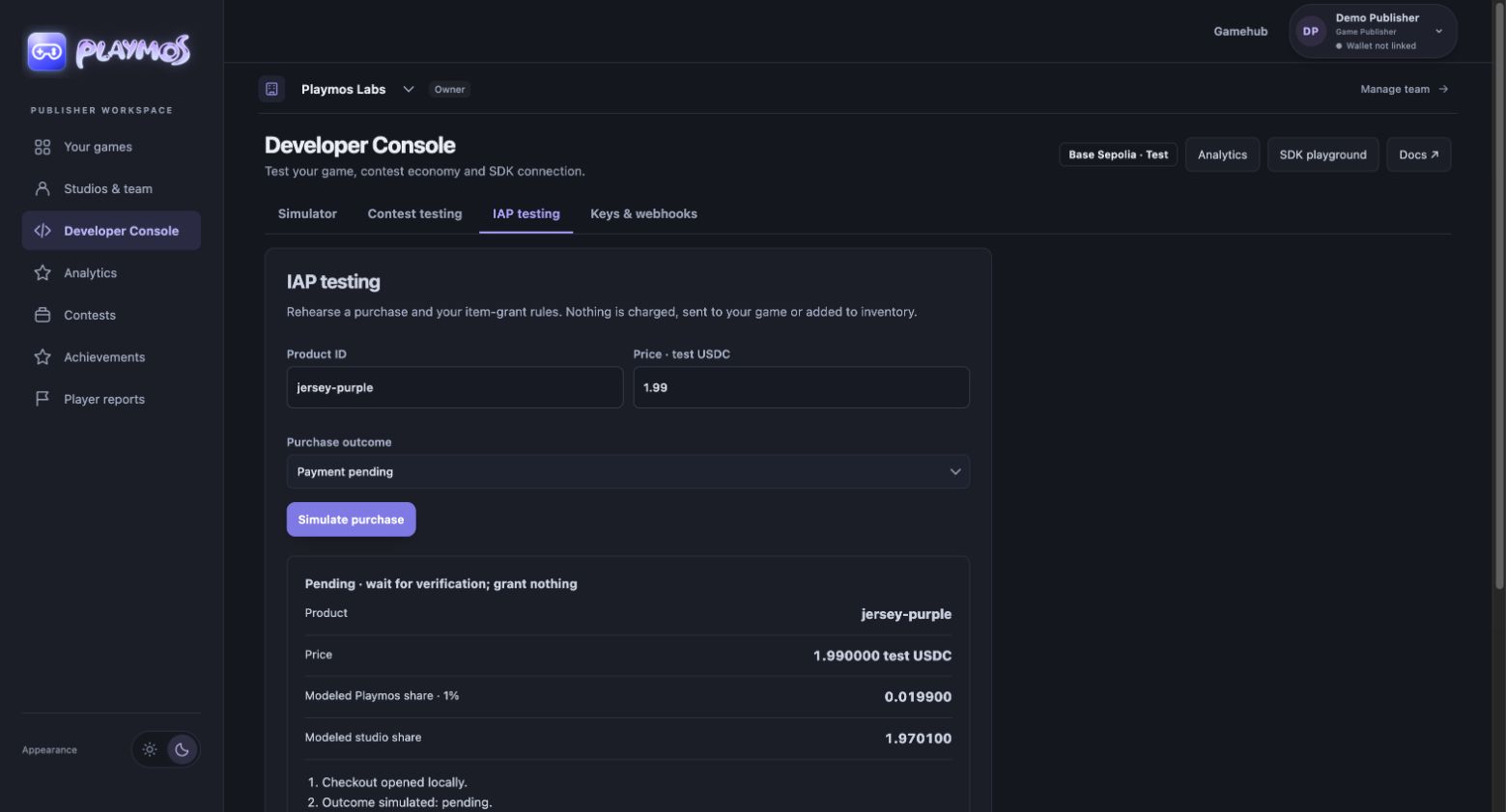](https://playmos.io/images/portal/iap-pending.jpg)
**Pending payments should grant nothing**Local item-grant rehearsal. No SDK checkout, charge, receipt or actual inventory grant occurs. The 1% share is modeled; use the real receipt for accounting.[View full size ↗](https://playmos.io/images/portal/iap-pending.jpg)
This tool rehearses rules; it does not verify your game’s fulfillment. Continue with payment verification and webhooks, then persist one grant per verified payment ID on your backend.
## Reconcile a saved payment in the console
[Payments & settlement](https://playmos.io/publisher/developer?tab=payments) reads studio-owned SDK records with the encrypted server connection. Search by payment ID alone, or filter by SDK game, player, status and the original idempotency key. The list is limited to 100 matches; narrow filters when more exist. An exact receipt check reads the same payment and never requests another charge. Keep original terms and wallet batch IDs when recovering a pending purchase.
A confirmed contest entry is admission, not a completed prize payout. Use Contest testing to inspect the registered pool’s series and epoch, then reconcile prize credit and the wallet withdrawal separately. A console receipt does not authorize item fulfillment, settlement or withdrawal. Bank payout onboarding remains a stub.
## If it did not work
Cached or degraded confirmation is not a fresh receipt. Keep the order pending and retry its verification.
**Try one variation** Present the same receipt for a different player in an isolated test. Your backend must reject it.
[Continue with the next guide →](https://playmos.io/docs/webhooks)
## Your backend · verify.ts
~~~
import { Playmos } from '@playmos/sdk';
export async function verifyOnYourServer(
secretKey: string, paymentId: string,
expected: { playerId: string; sku: string; amount: string },
) {
if (!/^sk_(test|live)_\S+$/.test(secretKey)) {
throw new Error('Use your server-only secret key.');
}
const server = new Playmos({ apiKey: secretKey }); // sk_… stays on your server.
const result = await server.verify(paymentId);
if (result.status !== 'confirmed' || result.verifiedVia !== 'chain'
|| result.id !== paymentId || result.playerId !== expected.playerId
|| result.sku !== expected.sku || result.amount !== expected.amount) {
return { readyToGrant: false, result };
}
// Use canonical decimal strings for expected amounts.
// Atomically record a single grant for this payment ID in your database.
return { readyToGrant: true, result };
}
~~~
---
# Put payments in your game.
Try it first
## Add one buy button to your game
**You need** A saved active SKU, publishable test configuration and authenticated backend routes.
- For Playmos Managed IAP, use Add to your game or the manual download in the quick start.
- Bind the saved order and prepared payment before opening the wallet.
- Interrupt the request, reload and resume that same purchase.
**Check your result** The UI recovers its original order and your backend grants the item once.
For Playmos Managed IAP, use the same SDK in a browser, HTML5 game or host page. Keep purchase state stable while the service or wallet completes the request. If your existing IAP backend already handles purchases, keep its checkout instead; no Playmos catalogue is required.
## Install and load
~~~
npm install @playmos/sdk@0.3.38
~~~
Import `Playmos` from `@playmos/sdk` in your Vite, Phaser or other bundled app. The SDK uses viem; load it separately from the game where that improves first load on mobile. Never import `@playmos/sdk/server` in this bundle.
## Wire the buy button
Add the page elements and wire them to the helper:
~~~
~~~
Save the helper as `purchase.ts` and import it into the page module. The example binds an existing button and output element. The purchase key is saved before the request, the button is disabled during submission, and a payment ID is retained even if server settlement times out.
~~~
import { bindSandboxPurchase } from './purchase';
const button = document.querySelector('#buy')!;
const output = document.querySelector('#payment-status')!;
bindSandboxPurchase(button, output);
~~~
## Make pending and recovery visible
Show a pending state while the request runs. A timeout may contain `error.detail.paymentId`; keep it and call `verify(id)`. Retry the same purchase with the original key if no ID was returned. Start a new key only for an intentional new purchase.
## Choose the player experience
The public sandbox’s `settle: 'server'` path uses test funds and does not ask the player to connect a wallet. For a wallet-funded payment, provide the host’s EIP-1193 provider and follow [wallet and gas configuration](https://playmos.io/docs/wallets). Server settlement is not a production wallet substitute.
## Keep the grant on your backend
The output is a display of the receipt. Send its ID to your backend, match your stored purchase and verify it under your studio before granting once. An iframe message, local receipt or disabled button is not an authorization boundary.
Use [the playground](https://playmos.io/docs/playground) to inspect actual SDK responses before wiring your game. The current portal iframe stage does not provide this payment bridge automatically.
## Your data or Hub intelligence
Read [Analytics & your telemetry](https://playmos.io/docs/analytics) for consent, complete event fields, custom events, exporters and the Playmos Analytics upgrade. Collect your own game telemetry with standard OpenTelemetry loggers, meters, exporters and Collectors. Choose your own backend and dashboards, or subscribe to Playmos for Hub-correlated publisher intelligence: conversion funnels, repeat players, shared audiences, player profiles and network activity. You pay for correlation and insight, not transport.
**Consent and access.**
SDK 0.3.22 supports optInUI: true for the built-in prompt, or customOptIn for your own consent interface. Collection stays disabled until consent is granted and stops when consent is revoked. Pricing and checkout are not enabled; publisher analytics uses server-authorized access. Current correlations use studio-supplied IDs across games and reported networks. Supplied discovery source, placement and campaign context are supported in SDK 0.3.24. Independent cross-chain identity matching and verified financial receipt analytics remain planned. No other publisher’s identifiable records are exposed.
In the SDK, configure `new Playmos({ apiKey, analytics: { enabled, logger, meter, context } })` with your standard OTel logger and a studio-scoped player/session context. Call `gameViewed()`, `sessionStarted()` and `sessionEnded()` at the game’s real lifecycle boundaries; wallet and commerce methods capture their own observed outcomes. Use your standard exporter, not a custom Playmos transport. Hub OTLP/HTTP JSON logs use `/api/analytics/v1/logs`; source keys stay on your backend or Collector. Testnet amounts and reported purchases are not verified mainnet revenue.
Open [Analytics](https://playmos.io/publisher/analytics), select a game, UTC period and network, then inspect the ordered funnel. Use the player table for session activity and audience overlap for repeat and cross-game players. Select one network to inspect reported amounts.
Playmos · Publisher workspace
[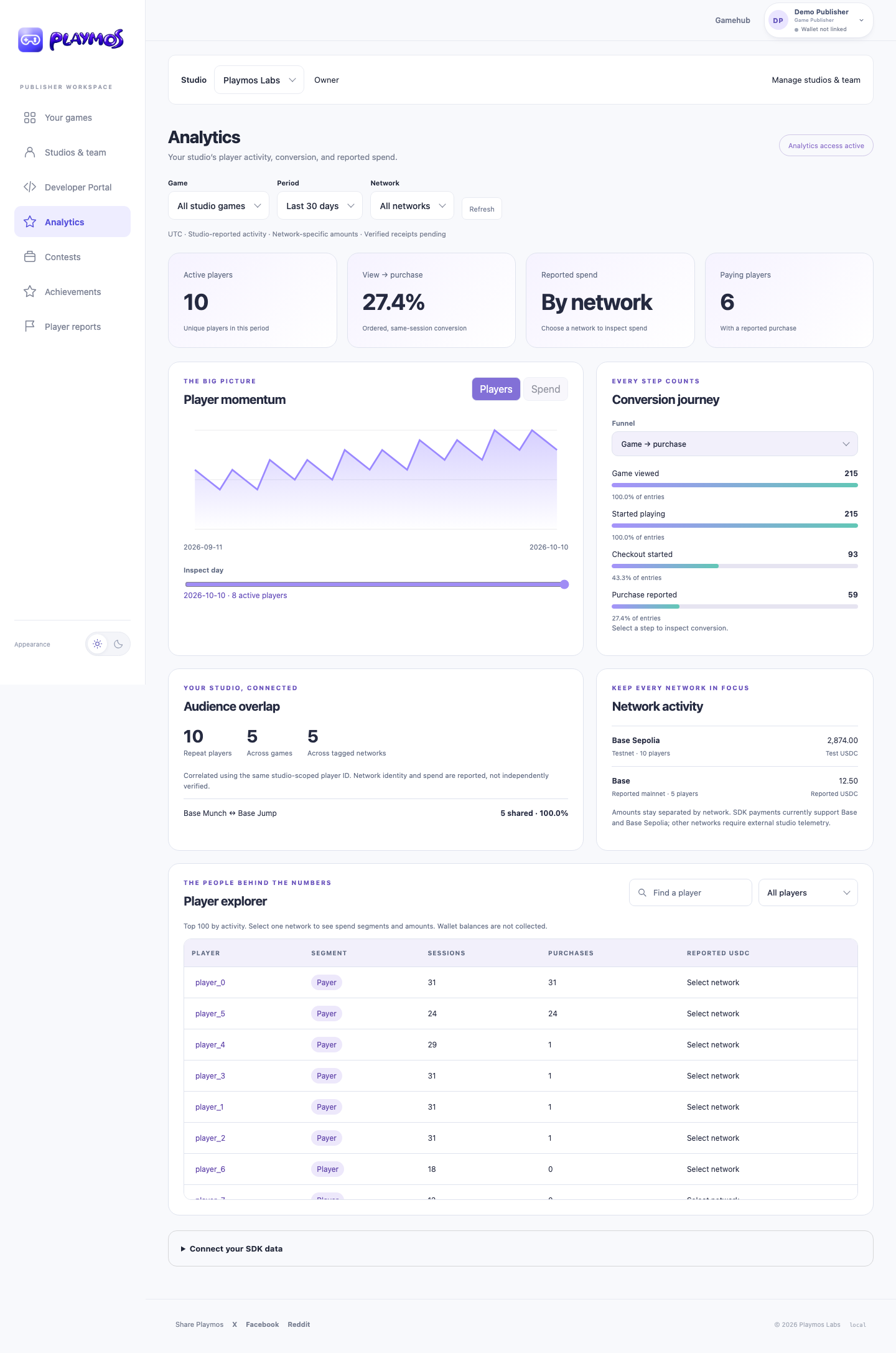](https://playmos.io/images/portal/analytics.png)
**From gameplay signals to publisher insight**Synthetic local data. Choose a funnel to inspect conversion; reported spend remains separate from verified receipts. Earlier capture uses the former Developer Portal label.[View full size ↗](https://playmos.io/images/portal/analytics.png)
The hosted-game bridge collects only after player opt-in. Independent studios export through their trusted backend or Collector; source keys never belong in browser bundles. Delivery counters track accepted and duplicate events. Error rates, latency percentiles and verified payout reconciliation remain additional integration work.
## If it did not work
If the account or wallet changed, recover with the original identity; do not silently switch the payer.
**Try one variation** Reload while the saved purchase is pending. The next action should resume it, without another wallet send.
[Continue with the next guide →](https://playmos.io/docs/wallets)
## Browser · purchase.ts
~~~
import { Playmos } from '@playmos/sdk';
export function bindSandboxPurchase(button: HTMLButtonElement, output: HTMLElement) {
const client = new Playmos({ apiKey: 'pk_test_playmos_sandbox', settle: 'server' });
const storageKey = 'playmos-demo-purchase';
button.onclick = async () => {
button.disabled = true;
const key = sessionStorage.getItem(storageKey) || crypto.randomUUID();
sessionStorage.setItem(storageKey, key); // Persist BEFORE sending.
try {
const payment = await client.pay({
gameId: 'game_sandbox_iap', amount: '0.01',
sku: 'extra-life', playerId: 'sandbox-player', idempotencyKey: key,
});
sessionStorage.setItem(`${storageKey}:id`, payment.id);
const receipt = await client.verify(payment.id);
output.textContent = JSON.stringify(receipt, null, 2);
// Display only. Your backend owns verification and a single item grant.
} catch (error) {
const id = (error as { detail?: { paymentId?: unknown } }).detail?.paymentId;
if (typeof id === 'string') sessionStorage.setItem(`${storageKey}:id`, id);
output.textContent = error instanceof Error ? error.message : 'Request failed.';
// Once an ID exists, recover with client.verify(id), not another purchase.
} finally { button.disabled = false; }
};
// Reset the saved key and ID only when intentionally starting a NEW purchase.
}
~~~
---
# Make the game. Playmos provides the shared platform.
Try it first
## Build a small complete playable loop
**You need** A Studio project and access to the current creation guide.
- Define one action, a clear goal, failure and replay.
- Save a version and test it through its actual shared-preview link.
- Inspect exact-build service readiness before adding saves, results or commerce.
**Check your result** A player can start, finish and replay; unavailable services leave an honest practice experience.


## AI Studio Game Maker
Bring Your Own Agent, Publish Today!
[Open AI Studio](https://playmos.io/publisher/agent-studio)
**Build with your agent. Play it in Studio.**Connect an MCP-capable agent, iterate on a playable version and submit your chosen build for review. Publication follows the required approvals.
## Create for the couch and the hand
Start with an idea, or ask your agent for three distinct concepts. In MCP, read `playmos_get_creation_guide` with `section=start`, then load focused device, craft and service sections as needed. Your connected agent supplies the creative intelligence; Playmos supplies authored guidance and tools.
Default to a separately composed far-seat TV presentation and a handheld phone layout. Use large, adjustable critical text, visible directional focus and safe screen margins on TV; use separated 48 CSS pixel touch targets, safe areas and unobstructed play on phone. Test manual start, meaningful decisions, fair failure, pause, results and voluntary replay. Camera, motion and audio should reinforce the signature action. Measure the actual target device; a large browser viewport cannot prove couch readability or phone comfort.
Before handoff, call `playmos_get_quality_checklist` with the current build version. It asks for evidence and never marks a game passed, fun or approved. Inspect current service readiness and use only the APIs returned by this environment; a source guide does not upgrade the pinned runtime. The portable source is the SDK’s `games/agent/CREATION-GUIDE.md` and versioned creation playbook.
## Guidance for the game you are making
Studio gives your agent the SDK’s shared service playbook plus relevant genre guidance. Racing, platformers, sports, party games, action, persistent worlds and puzzles can combine modules; a new genre does not need to fit a starter template. The service layer covers identity, saves, owned items, progression, rooms, verified results, recovery and registered stablecoin checkout.
Prefer the Playmos Games engine for a new compatible browser game, or keep your chosen engine. Keep simulation, service integration and rendering separate. Engine-neutral guidance does not mean every engine adapter or hosted provider is available: browser JavaScript is implemented, and a dedicated Unity Games adapter is planned. Your agent reads actual readiness before enabling a feature. The operational guidance remains available with design coaching turned off.
## Soundtracks that travel with your game
Give your agent the audio files. It uploads MP3 tracks through Studio, which checks their hashes and packages the verified audio into the exact game build. The soundtrack works in Studio, shared previews and exports without a local-file picker or an external music host. Start audio on a player interaction and keep volume, mute and track selection in Options.
The upload tool is `playmos_upload_audio_part`. It accepts 256 KiB chunks, up to 8 MiB per track and 48 MiB across 64 tracks per session. Use the returned `playmos-audio:SHA256` reference in an HTML or JavaScript string before pushing the demo. Missing or incomplete tracks block that build; retries with identical bytes are safe. HTML authoring stays within 512 KB, while the frozen artifact includes its audio bytes.
## Test the real share link
Open the Hub’s shared-preview link to test keyboard, touch, audio and your Mo together. Sign in there to use your own saved garage and the services configured for that exact build. Guests can practice. Preview expiry or revocation retires service access too; a link never grants access to another player’s data.
A working preview is not proof of activated race servers. Check service readiness and perform a server-admitted race and restart test before launch. Shared previews cannot purchase items or enter paid competitions.
Make a new game without rebuilding everything around it. Playmos Games combines reusable game foundations, portable player identity and platform services with an agent-driven development workflow.
You own what makes the game yours: its rules, world, art, camera and feel. The shared platform gives compatible games a familiar player experience and gives your agent a project it can understand, change and test. Skyline Trials and Speed Run are our first reference games built on those shared pieces.
## The Hub is the default game platform
Build and host inside Playmos. AI Studio is the authoring workspace; Playmos Games supplies the shared runtime; the Hub owns account identity and managed service authority. Your game provides the rules, world, art and feel. Our internal games use the same interfaces intended for third-party studios.
**Managed services: implementation status**
The new build-bound run, server replay, saved-best, leaderboard-recording and first-finish achievement services are implemented and tested locally; deployment and hosted acceptance are pending. The Games package remains an unpublished source candidate. The managed-results API is not yet included in the current pinned starter; use local practice until both the updated runtime and Hub service are active. Read the active environment’s capabilities before enabling a service.
The SDK’s managed-results implementation binds a run to the signed-in player and exact frozen build, sends ordered inputs and receives the server-computed result. Non-preview runs can save a personal best, supply top-ten compatible recordings and award the server-authorized first-finish achievement. Named NPCs fill empty rival slots; they never enter the score ledger. Preview runs do not enter public bests or award achievements. Unsupported simulations need an approved server adapter; the Hub does not execute arbitrary uploaded server code.
Server replay checks supported rules, ordered inputs and timing. It does not prove human play, grant paid admission or finalize paid competition. Display a saved result only after receiving its server receipt; unavailable services leave local play without a verified-score claim.
## One platform, many different games
| Layer | What it gives you | What you decide |
| --- | --- | --- |
| AI Studio · MCP authoring | A game brief, SDK-aware agent guidance, versioned playable builds, preview feedback and an explicit release workflow. | The idea, creative direction and which changes to keep. |
| Games runtime · reusable foundations | Validated configuration, a fixed-step clock, run lifecycle, local progress, avatar rendering and animation. | Rules, scoring, stages, movement, camera, presentation and assets. |
| Player identity · Mo | A common avatar profile and look across compatible games, with an account wardrobe. | How to present that avatar in your game without changing its account-owned appearance. |
| Platform services · selected capabilities | Hub-hosted account services and SDK interfaces for run validation, rewards, input, analytics, commerce and Live. | Which capabilities suit the game; its simulation and approved service configuration. |
This is a shared foundation, not a requirement to make every game a parkour course. A puzzle game can use the run lifecycle and progress model without movement or gamepad input. A runner can add Mo rendering, named practice rivals and optional controller support. An existing game can adopt individual SDK capabilities without replacing its engine. “Publish Today!” invites you into the workflow; it does not waive review or guarantee turnaround.
[](https://playmos.io/images/games/speed-run.jpg)**Shared foundations. A game of your own.**Speed Run in the local development Hub. It reuses Mo, animation, run lifecycle, analytics and input adapters; its course and running rules belong to the game.
## The player carries their Mo
A player’s Mo belongs to their account. They dress it in **My Mo!**, then compatible games read the profile through the SDK and render the same recognizable character. Hair, beard, headwear, accessories, shirt, pants, backpack and shoes travel as equipped appearance. The shared rig and animations save each game from rebuilding that character system.
The profile also carries collectibles and namespaced portable attributes. The account server owns those records; a game explicitly chooses which attributes it understands. They are not automatic cross-game powers. Our reference games currently consume appearance. Dressing stays in the wardrobe, and cosmetics remain separate from collision and competitive scoring. See [Mo portable avatars](https://playmos.io/docs/playmo) for the profile and integration details.
## Smooth real-time play, shared across games
**Source candidate · hosted acceptance pending**
The networking and rendering additions below are implemented in the SDK source candidate. They are not silently included in older pinned starters; hosted providers and internet/device acceptance must be activated and recorded separately.
The game owns its simulation, camera and look. Playmos Games owns reusable clocks, avatar rigs, lifecycle and static mesh batching. Playmos Live owns prediction, rollback reconciliation, remote interpolation and a buffered server clock. Private services own authenticated rooms, frozen loadouts and confirmed results.
| Need | Shared API | How to use it |
| --- | --- | --- |
| Immediate local control | Live connection.state and onReconcile | Use connection.createPresentation with a state-to-pose adapter. The SDK owns elapsed-time prediction, fixed-tick interpolation and correction continuity. Include finite body/steering animation channels in the pose adapter, so the whole actor shares one timeline. Never swap raw snapshots into the local car. |
| Hide ordinary rollback corrections | createReconciliationSmoother | Decay only visual correction offsets; normal movement stays immediate. Snap explicit resets and large teleports. |
| Smooth other players | createSnapshotInterpolator + createInterpolationClock | Buffer server-timestamped poses on one clock. Gravel Riot uses 100 ms; stop extrapolation when updates stop. |
| Reduce scene cost | batchStaticMeshes from @playmos/games/rendering | Batch static direct meshes by opaque material before attaching animated avatars. Keep moving wheel groups separate. |
| A lively title screen | createAttractDirector | Sequence visual camera cuts and pans, weather and actors; no race inputs or progression. Respect reduced-motion preferences. |
| Keep a career | createOwnedGameServices + createGarage | Hub chooses identity; revisioned owned saves and idempotent confirmed results persist progression. |
Prediction and smoothing affect presentation, never score authority. The server validates bounded inputs against the exact build and rules, rolls back within its configured window and records confirmed results. Browser scores cannot grant cars, MO equipment, XP, paid entry or money. MO collectibles are equipped in My Mo!; registered USDC offers still require trusted checkout approval.
Local tests include simulated 100 ms input delay, jitter, lost redundant batches, old snapshots, invalid controls and player spoofing, with exact replay of accepted inputs. This is technical evidence, not hosted capacity or phone acceptance. A source build reached 60 FPS on one LAN browser; measure each target device and a hosted multiplayer session before release.
## From an idea to a playable game
- **Describe the game in Agent Studio.** Open Workspace → Agent Studio, give the agent a brief and connect it to that game session. Keep creative decisions in your conversation with the agent.
- **Let the agent discover the platform.** It reads the brief and calls `playmos_get_games_framework` for the runtime, starter source, configuration schema, available capabilities and developer guides. There is no separate Games CLI.
- **Build the game-specific parts.** The agent edits configuration, rules, scene and assets, reuses appropriate runtime modules and tests a complete playable loop. It chooses input methods for the game; gamepad support is optional.
- **Play a version and give feedback.** The agent returns a versioned demo. You can compare builds, share a practice preview and ask for changes. The pinned engine is frozen into the saved build, so later engine updates do not silently change it.
- **Release the version you choose.** Export a self-contained browser build, or follow the publisher’s hosting and review workflow. A preview is not a published game; approval and service activation remain explicit.
## A project your agent can work with
| Part | Responsibility |
| --- | --- |
| game.config.json | Identity, timing, stages, movement settings and capability declarations. |
| sim.mjs | Game rules, state transitions and input-driven simulation. |
| game.mjs | Rendering, camera, UI events and connections to the selected platform adapters. |
| style.css and assets | The visual identity of this game. |
| Shared SDK modules | Run lifecycle, clocks, progress, Mo rendering and optional integrations. |
For example, a new Speed Run world can change stage colors, platform placement and movement settings while keeping the same avatar renderer and lifecycle. A different genre replaces its simulation and scene rather than inheriting the runner’s rules. Keep account authority in service adapters and visual engine objects out of deterministic simulation.
## Choose capabilities, rather than a checklist
| Capability | Use it when | Current integration |
| --- | --- | --- |
| Mo | Players should bring their account avatar. | Shared renderer and read-only SDK profile; automatic signed-in identity through the Hub bridge. |
| Controls | Your game benefits from a gamepad or phone controller. | Optional @playmos/controller adapter. Keyboard-only, touch-first and pointer-driven games are valid. |
| Analytics | You need consented run and gameplay metrics. | Shared lifecycle and Hub adapter; external hosting needs a consented telemetry transport. |
| Progress and rewards | You want milestones or account achievements. | Local progress is implemented. The managed-results candidate awards its first-finish achievement on the server; other trophies and collectible grants require authorized integration. |
| Rivals and Live | Your design benefits from other players or practice rivals. | Named NPC population is reusable. The managed-results candidate supplies compatible top-scorer recordings. Real-time Live sessions require separate integration. |
| Competition | Scores determine registered leaderboard or paid results. | Requires registered admission and trusted server verification. Local scores or a config flag do not enable it. |
When you select gamepad support, use the Playmos controller SDK for consistent mapping and source ownership. Test input release and cleanup for enabled devices, and distinguish automated checks from physical device tests. See [Phone & gamepad controllers](https://playmos.io/docs/controllers), [Analytics](https://playmos.io/docs/analytics) and [Playmos Live](https://playmos.io/docs/live) for the individual service contracts.
## Self-host an interface when you need one
Managed Hub hosting is the default. Independent hosting can supply an interface shim through the SDK’s transport seam, using standard HTTPS and JSON rather than a new platform protocol. The managed-results candidate exposes its versioned contract at `/api/games/v1/openapi.json`; `createGameResultsHttpTransport` connects a player-authenticated interface. The shim must preserve account and exact-build binding, server-owned scores, consent, idempotency and grant verification. External account login remains a separate integration; this seam does not distribute private managed Live infrastructure.
## Stablecoins and smart contracts move the money
IAP, paid entries and payouts use the existing Playmos stablecoin and smart-contract integrations. Run databases store gameplay and evidence, not a second money ledger. Verify the expected payment on the backend and grant once; preserve purchase identity while a payment is pending or unknown. Importing the runtime does not activate IAP or paid competition. The two reference games remain free practice. See [Payments and verification](https://playmos.io/docs/payments) and [Skill contests](https://playmos.io/docs/contests).
## Couch games, hosted by Playmos
Make a game for the room. Two to six players scan the TV, enter a name and join without creating an account. The first phone becomes host and can start the show, advance rounds and replay. The game keeps its own world and presentation; Playmos owns the room, private seat views, controller interface and supported server rules.
**Release status**
The managed couch-party implementation is available in this source build and is undergoing hosted acceptance. Check GET /api/party/capabilities in the target environment. The Games package is still an unpublished source candidate; a local fixture is not a deployed-service receipt.
| Your agent provides | Playmos handles |
| --- | --- |
| A private declarative question pack and game HTML | Version-bound configuration and encrypted durable room state |
| Question/reveal presentation, audio and MOs | Guest phone entry, first-phone host controls and mobile choice/order controllers |
| Ruleset selection and cosmetic design | Server scoring, Hot Seat eligibility, deadlines and stale-action rejection |
| An approved frozen build | Rules-hash pinning, bounded operational diagnostics and expiry |
In MCP Studio, the agent pushes the game HTML and calls `playmos_configure_party` for that exact version. The tool stores questions and answers privately; do not put the question pack in managed client HTML. Studio refreshes the preview when configuration is ready. The agent can read `playmos_get_party_diagnostics` for actual room, join, answer-lock and phase events. You do not need a room server, database project, deployment script or CLI.
~~~
// Available in the trusted Studio runtime. A reviewed source build can
// also import createHostedParty from @playmos/games/party.
let lobby;
const party = PlaymosParty.createHostedParty({
onState(snapshot) { lobby?.update(snapshot); renderYourShow(snapshot); },
onStatus(status) { showConnectionStatus(status); },
});
// After the TV sound check, show the returned URL as a QR code.
lobby = PlaymosParty.mountPartyLobby(lobbyElement, {
client: party, audio: preparedAudio,
});
// It owns sound-check, QR, room code and TV fallback Start.
// After your opening reel, allow question one to begin.
await party.command({ type: 'advance', phase: 'opening', round: 0 });
// Close on explicit exit; destroy retires the connection.
// await party.close(); party.destroy();
~~~
The initial `trivia/v1` preset supplies nine increasingly difficult questions, a shared target score, seeded, fairly drawn double-point Hot Seat rounds and 25-second Lightning rounds. Configuration accepts 9–5,000 questions, at least three in each difficulty tier. Questions may use choice or ordering controls. Everyone answers for personal points during Hot Seat; the featured player’s choice decides the shared couch result. Set `scoring: 'individual'` for personal scores without a shared couch target; Hot Seat doubles everyone’s personal stakes in that mode. The default remains shared scoring. Set `replayStartsShow: true` to preserve the crew and enter a new opening on Encore; public `encore` selects your shorter return transition. Recent question IDs avoid immediate repeats when enough unused questions remain. Named choices, correctness and earned points become public only on reveal; show them beside the TV answers and keep phone controllers focused on the question and inputs. The service supplies individual standings with tied leaders and automatically advances reveals after a visible 12-second countdown unless the host presses Next. A late Lightning packet cannot extend time or award points. Other genres need a supported declarative rules adapter; Playmos does not execute arbitrary uploaded server code.
Prepare TV audio from a real interaction before revealing the QR when the browser requires it. `prepareBrandAudio`, `createBrandIntro`, `createShowAudio` , `createCueDeck`, `createEncoreTransition` and the typography helpers reproduce the presentation pattern without taking over the game’s art direction. Those presentation helpers are source imports from `@playmos/games/party`; the injected `PlaymosParty` global supplies only `createHostedParty` and `mountPartyLobby`. Use `mountPartyController` and `measureControllerLayout` for a custom interface: wrapping labels, at least 44px targets, safe areas and normal vertical scrolling.
Optional host/crew breaks use `intermissions: {windows: [[3,4], [7,8]], ids: ['props', 'sound'], timeoutMs: 45000}`. Each window specifies question numbers after which one seeded break may occur. Skits cycle before repeating across Encore. During `intermission`, the service withholds the next question and its clock, keeps scores unchanged and supplies only the chosen ID. Bundle your own captioned dialogue with `createShowSkit`. On completion, send a guarded advance with the current phase and round; cancel stale dialogue when the scene changes. The first-phone host may Skip bit, and the server fallback prevents a disconnected TV from leaving the room stuck. Keep the performance shorter than that fallback. This is a source capability awaiting hosted acceptance.
## Standard protocols and an optional interface shim
The service uses HTTPS JSON and revisioned snapshots. The game uses a source-, origin-, nonce- and connection-bound message bridge; its parent keeps the TV credential. Seat credentials stay in memory. Rooms expire after two hours, and closing a preview closes its room. Transient connections retry without turning a network error into an ended game. Rooms survive a Hub process restart and use the shared PostgreSQL store across replicas.
Playmos hosting is the default. To own the interface, use the SDK’s `bindPartyHost` around your game frame and `createGuestParty` for your own phone page. Your backend proxies the documented room API; it can create rooms only for a published game owned by its scoped studio connection. Keep that server credential on your backend. Playmos still stores state, validates actions and calculates supported scores. No Unity adapter is claimed by these browser interfaces.
Diagnostics are bounded operational counts and phases, with no player names, question content, answers or credentials. Account analytics remain subject to the existing consent adapter. Server-calculated couch scores are practice results; they do not establish paid admission, verified leaderboard placement, achievements or payment authority. Existing competition and smart-contract payment contracts remain separate.
## Use the runtime beyond the Playmos Hub
The game runtime belongs to the SDK, not the Hub page. Its source of record is `playmos-sdk/games/`; the internal games repository mirrors that framework for our reference games. Host the browser project on your own HTTPS website or export a self-contained Studio build. Rendering, simulation and local practice can run without a Hub account or managed game server.
The supplied account and analytics adapters currently target the Hub: independent guests keep the base Mo and collection stays off. External account integration and your own consented telemetry transport need separate implementation. Physical gamepads run locally; optional phone pairing uses an authenticated short-lived controller session and the managed relay. Keep studio secrets on your backend.
## Available today and where it is going
**Current release status**
@playmos/games is an unpublished source candidate. The implemented game adapter is browser JavaScript and Three.js. Use the reviewed source or pinned Studio starter; do not assume a released npm install. The documentation screenshots show local development builds.
The direction is an agent-first development platform for third-party studios: shared capabilities, understandable project structure and engine adapters, with MCP Studio driving the authoring loop. Unity is a planned adapter, not a shipped Games plugin. A future adapter should reuse the same identity and service contracts while implementing its own rendering and simulation boundary. Existing payment host-page integration is documented separately in [Unity & game engines](https://playmos.io/docs/engines).
## Owned garages and a saved racing career
**Source candidate; hosted rollout pending**
The new garage, progression, racing-provider and store interface modules are not in the current pinned Studio runtime. They require a reviewed Hub rollout, schema migration and exact-build provider configuration.
A rally game can read an account-owned garage, fit compatible owned parts and freeze a loadout for a race. Confirmed results can add XP, levels, stage medals, best times and car mastery through a private server award adapter. Players cannot post XP or grant themselves cars. Retried results keep the same receipt identity and award once.
Studios register their garage catalog through MCP Studio. Portable racing helmets, suits and trousers remain account collectibles: trusted rewards add ownership, and players dress in My Mo!. Registered USDC offers can prepare checkout through the existing stablecoin and smart-contract path; the trusted Hub must supply the user approval interface. Missing offers or checkout UI leave purchases disabled. A room message, browser score or prepared intent never grants an item.
## A small setup for the whole game
Open Game services in Studio. Choose how players play, choose just play, leaderboard or a USDC prize pool, then review the checks. Prize fields appear only when needed; room limits and region stay under Advanced. Your agent can read and save the same plan through MCP. Drafts are revision-checked and tied to the saved build; saving moves no money and starts no server. Missing services remain visible before activation. This setup is a source candidate awaiting hosted rollout.
## Careers, owned builds and managed workers
Use one platform path for account-bound games. The game supplies its pure simulation and event objectives. The SDK handles campaign projection, scoped menu controls, garage save revisions and refresh after pending writes. The Hub binds the signed-in account to the registered game and exact build. Career admission checks prerequisites on the server; verified worker receipts update progression. Each owned vehicle retains its parts, paint and tuning.
MCP Studio exposes `playmos_get_game_services` so the agent can diagnose a missing catalog, exact build or worker provider before play. The Hub career bridge and Live predictor are source candidates. The current bridge polls bounded snapshots; it does not prove a deployed streaming worker. Studios should manage their own builds, publishing actions and resource limits. Managed DigitalOcean hosting is the default product direction, using the same SDK/service protocol. Premium Live is Playmos-operated; there is no self-hosted Live product. Worker HTTP/SSE, durable result delivery and checkpoint recovery now have local integration tests. DigitalOcean pool deployment, coordinated multi-worker recovery and hosted acceptance remain pending; no cloud server starts just because the SDK is imported.
The current starter demonstrates the foundation. Managed Live, paid competition, arbitrary inventory grants and external account connection remain separate integrations. Managed practice results and first-finish achievements are covered by the source candidate above. See [Host and publish your game](https://playmos.io/docs/hosting) when you are ready to distribute an approved build.
## If it did not work
A source capability or working local preview does not activate a hosted worker. Check the current environment before enabling it.
**Try one variation** Disconnect the network during practice. Identify which local actions still work and which results cannot be called saved.
[Continue with the next guide →](https://playmos.io/docs/controllers)
## Shared lifecycle, game-specific rules
~~~
// The shared runtime coordinates a run; your game supplies its rules.
// Import from the pinned starter bundle returned by MCP Studio.
import { defineGame, createGameClock, createGameSession }
from './vendor/playmos-games.js';
const config = defineGame(gameConfig);
const run = createGameSession(config, { analytics });
const clock = createGameClock({
hz: config.tickRate,
step() {
if (run.status !== 'running') return;
const input = readPlayerInput();
// The current starter is local practice. A newer managed-results
// runtime records this same input after its service is activated.
if (typeof run.recordInput === 'function') run.recordInput(input);
stepGame(input);
},
});
// Start on the player's action, advance from your rendering loop.
run.start();
clock.advance(frameSeconds);
// On completion: await run.end('completed', runStats);
// On game exit: await run.destroy();
~~~
---
# Mo: your player, across games
Try it first
## Render the signed-in player’s appearance
**You need** A compatible Hub-embedded build and the current Mo adapter.
- Read the viewer profile through the trusted host bridge.
- Render its equipped appearance without changing collision or score rules.
- Disconnect or change accounts and retire the cached profile.
**Check your result** Each viewer sees their own appearance; guests get the base look.
A player’s Mo is their portable Playmos avatar. They choose their look once in My Mo!, then bring that character into compatible games.
**Current integration**
The SDK profile and shared block-avatar renderer are implemented as source candidates. Signed-in Hub games can read the viewer’s account profile. An independent website does not automatically receive a Playmos identity; external account connection is a separate integration.
## A wardrobe owned by the player
[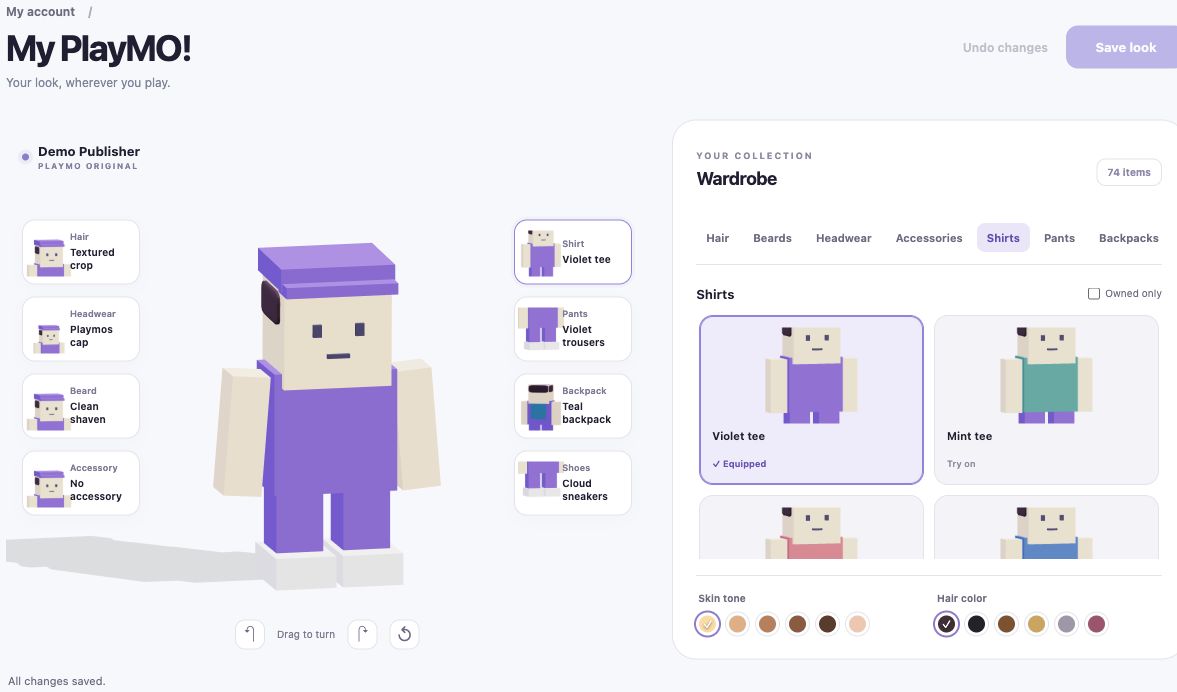](https://playmos.io/images/games/playmo-wardrobe.jpg)**Dress once, bring your look.**Local development screenshot with a demo account. My Mo! owns wardrobe changes; games read the saved look.
Hair, beards, hats, face accessories, shirts, pants, backpacks and shoes are separate equipment slots. Skin tone and hair color complete the look. Games render that appearance using the shared Mo rig and animation modules, keeping the recognizable Playmos block style. They do not add another dressing screen.
## What travels with a Mo
| Profile data | Meaning |
| --- | --- |
| Identity and revision | Account-bound avatar identity and version of the saved profile. |
| Equipped appearance | Validated catalog item IDs for eight slots, plus skin tone and hair color. |
| Collectibles | The account-owned collection of item IDs; owning an item is separate from equipping it. |
| Portable attributes | Namespaced string, number or boolean values carried in the profile. A game must explicitly define supported semantics; these are not automatic cross-game powers. |
The current games consume appearance. The profile also carries collectibles and attributes, but cross-game earning, trading and attribute-driven gameplay are not established by the renderer. Account servers own inventory, grants and attribute changes.
## How a game uses it
Use the SDK’s `createPlaymo` read-only client, then feed the validated profile to the shared renderer. In an embedded Hub game, the trusted host supplies the signed-in viewer’s profile through a source- and origin-bound bridge. There is no linking button inside the game. Retire cached appearance on disconnect, identity change or teardown; never reuse the author’s identity for another viewer.
Keep avatar presentation separate from collision, movement and scoring. A large hat does not extend collision, and equipment or portable attributes cannot grant paid admission, a leaderboard result or a collectible. Handle unavailable profiles gracefully with the base guest look.
## Outside the Playmos Hub
The rig and default look render on an independent website. The SDK accepts a custom read transport through `createPlaymo({transport:{get}})`, but this extension point does not implement external login or authorize profile access. Your authenticated backend must obtain only the current player’s validated, authorized profile. Do not embed studio secrets or ship someone else’s profile in an export.
For now, the supplied standalone starter uses the guest look; the supplied account adapter targets Hub embedding. Unity avatar support remains a future engine adapter. See [Playmos Games](https://playmos.io/docs/games) for the current runtime and authoring workflow.
## If it did not work
An external website needs its own authorized account transport. Use the guest look until that connection exists.
**Try one variation** Open the same build as a guest. It should render a base look without exposing the previous player’s profile.
[Continue with the next guide →](https://playmos.io/docs/games)
## Read appearance; keep account authority in Playmos
~~~
// From @playmos/sdk source candidate; use the exact reviewed build.
import { createPlaymo } from '@playmos/sdk';
const avatar = createPlaymo({
gameId: registeredGameId,
hubUrl: trustedHubOrigin,
onChange(profile) {
// Null means the account context was retired: restore guest look.
renderPlaymoProfile(profile);
},
});
try { await avatar.read(); }
catch { renderPlaymoProfile(null); }
// On exit: avatar.destroy();
~~~
---
# Bring your Playmos to the couch.
Try it first
## Join and leave a couch session
**You need** A TV or host browser, a phone and a supported game.
- Open the couch experience and follow the controller pairing flow.
- Join a player, choose a slot and check visible focus and input.
- Leave and reconnect, checking that the old player no longer controls the slot.
**Check your result** Each joined player controls only their assigned seat.
Couch mode puts the Hub on your TV. Playmos Controller keeps your account on your phone. Buddy Mode gives up to four players their own place on the couch.
**Preview status**
These screenshots show the local implementation. Installed-phone sign-in, camera pairing and physical-controller play still need verification on real devices. Buddy support must be added by each game. Phone-approved IAP and portable purchase fulfillment are planned, not implemented here.
## Open Couch mode on your TV
Select the TV icon labeled Couch mode beside your profile in the upper-right corner of the Hub. On phones, the icon stays visible when navigation collapses.
[](https://playmos.io/images/buddy-mode/couch-mode-launch.jpg)**Open Couch mode beside your profile**Actual local Hub preview. The TV launcher sits at the far right of the header.
Open [Couch mode](https://playmos.io/couch) in the TV browser, or display the Hub from your computer. The games run in that browser. Choose My games, All games or Play again. Pair your phone to bring a limited profile view to the TV; your phone registration remains on your account when you leave.
[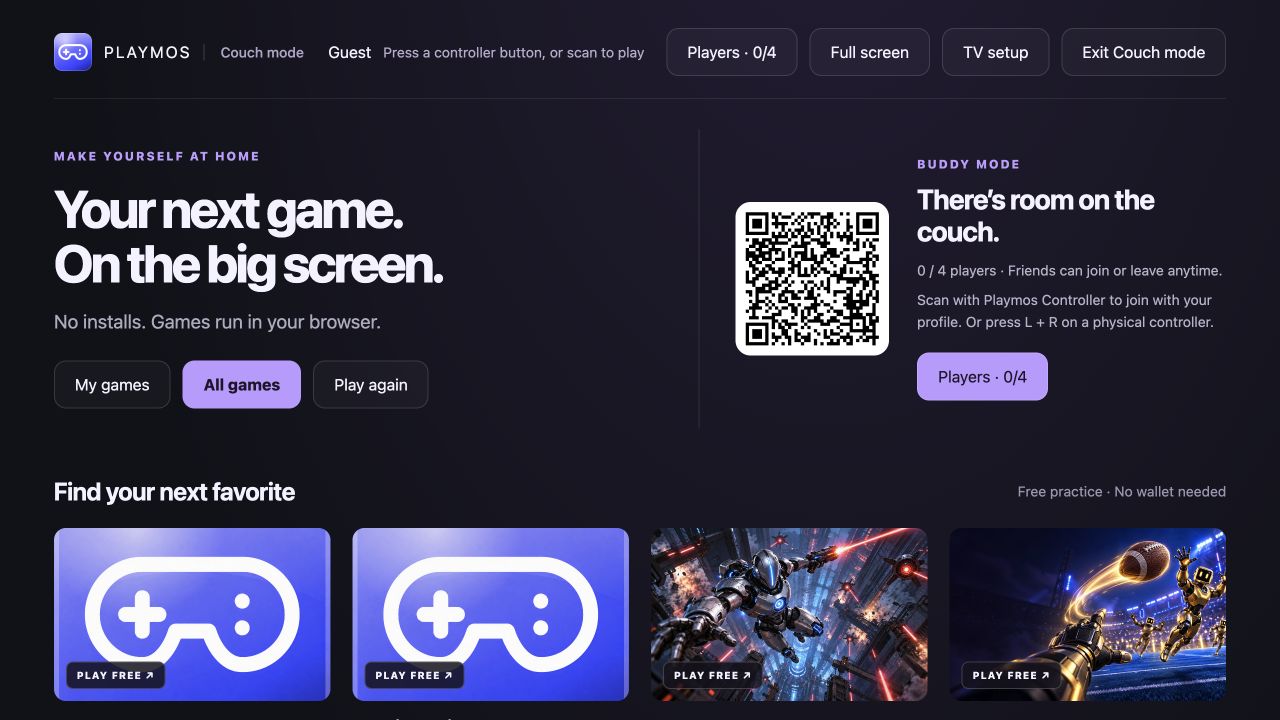](https://playmos.io/images/buddy-mode/big-picture.jpg)**Couch mode with Buddy Mode open**Local browser preview. The invitation shown here is an example, not a reusable pairing code.
## One Playmos app on your phone
Mobile Hub browsing and the installed Controller app share My games, Discover, Controller, Profile and Wallet in one bottom navigation. Sign-in returns you to the view you chose. Device registration stays out of your game library.
[](https://playmos.io/images/buddy-mode/unified-mobile-discover.jpg)**One mobile Playmos experience**Actual local mobile browser preview. Discover uses the same shell as your games, profile, wallet and controller.
Use the controller icon in the bottom center to connect to a TV. It guides installation, sign-in and phone registration when needed, then opens the scanner. You can browse games before installing; TV controls and scanning require the installed app.
## Install Playmos Controller once
- Scan the TV’s QR code with your phone’s normal camera to open Playmos Controller.
- Tap the controller icon in the bottom center, then install Playmos Controller or use your browser’s Add to Home Screen option. On iPhone, use Safari’s Share menu.
- Launch it from the home-screen icon. The center Controller tab stays at setup until the app runs in standalone mode; your other tabs remain available.
- Sign in to your Playmos account and register this phone. Its registration is saved to your account.
- For future TVs, open the installed app and tap the controller icon in the bottom navigation. Allow the camera and scan the TV from inside the app.
[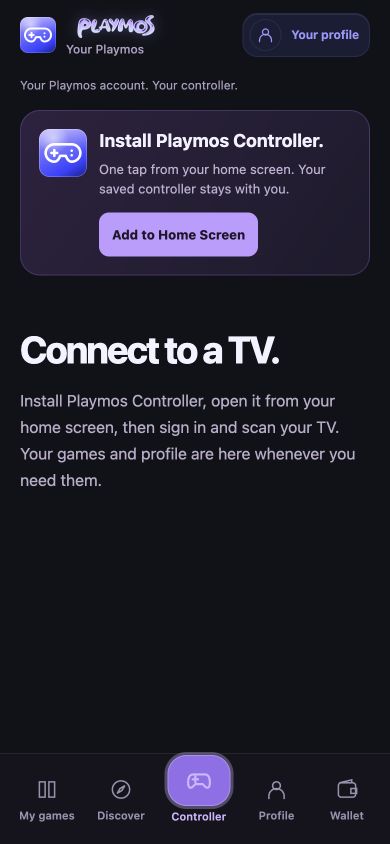](https://playmos.io/images/buddy-mode/unified-controller-setup.jpg)**Controller setup in the center tab**Actual local browser preview of setup inside the unified app. This is not an installed-phone screenshot.
Camera scanning and service workers require a secure HTTPS site on your phone. An ordinary LAN HTTP address is useful for reviewing the TV layout, but does not prove the phone installation flow.
## Your games, profile and wallet
Signed out, Couch mode shows a large QR to connect your phone and sign in before booting your console. Signed in, it loads your console and waits for an online phone or physical controller. A controller already connected opens home immediately. Remembered offline phones remain on the connection screen. Guest play is an explicit choice after a controller connects. Your profile names the console; recently played games lead the horizontal game rail, and the selected game supplies the backdrop. Open Controllers in the action dock to invite friends and manage the four-player lineup. Console phone settings inside that panel handles personal pairing, disconnecting and switching to a guest.
[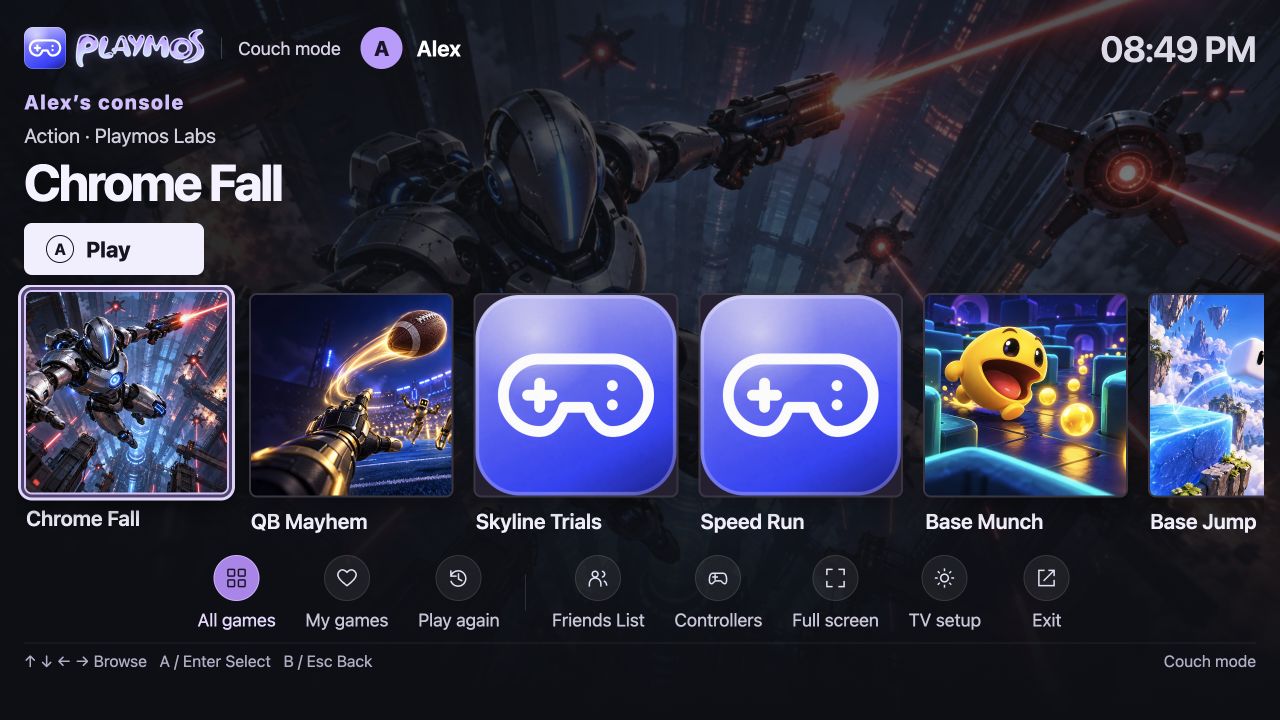](https://playmos.io/images/buddy-mode/connected-couch-layout.jpg)**Your connected TV puts games first**Local layout fixture with a sample profile, not a real account or physical pairing. Personal QR setup is tucked into Controllers.
The installed app brings together your saved and recent games, profile and account controls. Account → Controllers lets you rename or revoke registered phones. A registered phone can request a limited TV profile session; the TV approves that request. Controller registration alone never signs a TV into your full account or wallet.
Use Leave TV when you finish. This removes the TV profile session while keeping your phone registered for next time. Your wallet stays on the phone. Buying IAP from a friend’s TV with phone approval and keeping the entitlement on your account remains a follow-up.
[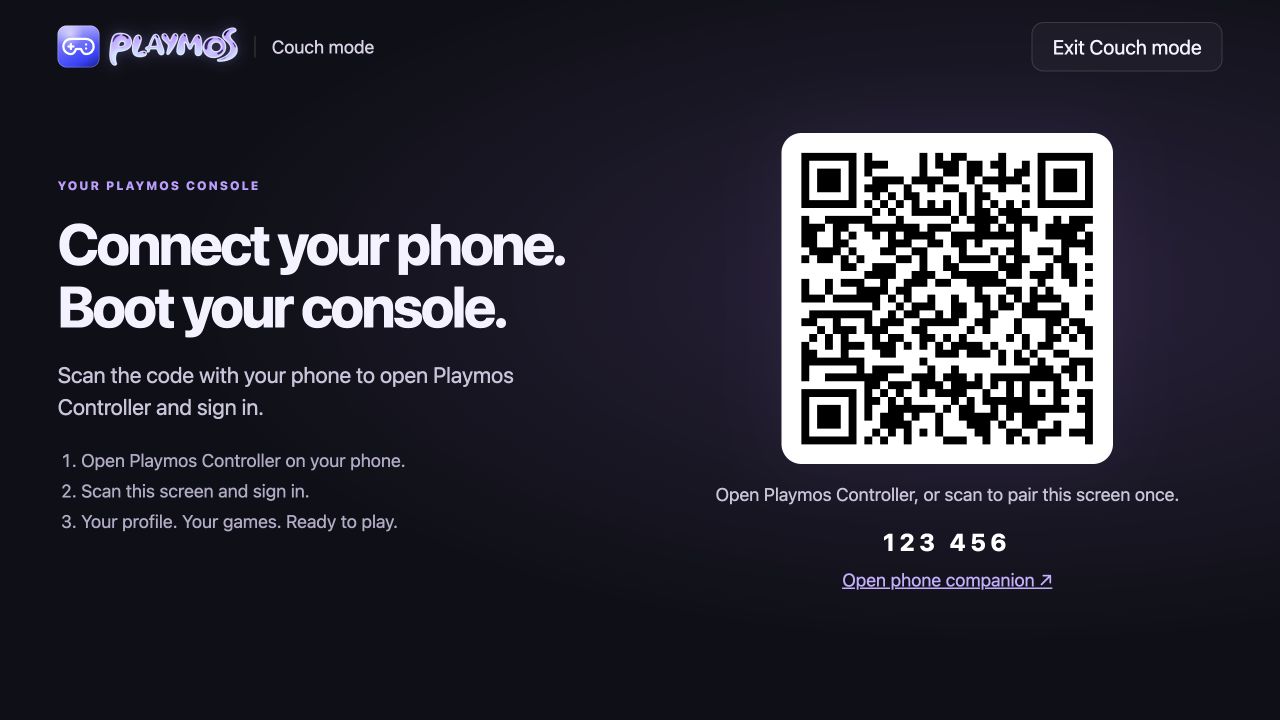](https://playmos.io/images/buddy-mode/console-boot-signed-out.jpg)**Connect your phone to boot**Local presentation fixture. The sample QR grants no access.
[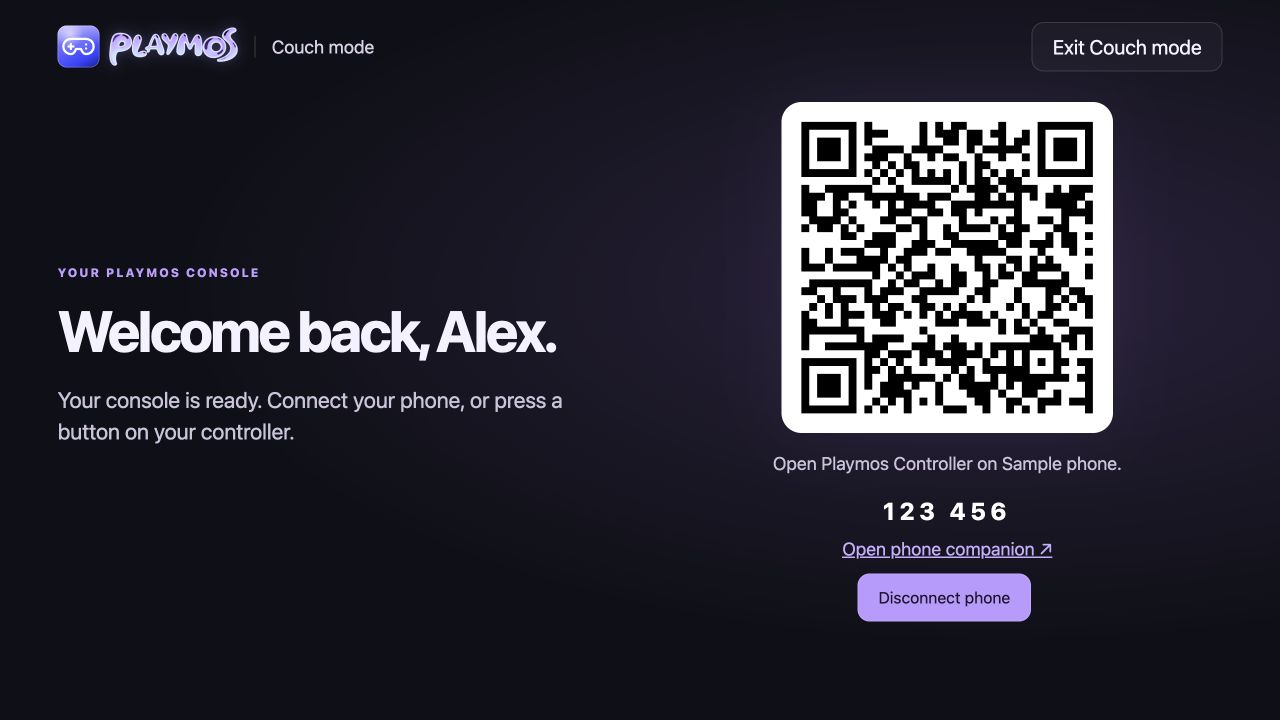](https://playmos.io/images/buddy-mode/console-boot-waiting.jpg)**Your console, waiting for controls**Local presentation fixture with a sample signed-in profile and offline remembered phone.
## Your Friends List
Friends List is separate from Controllers. Open it from desktop navigation, your mobile app header, or the console dock and guide. Add someone by their player tag; they must accept before activity is shared. The list shows online, away, busy or offline, their custom profile status and their current game when they enable game activity sharing. Invisible hides presence. Editing your status uses the same profile status as the rest of Playmos.
Select a text field on the TV, then tap Type on TV on your approved phone. That tap opens a native phone input. Use on TV copies plain text into the selected field; it does not submit friend requests or account forms automatically. Passwords and wallet fields are not eligible. Physical phone keyboard presentation remains a device acceptance check.
[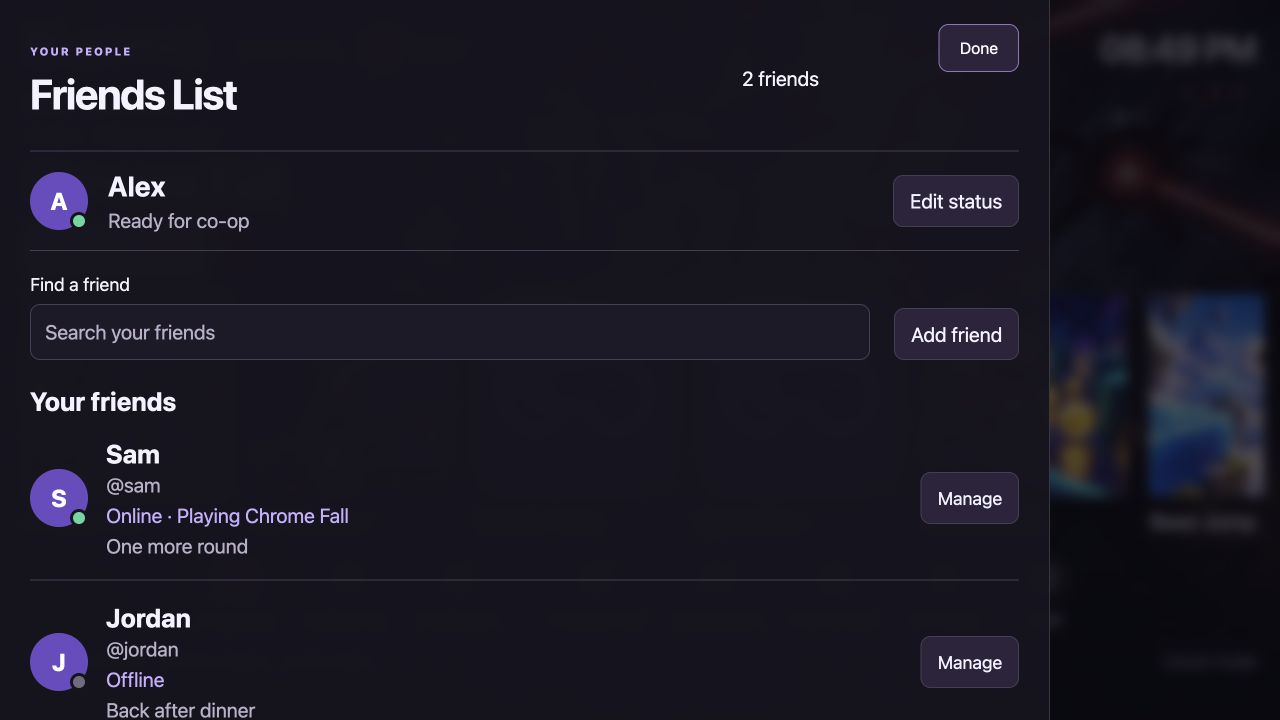](https://playmos.io/images/buddy-mode/console-friends.jpg)**Your people on the console**Local presentation fixture with sample contacts, statuses and game activity.
## Fit the TV display
TV Setup adjusts the safe area, with visible corner guides and plus/minus controls. The inset is saved on that TV and applies to console content, the guide and the game viewport. Use Reset to return to the default. The clock and controls are sized for distant TV viewing; physical readability at 25 feet remains unverified.
## Console sounds
Open Audio in the console dock to turn Menu sounds and Background music on or off independently. Your choices are saved on this device. Soft bloops mark selection and confirmation; an original pentatonic score plays quietly in the menus after browser audio is activated by a gesture. Music stops during games and when the page is hidden.
[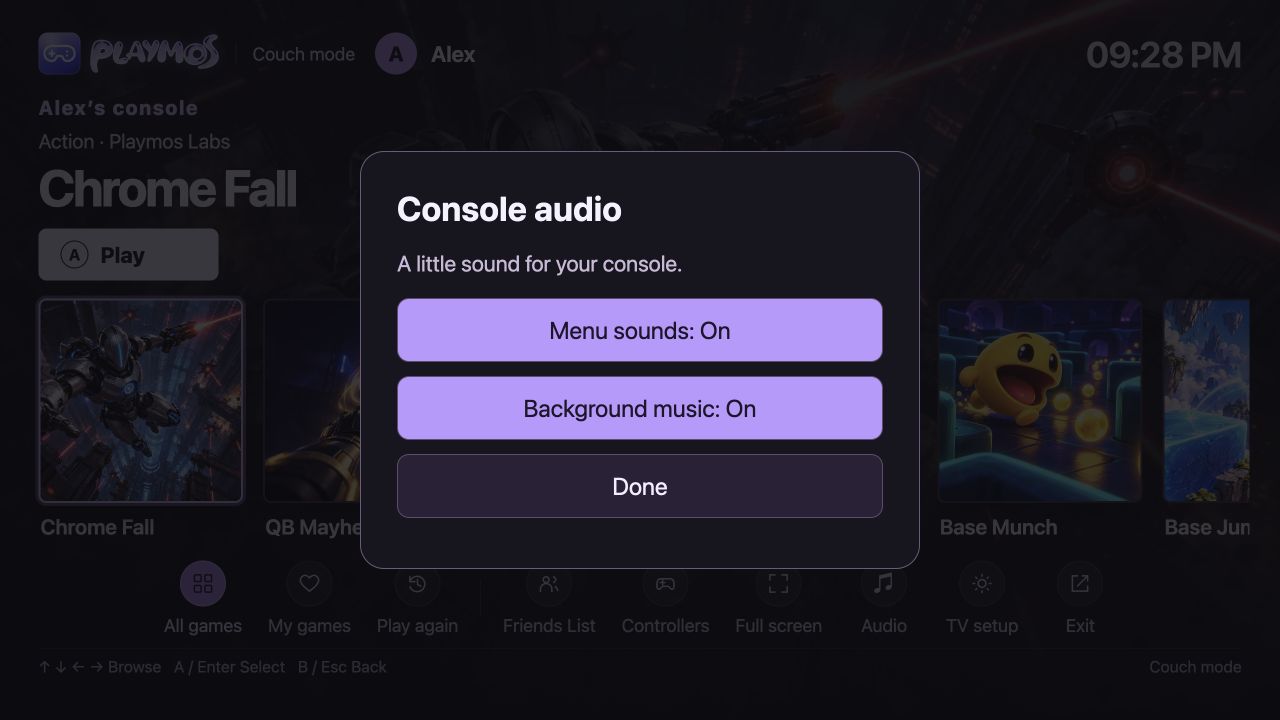](https://playmos.io/images/buddy-mode/console-audio.jpg)**Console audio settings**Local presentation fixture. Sound and music toggles save independently on this device.
## Your console guide
Games fill the display. Couch mode requests browser fullscreen when you launch; browsers can require a direct user gesture. Press Start + Select together on a phone or physical controller to open the side guide. Resume returns to the game, Friends List opens your contacts, Controllers & players opens the lineup, and Return to console home closes the game. Escape is a keyboard fallback when the console has keyboard focus. The guide releases controller input; game simulation can continue behind it.
[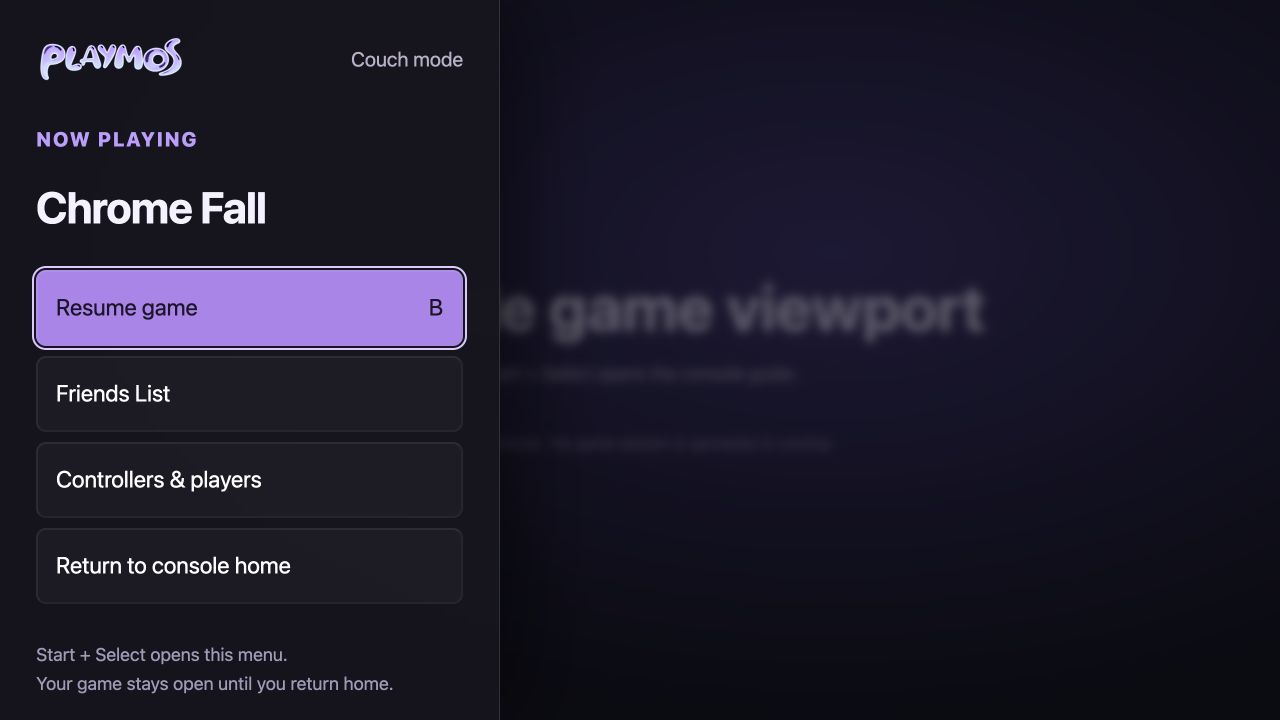](https://playmos.io/images/buddy-mode/console-game-hud.jpg)**The console guide**Local presentation fixture with a sample game viewport. Not gameplay, native fullscreen or physical-controller evidence.
## Choose players in Buddy Mode
Open [Buddy Mode](https://playmos.io/buddy) for the separate couch co-op experience. The Who’s playing? screen has four player slots. Friends can join before or during a game.
The Controllers screen shows physical controllers detected by the browser. Wake a gamepad by pressing a button. Choose an unused gamepad for an open slot, or change an existing player’s Controls selector. Physical controllers can swap places without moving player profiles. A registered phone player can return to their own phone; a guest needs to scan and join with a registered phone before using phone controls. To take a guest’s only gamepad for a phone player, first move or remove that guest.
[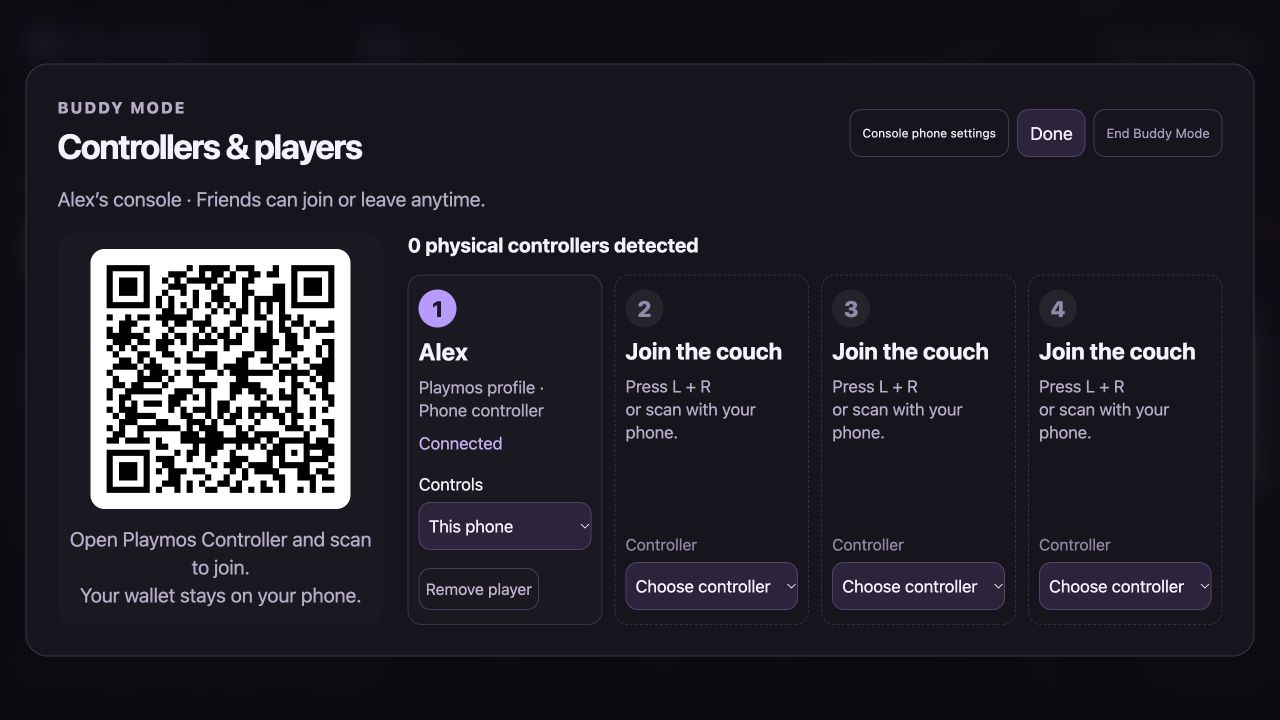](https://playmos.io/images/buddy-mode/console-controllers.jpg)**Four players, one console**Local layout fixture. The invitation is deliberately nonfunctional; no physical gamepads are connected.
[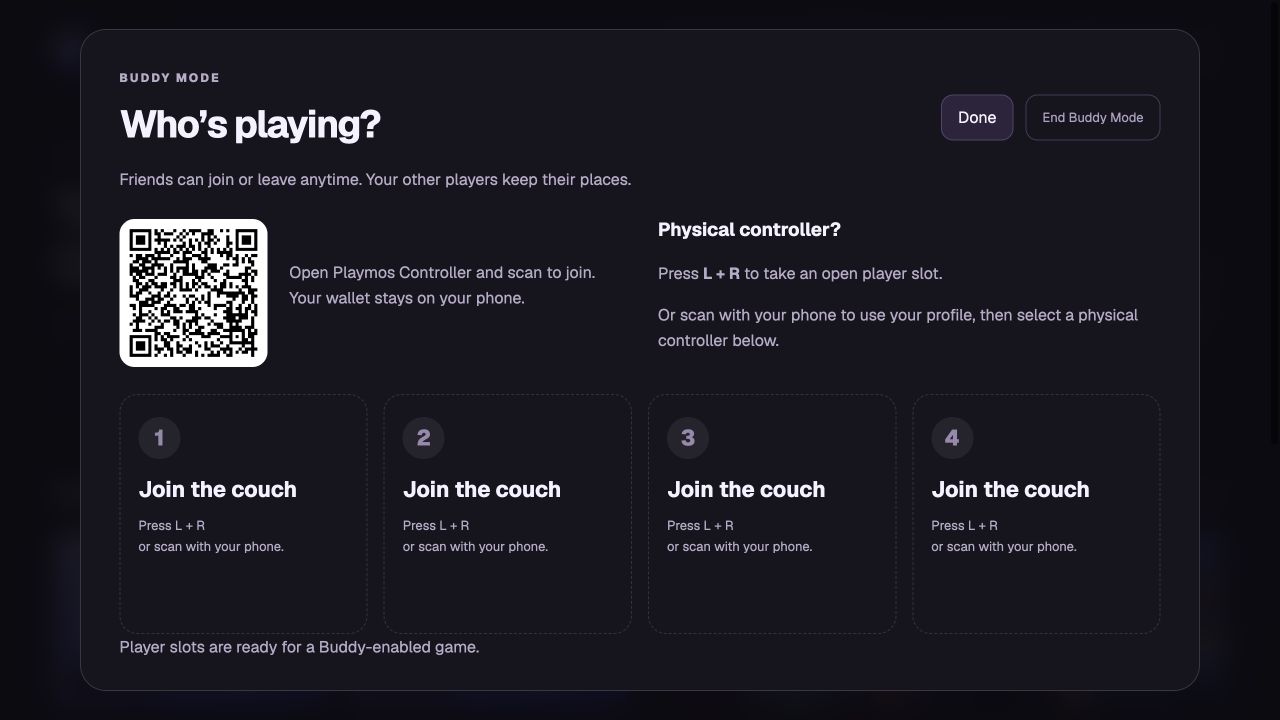](https://playmos.io/images/buddy-mode/player-selection.jpg)**Who’s playing? — four open player slots**Actual local player selection screen. No signed-in players or simulated hardware are shown.
| How you join | What happens |
| --- | --- |
| Physical controller | Connect it to the TV computer and press L + R to take an open slot as a guest. |
| Phone with your profile | Open the installed Playmos Controller, tap the controller scanner and scan the Buddy QR. The TV approves your request. |
| Profile plus physical controller | Join with your phone, then select an available physical controller for your player slot. |
| Virtual controller | Keep using your phone’s controls when there is no spare physical controller. |
Choose Done to return to the game shelves; the room stays open and the QR remains visible. Open Players from Couch mode or the game toolbar whenever someone joins, changes controllers or leaves. A game must explicitly support Buddy controls to receive separate player inputs.
## Drop in and out anytime
A player can leave from their phone, or the host can remove them from the player screen. Other players keep their slots. A new arrival takes an open slot with a new player identity. After removing a physical controller, release L + R before pressing it again to rejoin.
Lost input updates release held controls. A disconnected phone’s seat retires after 60 seconds; a room without a TV heartbeat expires after two minutes. End Buddy Mode closes the room and removes its guest profiles. Leaving a room does not revoke the phone’s account registration.
## Returning to Playmos
A service worker caches the generic app shell and versioned static files, including the scanner worker and decoder. QR decoding runs in a dedicated worker. Returning players can reopen the shell offline; library updates, sign-in, pairing, live controller input and game downloads still need a connection. Account, wallet and API responses are excluded from this shell cache. Updates wait until existing app windows close.
## Adding Buddy support to a game
The game-side adapter is a source candidate at `apps/hub/public/buddy-client.mjs`, not a published SDK release. Bundle it with your game, configure the exact trusted Hub origin and use `connectBuddyHost` with `onPlayers`, `onInput` and `onStatus`. Track players by ID and keep their stable slot numbers. Release controls when a player leaves or the host disconnects. Profile display is not login, purchase or score authority.
Existing single-player games do not become multiplayer automatically. The local game preview also needs its game server reachable from the TV browser; a loopback-only game URL can fail from another device. See [Phone & gamepad controllers](https://playmos.io/docs/controllers) for the separate portable controller SDK and managed party-room integrations.
## If it did not work
If pairing expires, create a new pairing session; never reuse another player’s profile or seat identity.
**Try one variation** Leave one seat while another keeps playing. Only the departing seat should lose control.
[Continue with the next guide →](https://playmos.io/docs/controllers)
## Buddy adapter source candidate
~~~
import {connectBuddyHost} from './buddy-client.mjs';
const buddy = connectBuddyHost({
hostOrigin: 'https://your-playmos-host.example',
onPlayers(players) { syncRoster(players); },
onInput(playerId, input, state) {
updatePlayer(playerId, input, state);
},
onStatus(status) { showConnection(status); },
});
// Call buddy.destroy() when your game tears down.
~~~
---
# Playmos Controller
Try it first
## Test one input action across devices
**You need** A supported host build plus a phone or actual gamepad.
- Pair a phone and map one visible action.
- Test press, release and disconnect while playing.
- Repeat with a gamepad and verify keyboard fallback.
**Check your result** The action stops on release or disconnect and the player can recover control.
For the account-linked Controller PWA, TV setup and four-player drop-in co-op, follow [Couch mode & Buddy Mode](https://playmos.io/docs/buddy-mode).
Phones and real gamepads. One input format. In your game, on your website, or inside the Playmos Hub.
**Standalone SDK package**
@playmos/controller does not require Playmos Live multiplayer, matchmaking, rollback or a hosted game server. Physical gamepads work locally. Phone pairing uses Playmos’s managed premium controller relay.
[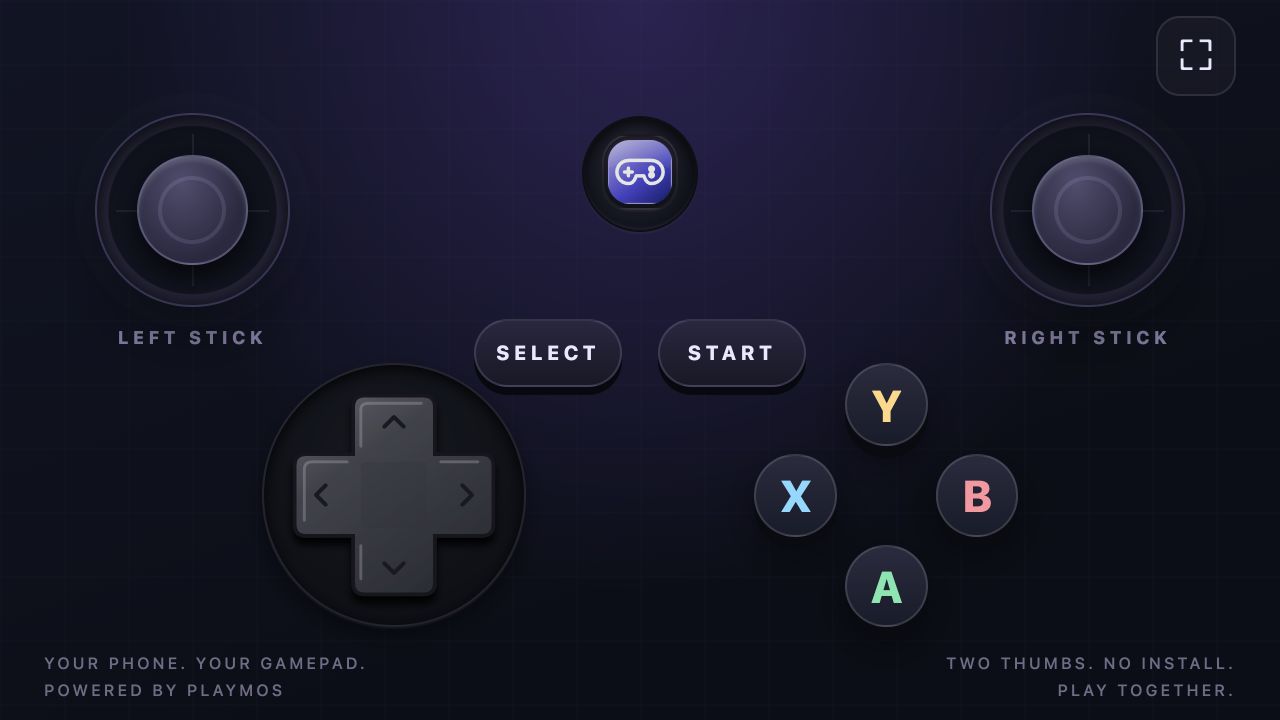](https://playmos.io/images/controllers/controller.jpg)**The Playmos controller**A full-screen, thumb-friendly layout with two sticks, an eight-way D-pad, face buttons and Start/Select.
## Custom couch-game controllers
Shared-screen couch games use a separate managed party flow: code-and-name guest entry, first-phone host control, private seat state and choice/order layouts. This is not the authenticated premium gamepad relay described below. See [Couch games, hosted by Playmos](https://playmos.io/docs/games#couch-party). The SDK supplies mobile layout diagnostics and a reusable phone renderer; gamepad support remains optional.
## Add the controller SDK
The 0.1.0 source candidate supplies ESM, CommonJS and TypeScript declarations with no runtime dependencies. Before registry publication, install the exact reviewed `playmos-controller-0.1.0.tgz` archive. After publication, pin `@playmos/controller@0.1.0`. Obtain a short-lived controller session from your authenticated backend; studio secret keys stay on that backend.
## Pair inside your game
The SDK owns the complete in-game pairing dialog: QR code, six-digit invitation, copyable link, expiry countdown, explicit phone approval and disconnect. The phone screen guides pairing, approval and play. Your game only maps the input.
[](https://playmos.io/images/controllers/pairing.jpg)**Pair without leaving the game**The SDK supplies the QR code, invitation, expiry countdown and phone approval flow inside your game.
~~~
import { PlaymosControllers, mountControllerPairing, createControllerInput } from '@playmos/controller';
const controls = createControllerInput({ onInput: input => game.setControls(input) });
const pairing = mountControllerPairing(document.body, {
title: 'Your game',
client: new PlaymosControllers({ sessionToken: controllerSessionToken }),
onInput: input => controls.update('phone', input),
onStatus: status => controls.setActive('phone', status === 'connected'),
onVisibility: open => controls.setEnabled(!open),
});
document.querySelector('#phone-controller').onclick = () => pairing.open();
// On game exit: await pairing.destroy();
~~~
The invitation lasts two minutes and refreshes while the dialog is open. A phone cannot control your player until you approve it. Continue playing hides the dialog and keeps the connection; disconnect revokes it. Pairings bind one studio, game, player and session. Tokens stay in memory and never appear in a pairing URL.
## Real gamepads
Use the browser Gamepad API through the same normalized controls. The SDK handles standard mapping, radial stick deadzones, device selection, hot plug, focus and neutral release. Physical input needs no service or account.
~~~
import { watchGamepads } from '@playmos/controller';
const physical = watchGamepads({
enabled: () => !pairing.isOpen,
onInput: input => controls.update('gamepad', input),
onStatus: status => controls.setActive('gamepad', status === 'connected'),
});
// On game exit: physical.destroy();
~~~
Press a controller button to expose the device to the browser. Use HTTPS or loopback development, and delegate `gamepad` permission in cross-origin frames. Browser/device support varies. Nonstandard devices can supply `mapGamepad(device)`; `readGamepadInput(device)` exposes the standard mapper directly. See the [Gamepad specification](https://w3c.github.io/gamepad/).
## Hub and other game portals
The Hub forwards physical input to a game that explicitly opts in through the SDK, including Agent Studio and Hub shared previews. Their status label shows when a gamepad is connected, inactive or unavailable. The same build reads local gamepads when opened independently.
~~~
import { connectControllerHost, watchGamepads } from '@playmos/controller';
const hosted = window.parent !== window ? connectControllerHost({
hostOrigins: ['https://playmos.io', 'https://www.playmos.io', 'https://test.playmos.io'],
onInput: input => controls.update('host', input),
onStatus: status => controls.setActive('host', status === 'connected'),
}) : null;
const physical = watchGamepads({
enabled: () => !pairing.isOpen,
onInput: input => controls.update('gamepad', input),
onStatus: status => controls.setActive('gamepad', status === 'connected'),
});
// On exit: physical.destroy(); hosted?.destroy(); await pairing.destroy();
~~~
Pin your actual trusted host origins. The bridge checks parent window, exact origin, nonce, connection, sequence and input schema. It carries no session token, studio secret or score authority. Lost input heartbeats neutralize held controls after 500 ms; iframe reload rotates the connection.
Your own portal can use `createControllerBridge({frame, gameOrigin})`, route the selected output of `createControllerInput` into `bridge.update(input)`. Update that selector from physical and phone callbacks; do not let both sources write directly to the bridge. When the selected source is a phone, forward it with `{source: 'phone'}`. Create the bridge only when the selector has a connected device. A controller protocol handshake selects host input inside the game, so an empty bridge can suppress its keyboard and touch fallback. Destroy the bridge when the last device disconnects or becomes inactive; create a fresh one on reconnect. The embedded game must trust that portal origin. Set `allow="fullscreen; gamepad"` while retaining the normal iframe sandbox. For a portal-owned opaque frame with `sandbox="allow-scripts"`, the reviewed controller source candidate supports `createControllerBridge({frame, gameOrigin: "null", opaque: true})`. This mode still requires the exact child window and a nonce-bound connection; frames with same-origin access are refused.
## One standard input
| Field | Meaning |
| --- | --- |
| axes[0..1] | Left stick X/Y, -1 to 1. Positive Y is down. |
| axes[2..3] | Right stick X/Y, -1 to 1. |
| triggers[0..1] | Left/right analog triggers, 0 to 1. |
| buttons.a/b/x/y | Face buttons. |
| buttons.up/down/left/right | D-pad; a diagonal activates two directions. |
| buttons.start/select | System buttons. |
| buttons.l1/r1/l2/r2/l3/r3/home | Physical shoulders, triggers, stick clicks and home where exposed. |
The phone layout has a classic eight-way cross D-pad, two thumbsticks, four face buttons, Start/Select and the embedded Playmos icon. Touch ownership is independent, diagonal regions are hittable, and cancellation, backgrounding and teardown release controls. The relay also neutralizes held input after 500 ms without updates.
## Custom presentation and lifecycle
Use `mountPhoneController` for a phone page on your own origin, `mountVirtualGamepad` for the controls alone, or `VirtualGamepad` for a custom renderer. Lower-level `PlaymosControllers.create()` exposes input/status/approval callbacks, `host.pairCode`, `host.controllerUrl`, `host.approve(requestId)` and `host.close()`.
Use `createControllerInput` to select phone, then host, then gamepad input by default. Inactive devices cannot overwrite the selected owner. Its `setEnabled(false)` releases output while a dialog is open. Choose one active input source per player. Disable physical/keyboard driving while a phone owns the player; neutralize and fence queued commands on handoff. Destroy watchers, bridges and mounted panels when a game exits. Controller input never authorizes a paid entry, score or payout. Tabletop Rivals is the reference consumer of this same standalone package.
## If it did not work
A desktop emulation cannot prove real Gamepad API or phone behavior; test the actual device and permissions.
**Try one variation** Disconnect while holding a direction. The action must stop instead of sticking on.
[Continue with the next guide →](https://playmos.io/docs/buddy-mode)
## Clean teardown
~~~
// Clean up every connection when leaving the game.
controls.destroy();
physical.destroy();
hosted?.destroy();
await pairing.destroy();
~~~
---
# Receive payment webhooks.
Try it first
## Deliver a callback without double granting
**You need** An external HTTPS receiver, raw request bytes and the matching webhook signing configuration.
- Send a signed sample and record delivery; the sample must not grant items.
- For a real test purchase, persist the event in a durable inbox.
- Verify the authoritative receipt and run browser completion plus callback through one grant ledger.
**Check your result** Duplicate delivery and completion still produce one inventory change.
Receive signed payment events on your backend. Make duplicate delivery safe before you connect fulfillment.
## Register your endpoint
Register a URL through `POST /v1/webhook_endpoints` with your server’s secret studio key. The service scopes it to a studio-owned game. Configure the webhook signing secret through your trusted onboarding path.
## Verify the original bytes
Read `X-Playmos-Signature` and preserve the original request body. Import `verifyWebhook` from `@playmos/sdk/server`. Parsing and reserializing JSON before verification changes the signed bytes.
## Supported event types
| Event | Action |
| --- | --- |
| payment.confirmed | Verify the intended purchase and fulfill once. |
| payment.failed | Record failure; do not grant. |
| payout.settled | Reconcile the payout record. |
| refund.processed | Reconcile the refund and entitlement policy. |
## Delivery and deduplication
Use the event ID as a durable deduplication key. The sender retries HTTP delivery within its bounded attempt loop. A repeated event must reuse the same fulfillment record.
**Inspect attempts honestly.**
Endpoint inspection currently returns attempt_recorded or no_deliveries_recorded. It does not expose complete per-endpoint delivery success, HTTP status history, latency or an active retry queue. Stored nextRetryAt is not proof of a durable retry scheduler.
## Registration and studio binding
~~~
curl --fail-with-body -X POST https://api.sandbox.playmos.io/v1/webhook_endpoints \
-H "Authorization: Bearer $PLAYMOS_SECRET" \
-H 'Content-Type: application/json' \
-d '{"gameId":"game_sandbox_iap","url":"https://your-server.example/api/store/webhook"}'
~~~
Store the returned `endpoint.gameId` and `signingSecret` securely. Inspection via `GET /v1/webhook_endpoints` does not return the secret again. Registration returns `503 webhook_signing_unconfigured` when the service operator has not configured its signing secret.
The current sandbox uses a service-level signing secret across studios. Because studios share that sandbox signing key, a valid HMAC alone does not uniquely authenticate Playmos or establish purchase ownership. Verify the payment under your studio key and match your stored purchase before fulfillment.
The signature format is `t=,v1=`, signing the exact `t + '.' + rawBody` bytes. Deduplicate event IDs for delivery processing and payment IDs for item grants. `payout.settled` is a supported event type; it does not make the stubbed bank off-ramp available.
## Test a receiver from the Hub
The local-preview [Developer Console](https://playmos.io/publisher/developer) can send a signed `payment.failed` sample to an endpoint registered there. It uses a unique `hub_test_` ID and `metadata.hubTest: true`; it carries no purchase and must never grant an item. The portal reports actual HTTP acceptance, timeout or failure separately from service delivery history. A 2xx response does not prove fulfillment or a real payment.
Test destinations must resolve to public HTTPS addresses on port 443. Redirects and private networks are blocked. The test sender makes one attempt and allows one test per studio every 10 seconds. It is a Hub tool, not a new SDK webhook test API.
Playmos · Publisher workspace
[](https://playmos.io/images/portal/studio-keys.jpg)
**Connect credentials before testing your receiver**Keys & webhooks is the portal entry point. After provisioning, register your HTTPS receiver and send a signed sample.[View full size ↗](https://playmos.io/images/portal/studio-keys.jpg)
Record the sample event once and inspect the actual delivery response. The sample carries no purchase and must never grant an item.
## If it did not work
Reject invalid signatures. A shared sandbox signer alone does not establish event authority; verify the studio-owned receipt.
**Try one variation** Replay the same saved callback, then alter its raw bytes in an isolated test. The duplicate must not regrant; the altered payload must fail signature verification.
[Continue with the next guide →](https://playmos.io/docs/payments)
## Your backend · webhook.ts
~~~
import { verifyWebhook } from '@playmos/sdk/server';
export function receiveWebhook(
rawBody: string, signature: string | undefined, signingSecret: string,
) {
const event = verifyWebhook(rawBody, signature, signingSecret);
// Verify the signature over the original bytes, before parsing your own body.
// Deduplicate event.id for delivery and event.data.id for fulfillment.
// Match the expected purchase and verify it under your studio server key.
// Grant once inside your database transaction, then return a 2xx response.
return event;
}
~~~
---
# Configure wallets and the Base app.
Try it first
## Use the intended wallet on the intended chain
**You need** A connected EIP-1193 wallet; test ETH and USDC for wallet-funded checkout.
- Read and display the selected payer and Base Sepolia chain 84532.
- Prepare one saved test purchase, then let that wallet approve it.
- Verify the receipt on your backend and check recovery after interruption.
**Check your result** The original payer, order and test network remain pinned throughout checkout.
Keep wallet login, transaction sends and receipt reads on the same chain. Test keys use Base Sepolia, chain ID 84532.
## Provide the wallet
`wallet.provider` accepts an EIP-1193 provider from your host. The `base-account` connector name does not install or construct Base Account for you: use an injected provider or install the host’s Base Account package yourself and pass its provider.
~~~
const client = new Playmos({
apiKey: publishableTestKey,
wallet: { provider },
rpcUrl: 'https://sepolia.base.org',
});
~~~
## Pin the login chain
For a game opened as a web page inside the Base app, wallet login needs a signature; a Farcaster account or manifest is not required for that web-page path. Your wallet configuration, sign-in message and server-side signature verification must all use 84532. The message must also bind your actual domain and URI.
## Pin every payment send
Both `wallet_sendCalls` and fallback `eth_sendTransaction` must name Base Sepolia (`0x14a34`). Check older buy buttons as well. Chain 8453 is Base mainnet and uses real funds. Testnet USDC and mainnet USDC are different contracts.
Use the SDK’s key-selected network and service-provided contract configuration. Do not copy a second contract address into the host. A custom `rpcUrl` is checked against the key’s chain on first use; a mismatched RPC throws `ConfigError`.
## Gas and approval prompts
| Path | Gas / prompts |
| --- | --- |
| Public sandbox server settlement | Playmos test signer pays gas; the player does not need a wallet. |
| Wallet-funded EOA payment | Player needs testnet ETH and USDC; approval may require a separate confirmation. |
| Sponsored wallet payment | Pass gas.mode sponsored and your paymasterUrl; there is no default studio paymaster. |
| Wallet batch fallback | SDK sends the same calls sequentially when batching is unsupported. |
## Fund your test wallet
The no-wallet demo needs no player funds. For wallet testing, get Base Sepolia ETH from the [Coinbase faucet](https://portal.cdp.coinbase.com/products/faucet) and official test USDC from the [Circle faucet](https://faucet.circle.com/). Select Base Sepolia each time. The SDK’s Base Sepolia token is official Circle test USDC, `0x036CbD53842c5426634e7929541eC2318f3dCF7e`. Check the selected chain and service-provided token before sending. Playmos does not provide a general player faucet.
## Test-host boundaries
A prize pool balance is not a payout. First-party practice hosts keep paid settlement and round alerts disabled during login/entry testing. Your own contest integration chooses when to settle; it must not infer a winner from an open prize pool.
## Privy wallet access and backup
In [Account → Wallets](https://playmos.io/account/wallets), link or reconnect your wallet, read test balances and follow the Base Sepolia faucet links. Choose **Open Privy wallet backup** to open Privy’s secure export window for your linked embedded wallet. The Hub never receives its private key. External wallets use their own wallet app’s backup settings. See [Privy’s wallet export guide](https://docs.privy.io/wallets/wallets/export).
## If it did not work
Insufficient test funds and unavailable balances are different states. Fund the intended wallet instead of switching it silently.
**Try one variation** Compare a wallet on the wrong chain with one that lacks test funds. Explain why these need different recovery actions.
[Continue with the next guide →](https://playmos.io/docs/stablecoin-quickstart)
## Wallet-funded epoch entry
~~~
import { Playmos } from '@playmos/sdk';
export async function enterYourEpoch(
publishableKey: string, provider: import('@playmos/sdk').Eip1193Provider,
pool: `0x${string}`, series: string, attemptIdentity: string,
) {
const player = new Playmos({
apiKey: publishableKey,
wallet: { provider },
contracts: { epochPrizePool: pool },
rpcUrl: 'https://sepolia.base.org',
});
const entry = await player.epochs.enter({ series, identity: attemptIdentity });
// Persist the returned epochId, identity and txHash for server admission.
// Confirmed entries use the mined event's epochId, not a guessed clock window.
return entry;
}
~~~
---
# Connect your game to Playmos.
Try it first
## Test your game inside its real host
**You need** Your game’s playable URL or uploaded build and the expected Hub origin.
- Load it in the Hub iframe and complete a run.
- Check controls, resize, pause, teardown and origin-bound messages.
- If adding trophies, issue a casual milestone once and check the account trophy case.
**Check your result** The embedded game plays cleanly; repeating a milestone does not create another award.
Keep the storefront, game runtime and payment service connected through explicit contracts.
## Three services. Clear responsibilities.
| Surface | Responsibility |
| --- | --- |
| Playmos storefront / publishing API | Sessions, studio roles, catalog, releases, review and player reports. Managed PostgreSQL in hosted mode; SQLite for local development. |
| SDK service | Payment and contest primitives, chain verification, signed events and receipt records. Separate API and MongoDB store. |
| Your game backend | Verified admission, score validation, fulfillment and game-specific history. |
## The iframe stage
The stage launches configured first-party clients and active reviewed managed ZIP releases for free play. It does not transfer the storefront login into the game or issue paid entry tokens. Local first-party games can report lifecycle and SDK commerce through the consent-based Hub analytics bridge. The first-party game kit owns its own UI and SDK provider inside that frame.
A production bridge needs a versioned message contract, exact origin checks, scoped launch/session tokens and server-verified admission. Never forward a secret key or accept money facts from `postMessage`.
## Inspect your development build
In [Simulator](https://playmos.io/publisher/developer?tab=game), connect a separate-origin development URL. Add the development adapter at real game lifecycle boundaries, watch **Integration signals**, and toggle **Show Playmos overlays** to compare the surrounding experience. Choose **Phone** (390 × 844), **Desktop** (1280 × 720) or **Responsive**. Drag through widths, enter dimensions or rotate without reconnecting. Use **Fit** to fit the stage into your workspace. Expand the adapter example beneath the event stream for setup instructions.
Playmos · Publisher workspace
[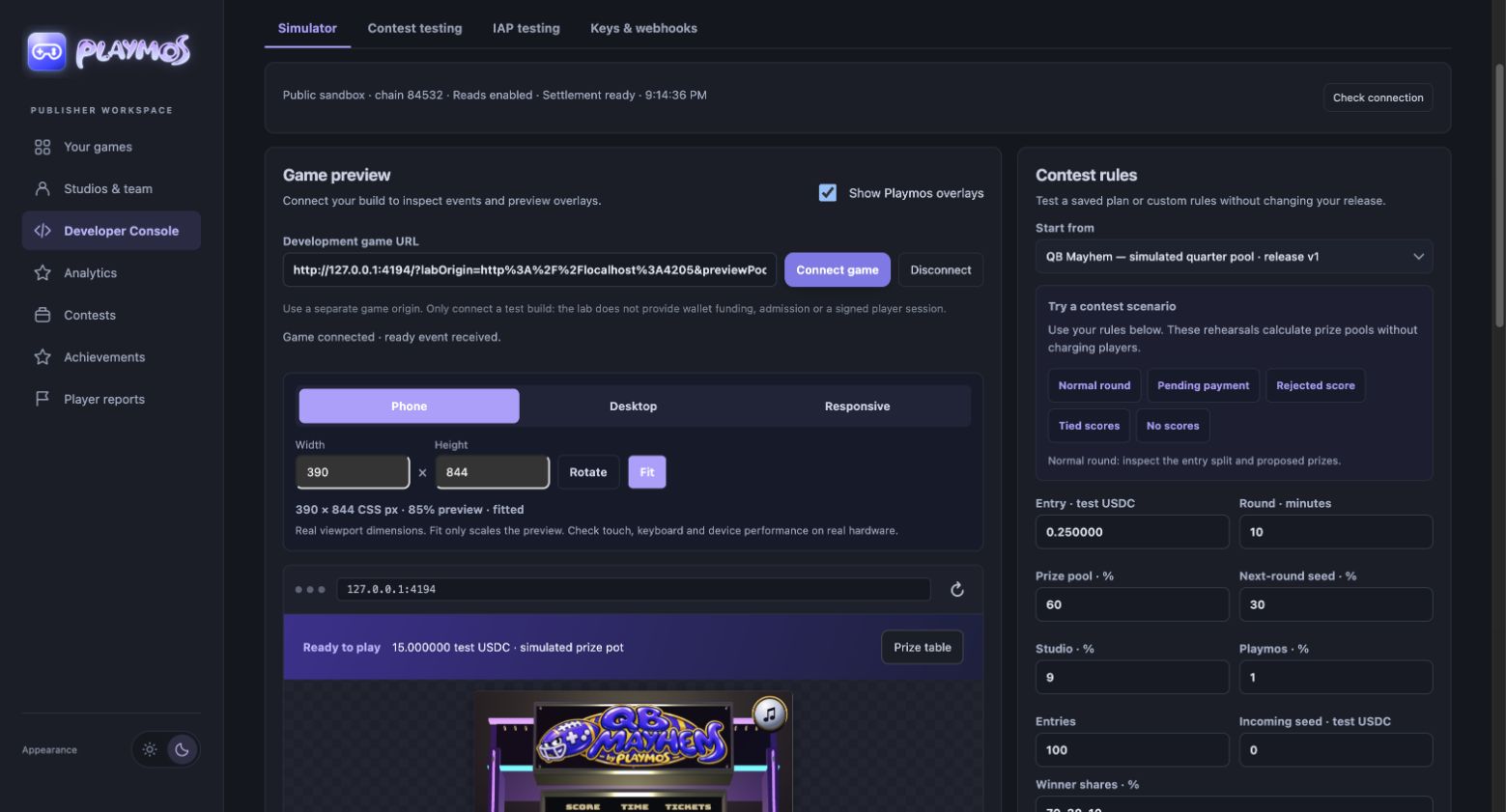](https://playmos.io/images/portal/responsive-stage.jpg)
**Test the actual game viewport**Phone, Desktop and Responsive resize the game in CSS pixels. Fit scales only the preview; it does not emulate touch, safe areas or hardware.[View full size ↗](https://playmos.io/images/portal/responsive-stage.jpg)
Ready latency measures the frame connection. Checkout and purchase hooks are observed browser reports; they cannot prove paid admission or settlement.
## Publishing readiness
For a complete public free game, save the listing and standard preview artwork, upload the browser ZIP, test/submit the declaration and obtain independent exact-build review. An authorized publisher then activates it and keeps the publication receipt. Free/practice is the payment mode, not a QA-only build. Follow [Host and publish your game](https://playmos.io/docs/hosting) for permanent game/play/share links, updates, restore, withdrawal and one-hour session recovery. A saved or approved declaration alone is not a public listing. SDK commerce and trusted score verification remain separate requirements for paid features.
[Open your publisher workspace](https://playmos.io/login?for=publisher)
## What your console should measure
| Metric | Source / readiness |
| --- | --- |
| Release and review status | Publisher API — available for drafts today. |
| Saved payment records and light bookkeeping | Publisher Financials retains SDK receipts, notes and exact fee/net totals. Background collection and accountant exports are implemented in source; hosted rollout is pending. Current connection is testnet-only. |
| Received studio revenue and payouts | Actual payout/withdrawal reconciliation is not collected in Financials yet. |
| Round/epoch settlement and overdue age | SDK and game backend — aggregate per studio/game. |
| Views → game ready → practice → entry | Storefront + authenticated iframe events — collection needed. |
| Rejected scores and validation reasons | Trusted game backend; no browser-authoritative scores. |
| Webhook attempts and verification errors | SDK records; detailed delivery telemetry still needs instrumentation. |
Filter by game, release, time range and test/live environment. Every monetary chart needs a verification source and freshness timestamp; unavailable data must not render as zero.
For complete public free-game ZIP upload, exact-build approval, permanent links, update/restore/withdrawal, MCP handoffs and score-server configuration, use [Host and publish your game](https://playmos.io/docs/hosting).
## Trophies across games and the Hub
Signed-in players earn a participation trophy after finishing a round of Base Munch, Base Jump or Base Stack. Finishing all three earns **Arcade explorer**; saving a first favorite earns **Found a favorite**. The award appears beside the game and stays in **My account → Trophy case** and the player profile. Public sharing follows the player’s profile visibility setting.
Playmos · Player profile
[](https://playmos.io/images/portal/trophy-showcase.jpg)
**A trophy case that feels like Playmos**An actual first-favorite award in the disposable local preview. Game participation is browser-reported; it is not a verified score, win or payment.[View full size ↗](https://playmos.io/images/portal/trophy-showcase.jpg)
The kit reports a real round start and completion to an exact-origin Hub parent. Leaving a scene does not complete a round. The Hub binds completion to the current account and game session and stores each award once. Studio-defined score or rank trophies still require a trusted backend validation path.
### Use the same unlock experience on your own site
**Available in SDK 0.3.26 and later.** Install the published SDK and configure the matching Hub trophy connection. In **Developer Console → Trophies**, choose your game or draft, add its exact HTTPS origin (loopback is allowed for local testing), and enable only casual participation trophies. Create trophy definitions in **Achievements** first.
Playmos · Publisher workspace
[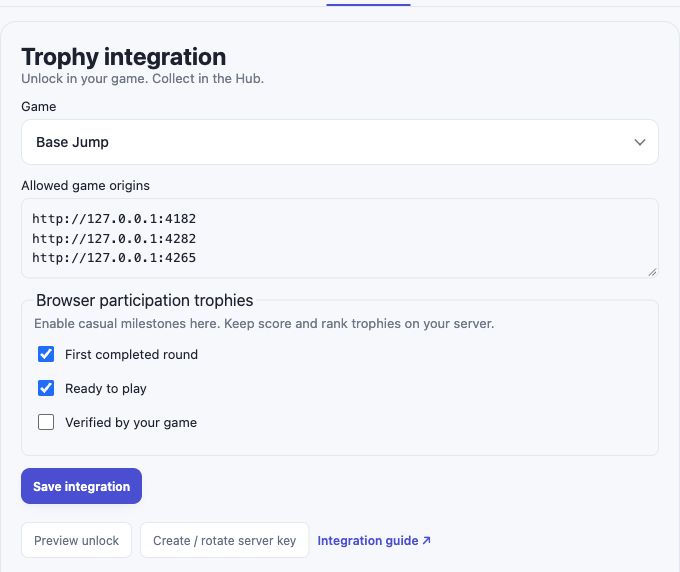](https://playmos.io/images/portal/trophy-integration.jpg)
**Enable the milestones your browser may report**Origin and participation settings live in the same compact developer console. Server awards use a separate key.[View full size ↗](https://playmos.io/images/portal/trophy-integration.jpg)`import { createTrophies } from '@playmos/sdk';
const trophies = createTrophies({ gameId: 'YOUR_PORTAL_GAME_ID' });
connectButton.onclick = () => trophies.connect();
// Only after the actual tutorial has finished:
await trophies.unlock('tutorial-done');`
The player approves a one-hour connection to their Playmos account. Popups are the default; set `connectionMode: 'redirect'` for mobile browsers or hosts that restrict popups. A saved award shows a Playmos unlock notice and links to the Hub trophy case. Repeated events return no new award. Existing trophies are loaded silently on connection.
Playmos · Standalone SDK game
[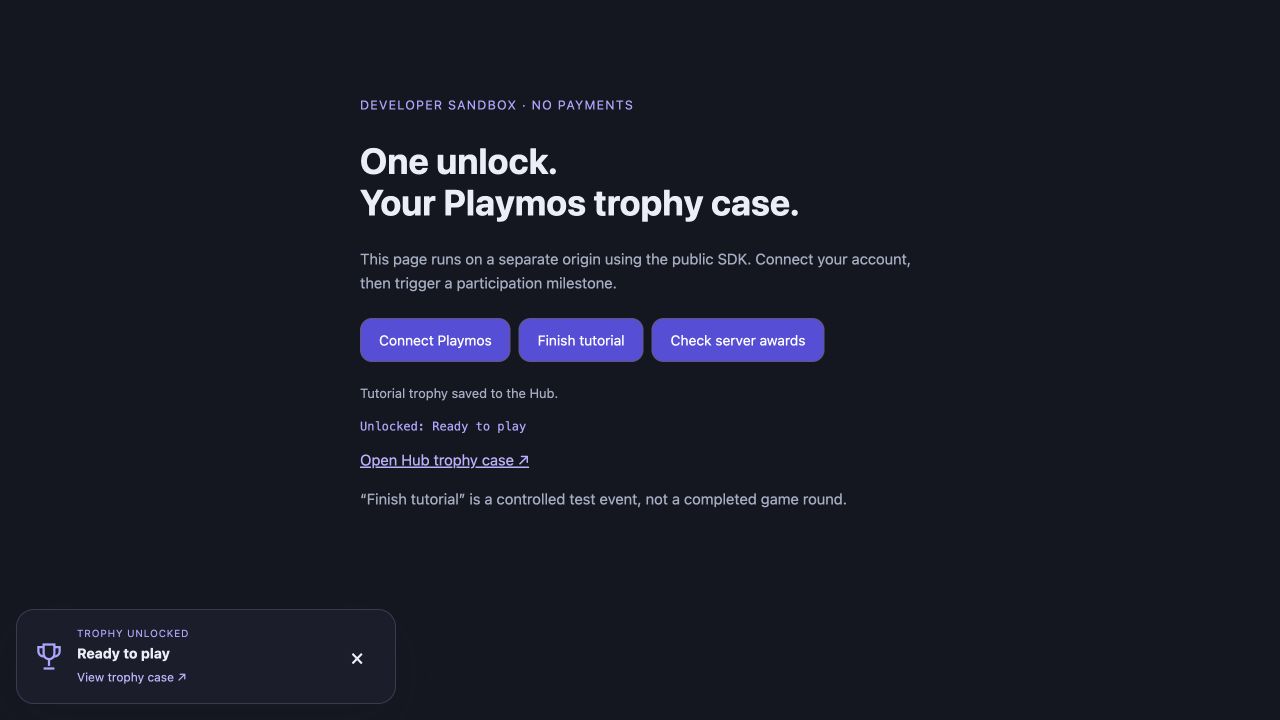](https://playmos.io/images/portal/sdk-trophy-standalone.jpg)
**An unlock outside the Hub**A real SDK request from a separate local origin saved this controlled tutorial trophy into the signed-in Hub account. This is a sandbox milestone, not a completed game round.[View full size ↗](https://playmos.io/images/portal/sdk-trophy-standalone.jpg)
### Keep score and rank awards on your backend
Leave competitive trophies unchecked in the browser participation list. Create a game-scoped server key in **Developer Console → Trophies**, store it only on your backend, and validate your game result before issuing an award. Rotating the key disables the previous key.
`import { createTrophyIssuer } from '@playmos/sdk/server';
const issuerKey = process.env.PLAYMOS_TROPHY_ISSUER_KEY;
if (!issuerKey) throw new Error('Set PLAYMOS_TROPHY_ISSUER_KEY on your backend');
const issuer = createTrophyIssuer({
gameId: 'YOUR_PORTAL_GAME_ID', apiKey: issuerKey
});
// Your server validates gameplay first. The browser supplies await trophies.playerProof().
await issuer.award({ playerProof: request.body.playmosPlayerProof, key: 'score-master' });`
The server key authorizes the developer’s decision; Playmos does not independently verify the game score. Connected games check for new server awards every 30 seconds, or immediately with `trophies.refresh()`. `onUnlock` receives new awards for your own UI or consent-aware analytics; no telemetry is enabled by connecting trophies. Use `disconnect()` to revoke a connection and `destroy()` when removing the game. Profile visibility remains the player’s choice.
## If it did not work
Embedding headers or wrong origins can block the game. Keep score-based awards on a trusted backend.
**Try one variation** Reload the iframe after a completed casual milestone. The saved trophy should remain a single award.
[Continue with the next guide →](https://playmos.io/docs/hosting)
## Preserve the paid-attempt identity
~~~
import { Playmos } from '@playmos/sdk';
export async function enterYourRound(
playmos: Playmos, gameId: string, roundKey: string,
wallet: string, attemptId: string, amount: string,
) {
return playmos.enterRound({
gameId,
roundId: roundKey,
roundKey, // Use the same exact key for server admission.
identity: `${wallet}#${attemptId}`, // A unique identity for each paid attempt.
playerId: wallet,
amount,
idempotencyKey: attemptId,
});
}
~~~
---
# Run your studio from one workspace: games, people, financial records and player feedback.
Try it first
## Find the right game in the right studio
**You need** Publisher access to one or more studios.
- Choose the studio before opening a game.
- Find its listing, builds and review status.
- Open the relevant report or developer tool from that game’s context.
**Check your result** You can identify which studio owns the resource before editing it.
## Choose the right studio
The first breadcrumb is your active studio. Open it to switch studios, manage the team or create another studio. Every report and credential belongs to the selected studio; a studio switch is not a permission grant.
## Manage your games
Use My Games to open your games or start a new game. Prepare the listing, test the saved declaration and submit for review. Publication and build review remain separate approvals. See [Host and publish your game](https://playmos.io/docs/hosting).
## Choose a management tool
- [Financials](https://playmos.io/docs/financials): inspect SDK payment records, bookkeeping notes and exports.
- [Player sentiment and feedback](https://playmos.io/docs/sentiment): collect reviews, compare signals and drill into evidence.
- [Analytics](https://playmos.io/docs/analytics): consented activity and telemetry. This is a separate access grant from Sentiment.
- [Studio setup](https://playmos.io/docs/studio-setup): keys, team permissions and development setup.
## Work with your team
Open Studios & team. Owners manage invitations, roles and credentials; publishers can submit releases; developers can edit and test; viewers can inspect. Invite recipients must accept before access begins. Keep private keys on your backend.
## If it did not work
If a resource is missing, check the studio and your role before creating a duplicate.
**Try one variation** Switch studios and reopen the same resource. Confirm that membership does not expose another studio’s private records.
[Continue with the next guide →](https://playmos.io/docs/studio-setup)
---
# Publisher Financials
Try it first
## Reconcile one saved payment
**You need** A connected studio payment source and a period containing test records.
- Filter by UTC period and game, then open one payment.
- Check its chain receipt separately from its saved status.
- Save a bookkeeping note and export the selected period.
**Check your result** The export preserves exact amounts, IDs and coverage; your note survives reopening.
Keep a saved payment ledger for your studio, add bookkeeping notes and prepare records for your accountant.
**Rollout status.**
Implemented in the current source; hosted deployment is pending. The current connection uses Base Sepolia test USDC, which has no cash value. Production studio income and received payouts are not collected yet.
## Open your studio ledger
Choose **Financials** under Manage in the [publisher dashboard](https://playmos.io/publisher/financials). Choose a period shortcut or custom UTC dates, and optionally select a game. The ledger shows 50 saved payments per page. Summary totals and charts cover the whole selected period. Switch Net/Gross in Sales over time, explore dates, or select a game from the breakdown. Search transactions by game, payment ID or note; use status filters to find pending, failed or unreviewed records.
Playmos · Publisher Financials
[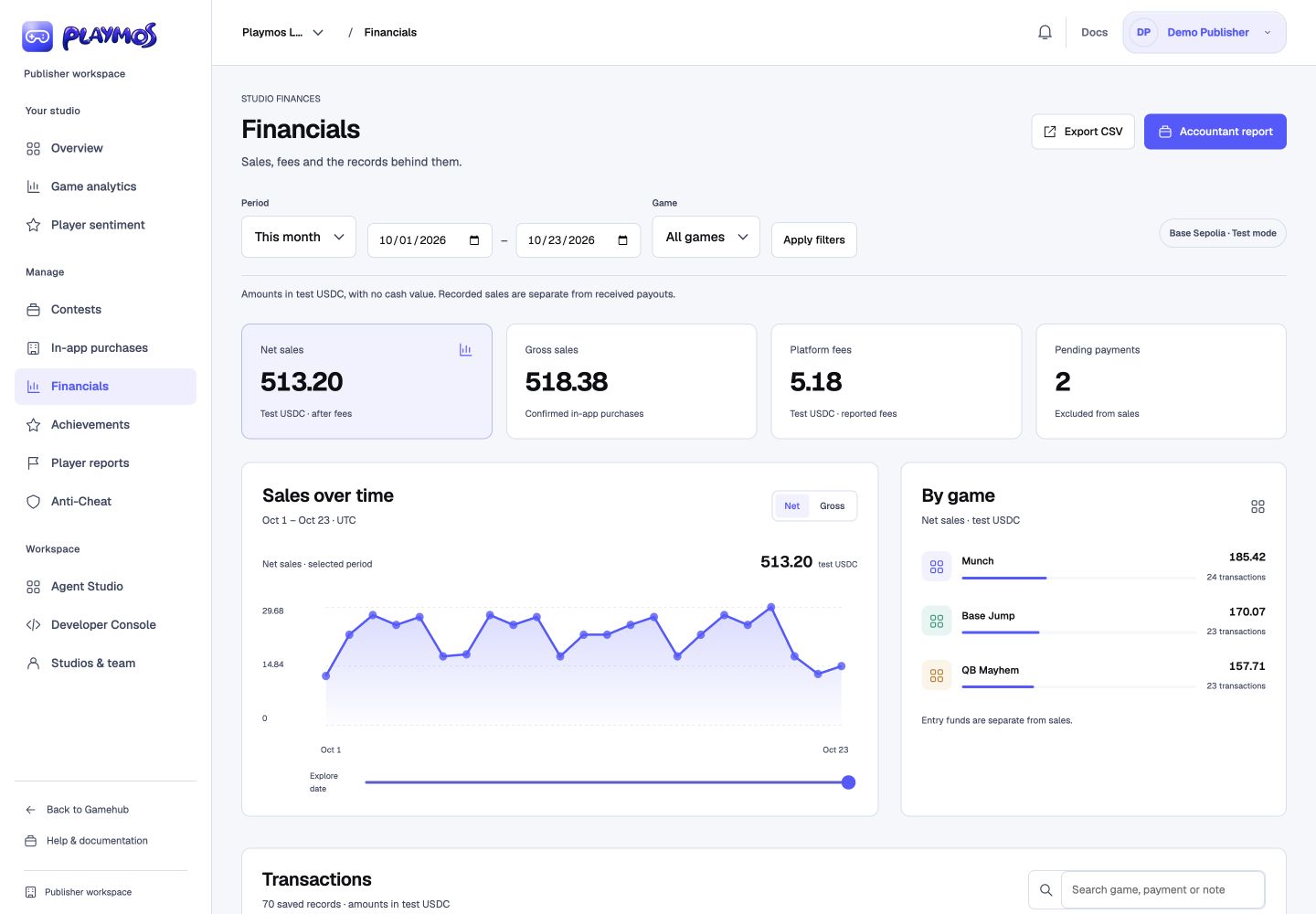](https://playmos.io/assets/financials-desktop-light-BTtOI3MN.jpg)
**Saved studio ledger**Local testnet fixture. These are demonstration records, not production balances or chain evidence.[View full size ↗](https://playmos.io/assets/financials-desktop-light-BTtOI3MN.jpg)
## Playmos maintains the history
The dashboard reads records already stored by Playmos. It does not fetch your entire payment history when you open it. A server worker checks for collection work every minute, backfills older payments, refreshes payment status and makes a full history reconciliation due each day. Collection continues while the Hub is running, even when nobody opens Financials.
Sync progress survives service restarts, duplicate records do not count twice, and receipt changes retain their previous evidence. The page shows its saved coverage time and any sync warning. Records and bookkeeping remain available if the payment service is offline or your connection needs attention. No separate cron setup is required.
## Keep light bookkeeping
Select **View** to open the detail panel and inspect the payment ID, fee/net and chain transaction. Choose a category, add an accountant note, optionally mark it reconciled against your records, then select **Save bookkeeping**. Unsaved changes disable exports. Studio view access permits reading/exporting; bookkeeping edits require edit access.
**Reconciled manually** is your own bookkeeping marker. **Check chain receipt** separately asks the payment service for an authoritative receipt and stores the resulting verification evidence and time.
## Understand the totals
| Summary | Meaning |
| --- | --- |
| Gross sales | Confirmed in-app purchase amounts in the saved ledger; not proof of money received by your studio. |
| Platform fees | Exact fees returned by the payment service for those purchases. |
| Net sales | The receipt’s net amount; not a studio payout or wallet deposit. |
| Pending payments | Created or pending records, excluded from sales totals. |
Contest entry funds and created/pending/failed purchases are excluded from sales totals. Saved confirmation status and chain-verification evidence are distinct. The current ledger does not include production income, studio payout transfers, withdrawals, bank deposits, gas, refunds, exchange rates or tax valuations.
## Export for your accountant
**Export CSV** downloads exact amounts, payment and transaction IDs, status, verification time, categories, reconciliation and notes. **Accountant report** opens an accountant report preview; use its print button to save a PDF.
Both options cover the selected dates and game across every page; table search and status filters do not narrow the export. The dashboard shows two decimals for readability while exports preserve all six. Both read a fresh snapshot of the saved Playmos ledger. The report carries its studio, date range, testnet currency, saved coverage time and any sync warning. Incomplete periods cannot be exported as complete records. Choose a shorter range or one game if an export exceeds 10,000 payments. Date ranges can cover up to 367 days.
## Connect the existing payment source
Background collection uses your studio’s existing server-side SDK connection from [Manage → Keys & webhooks](https://playmos.io/publisher/keys). Credentials stay on the server. Connecting a wallet alone does not populate Financials. Playmos retains saved history if the SDK connection expires or is removed.
For actual payout setup and settlement checks, use [Payments & settlement](https://playmos.io/publisher/developer?tab=payments) and the [payouts guide](https://playmos.io/docs/payouts). Financials does not initiate a payment, settle a contest or withdraw money.
## If it did not work
An incomplete sync is not a complete ledger. Narrow the period or restore the source connection before exporting it as complete.
**Try one variation** Change the visible table search, then export. Explain why the report still covers the selected dates and game.
[Continue with the next guide →](https://playmos.io/docs/payouts)
---
# Collect useful feedback, understand the signals, and read the reviews behind every chart. Sentiment is a separate studio unlock from Analytics.
Try it first
## Read the feedback behind a chart
**You need** A studio with Sentiment access and collected player feedback.
- Choose the game and period.
- Open a topic or chart segment and read its underlying reviews.
- Compare the sample with the original feedback before deciding on a change.
**Check your result** Your conclusion is traceable to the selected reviews and their sample size.
## Read your sentiment report
Open **Publisher → Player sentiment**. Choose a game and a date range. Overview shows published review volume, average stars, positive rating share and negative rating count. Comparisons use the immediately preceding period of the same length; a missing baseline is shown as unavailable.
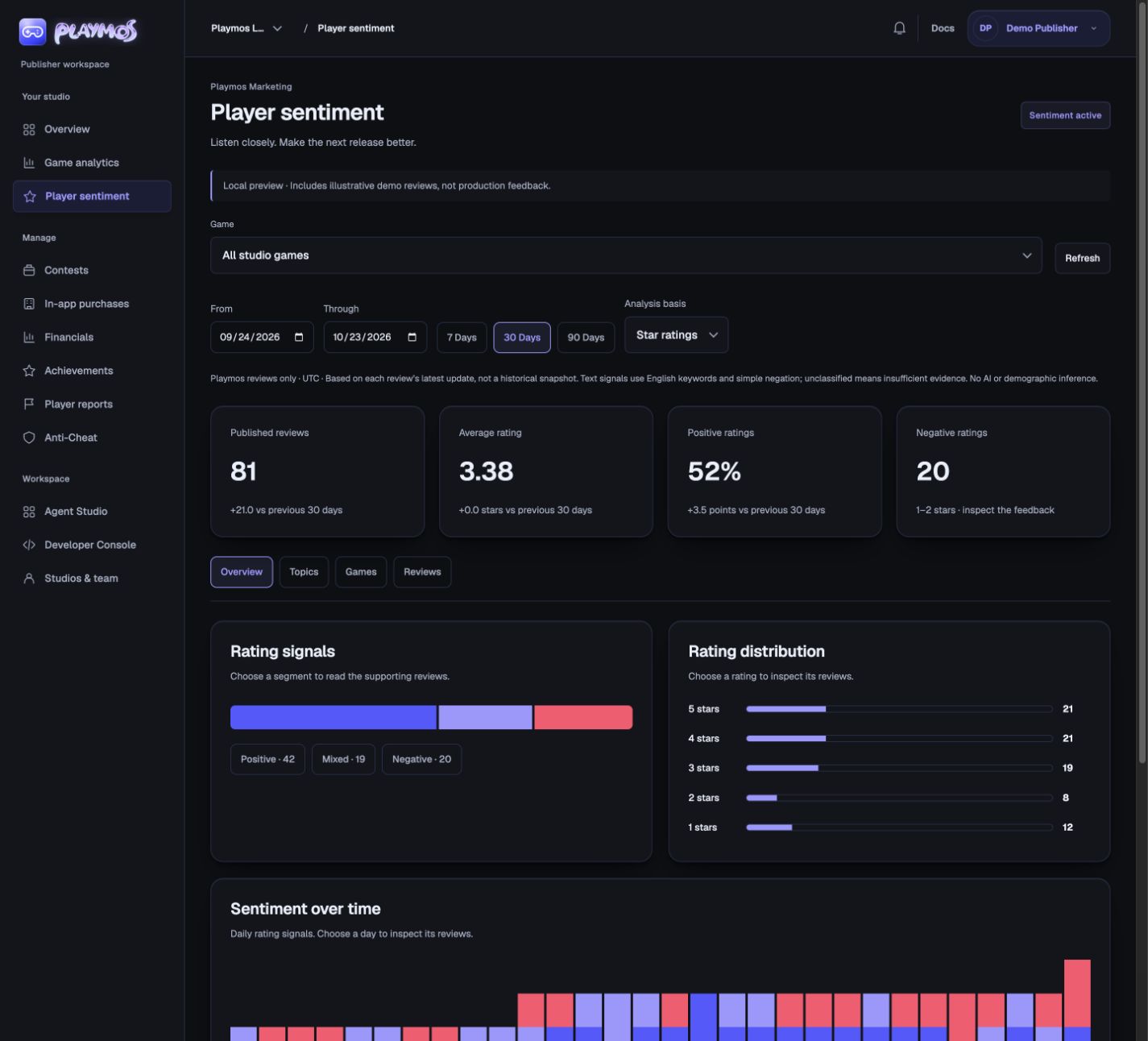Illustrative local fixture data, not production feedback. The report uses the Playmos palette.
## Follow the evidence
- Choose a signal, star rating or day to open its supporting reviews.
- Use Topics to inspect recurring feedback. Player-selected topics and English keyword matches can overlap.
- Use Games to compare published feedback across your studio. Fewer than five reviews is marked as a small sample.
- Search review text, player display names or games. Sort by recent, lowest or highest rating. Clear drill-down returns to all matching feedback.
- Export the filtered reviews as CSV for your own analysis. This exports only the reviews visible to your studio, without account IDs or email addresses.
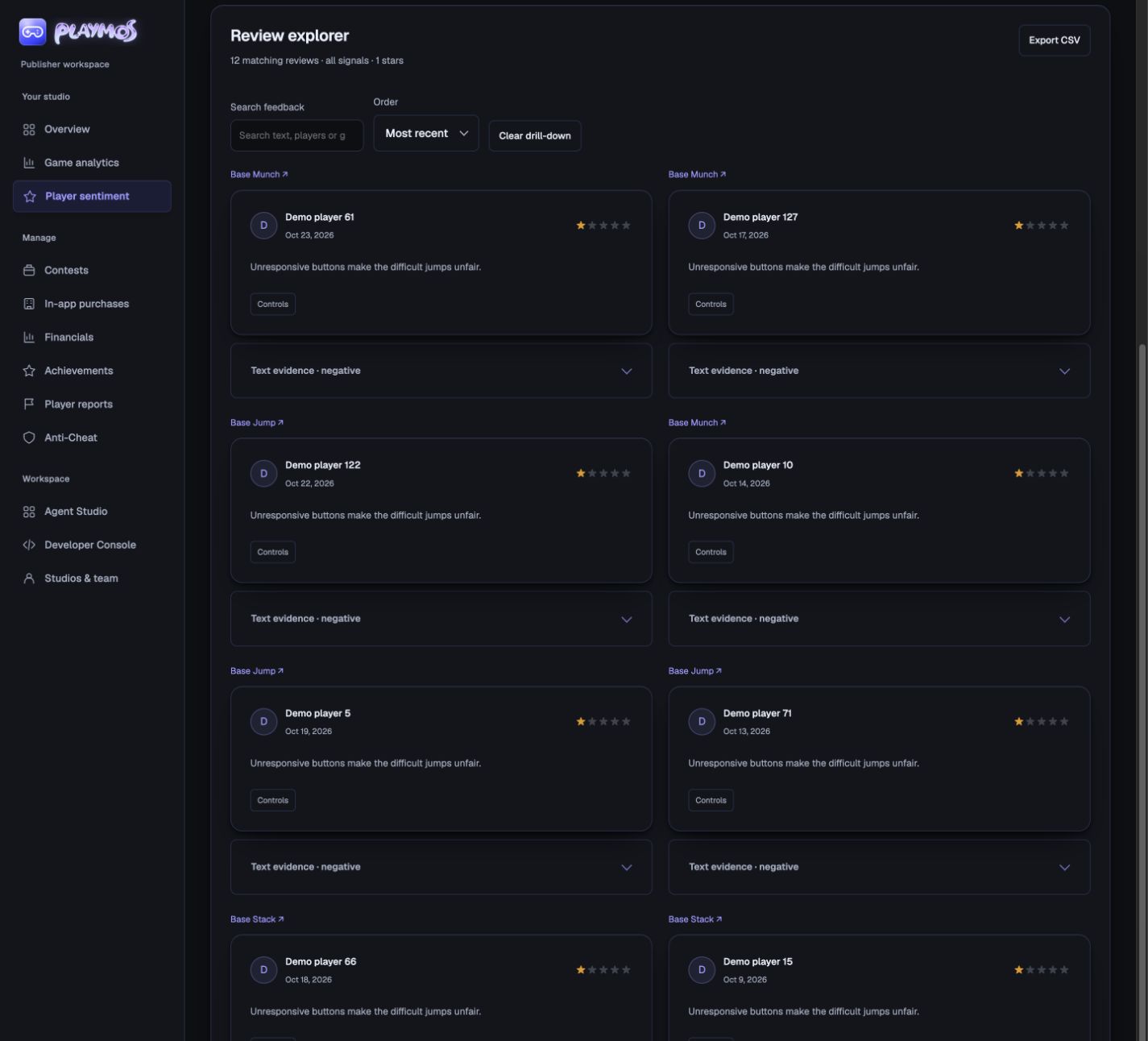A local drill-down into one-star demo reviews. Exports use the same filters.
## Keep ratings and text separate
Star signals classify 4–5 stars as positive, 3 as mixed, and 1–2 as negative. Text signals use a small English keyword vocabulary with simple negation. A review containing both praise and complaints is mixed; no matching words means unclassified. Expand **Text evidence** to see the matched words. This is a heuristic, not AI, a translation service or a complete understanding of intent, sarcasm or abuse.
Dates use the review’s latest update in UTC. Edits return to moderation. These charts describe currently published reviews, not an immutable history of sentiment or release attribution. Regional maps, demographics, external social listening and ROI are not collected or inferred.
## Inside Playmos Hub
The Hub owns review collection. Players use **Write a review** on the game page, or **Game options → Review this game** from the play stage. Do not add another automatic in-game review prompt for Hub players.
## Inside your standalone game
In the sentiment workspace, expand **Collect feedback in your game**, choose your game, and copy its snippet. This is an optional hosted web widget; it does not require an npm SDK upgrade. It opens a compact Playmos-hosted form in a dialog. The player signs in with Playmos and submits on the Playmos origin. Account credentials never go to your game.
~~~
~~~
Replace the origin and game ID using the snippet generated by your workspace. For a button you control, omit `data-launcher` and call `window.PlaymosFeedback.open()` after the script loads. Use an intentional button or a suitable break after play; there is no automatic survey interruption. `open()` returns false when the Hub owns collection. `destroy()` removes the widget and its listeners.
The widget verifies an exact-origin, nonce-bound response from its parent Hub before suppressing itself. Standalone pages keep the widget. It never reports reviews, identity or credentials to the parent game. If third-party cookies, your CSP, frame-ancestor policy or webview block the form, the dialog’s **Open feedback in Playmos** link is the fallback. Do not weaken global security headers to make an embed work. Native apps can open the same feedback URL in a secure browser; native SDK survey components are not included.
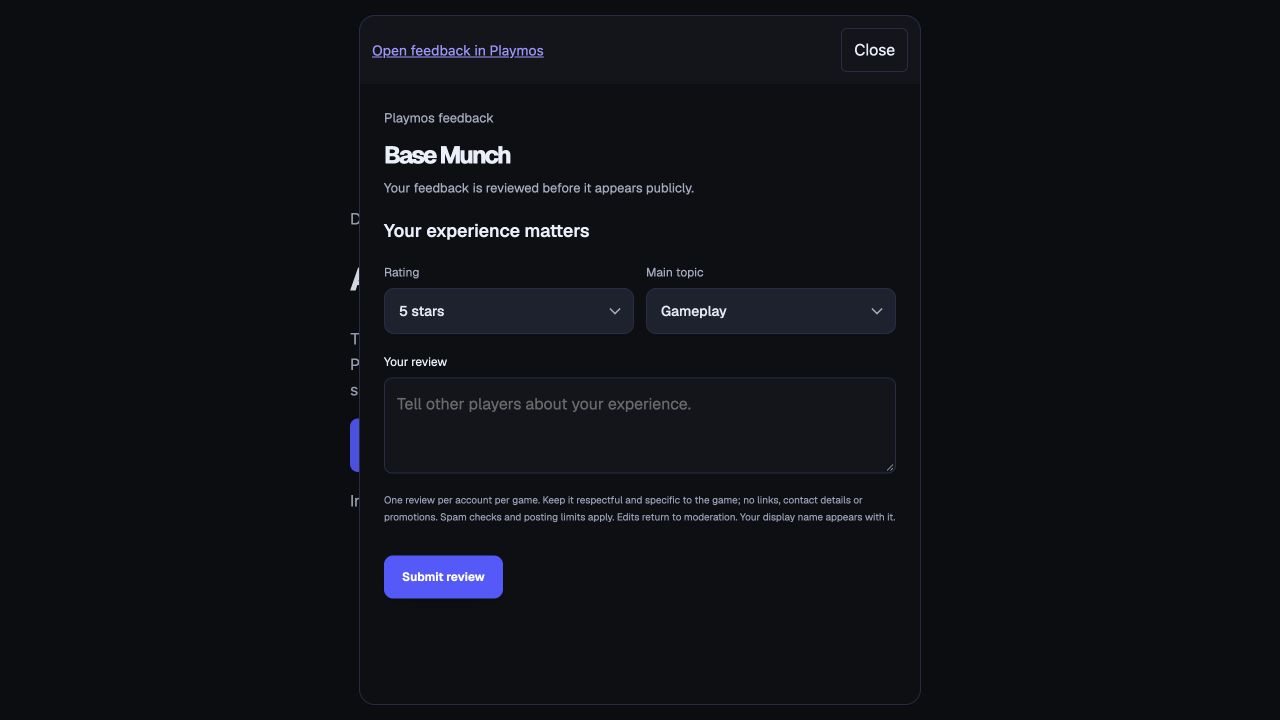Local signed-in feedback form. No sample review is submitted by this screenshot.
## Safety, access and limits
Players can save one review per account per game. All new or edited reviews require Playmos moderation. Deterministic safety checks reject known profanity, slurs, explicit threats, promotional links, contact details, markup and repetitive text. Limits allow up to three changes per game per ten minutes, five per account per hour and twenty per day. They survive deletion and restart; identical retries do not reset approval. These controls reduce abuse and do not replace human review.
Publishers see published reviews only for their active studio. Internal reviewers can inspect pending and hidden reviews and approve the exact revision they read. The report supports up to 10,000 matching reviews per request; narrow the period or choose a game when asked. Feedback collection remains separate from paid report access, and Analytics access does not unlock Sentiment.
## If it did not work
An empty selection needs a different period or collected feedback; it is not evidence of positive sentiment.
**Try one variation** Change the time window. Identify whether a changed trend comes from different feedback or just a smaller sample.
[Continue with the next guide →](https://playmos.io/docs/analytics)
## Optional standalone web-game feedback
~~~
~~~
---
# Collect your data. Choose your destination.
Try it first
## Send one consented gameplay event
**You need** A configured telemetry destination and a player who has opted in.
- Emit a real run-start event from your test game.
- Complete the run and inspect accepted and duplicate event counts.
- Open the matching game, period and network in Analytics.
**Check your result** The intended event appears once in the selected funnel without collecting before consent.
Use the Playmos SDK to capture consented gameplay, wallet and checkout activity through standard OpenTelemetry APIs. Send it to your own exporter, Collector or warehouse. No Playmos Analytics subscription is required to instrument your game or analyze your own data.
Basic studio activity counts and an interactive daily chart are included. **Upgrade to Playmos Analytics** for ordered conversion funnels, player exploration, repeat-purchase insights, cross-game audiences and purchases, demographic cohorts and network comparisons correlated within your authorized studio. Open [Publisher Analytics](https://test.playmos.io/publisher/analytics) and request access. Access is managed by Playmos for now; pricing and checkout are deferred. Collection consent and publisher dashboard access are separate decisions.
SDK instrumentation starts in **0.3.22**. SDK 0.3.22 is published on npm. Hub deployment is a separate release; check the Hub release record for hosted availability. Currently supported analysis uses reported game events and matching studio-scoped pseudonyms. Independent cross-chain identities, verified financial receipt totals and native-engine instrumentation remain future work. Discovery source, placement and campaign context are supported when explicitly supplied. Testnet activity is never presented as verified mainnet revenue.
## Choose your path
| Your goal | Set up | Playmos Analytics required? |
| --- | --- | --- |
| Capture SDK gameplay and commerce events | Your logger, consent decision and session context | No |
| Send events to your own backend | Your standard OTel exporter or Collector | No |
| Record your own level, tutorial or achievement events | Emit your own names through the same OTel logger | No |
| View basic studio activity | Hub source credential on your backend/Collector; authenticated studio membership | No paid access required |
| Use correlated Playmos Analytics dashboards | Same event stream, plus analytics access | Access grant required |
| Play a first-party game inside the test Hub | Choose whether to allow the Hub's gameplay analytics | Player consent required; publisher access is separate |
## How collection works
The pipeline is: your game's consent decision → SDK lifecycle instrumentation → your OTel logger and optional meter → your processor/exporter → your backend or Collector → your chosen destination. The Hub accepts the documented business events and aggregates them within the source credential's studio and game.
The SDK does not choose a backend, install a global OTel provider or secretly forward a second copy to Playmos. Supplying your own exporter gives you control over the destination. Sending data to the Hub is an explicit exporter/Collector configuration. You may keep your own copy and send the supported business-event stream to Playmos.
SDK collection is disabled by default. Events before consent are discarded; granting consent does not backfill them. Disabling or revoking collection clears unsent SDK events and cancels scheduled dispatch. Records already handed to your exporter or accepted by a server cannot be recalled by an SDK toggle. Your exporter owns batching, retries, persistence, active trace context and shutdown. Analytics must not change the result of a payment or wallet operation.
## Quickstart: your own exporter
Install SDK 0.3.38 from npm and the optional OTel implementation used in this example. This version includes custom events, foreground screen timing and journey context, drains multi-batch exports, and cancels cooperative in-flight transports when consent is revoked. Existing OTel applications can reuse their provider instead. These OTel dependencies are needed for this example, not for SDK consumers who omit analytics.
~~~
npm install @playmos/sdk@0.3.38
npm install @opentelemetry/sdk-logs@0.223.0 @opentelemetry/exporter-logs-otlp-http@0.223.0
~~~
~~~
import { Playmos } from '@playmos/sdk';
import { LoggerProvider, BatchLogRecordProcessor } from '@opentelemetry/sdk-logs';
import { OTLPLogExporter } from '@opentelemetry/exporter-logs-otlp-http';
const provider = new LoggerProvider({
processors: [new BatchLogRecordProcessor({
exporter: new OTLPLogExporter({
// Browser: an authenticated, rate-limited receiver you operate.
// Backend: your own Collector or observability destination.
url: 'https://telemetry.your-studio.example/v1/logs',
}),
maxExportBatchSize: 50,
})],
});
const logger = provider.getLogger('your-studio.game');
let session: { playerId: string; sessionId: string; chainId: number } | null = null;
const playmos = new Playmos({
apiKey: yourPublishableSdkKey,
analytics: {
logger,
context: () => session,
optInUI: true,
onConsentChange: allowed => yourConsentManager.save(allowed),
},
});
// Create a new session for each actual run. Use your own opaque studio pseudonym.
function beginRun(studioPlayerId: string) {
session = { playerId: studioPlayerId, sessionId: crypto.randomUUID(), chainId: 84532 };
playmos.analytics?.gameViewed();
playmos.analytics?.sessionStarted();
}
async function finishRun() {
playmos.analytics?.sessionEnded();
session = null; // retire gameplay context before any await
try {
await playmos.analytics?.flush(); // SDK queue → your OTel logger
await provider.forceFlush(); // exporter delivery attempt
} catch {
// Telemetry failure must not retain a session or interrupt gameplay cleanup.
}
}
// Existing connect/pay/enterRound/verify calls instrument their own outcomes.
// Do not add a second purchase event for those same SDK results.
~~~
Wire `beginRun` and `finishRun` to your game's actual lifecycle. If you want menu visits in the game-view denominator, assign a session and call `gameViewed()` at the menu visit, then call `sessionStarted()` when play begins with the same context. Starting a session only at gameplay means your denominator covers run starts rather than every storefront visit. Collection approved midway through a run starts from that point; it does not reconstruct earlier funnel steps.
Use a fresh session ID for every run and a stable studio-scoped pseudonym across your games to enable repeat-player and audience correlation. Return `null` from `context` when collection is inappropriate. Do not use names, email addresses or wallet addresses as player IDs. The client defaults an omitted chain ID to its configured Base network; standalone instrumentation must supply its network.
**Want these events turned into useful dashboards? Upgrade to Playmos Analytics** for studio funnels, player profiles and correlated audiences. You can continue using your own exporter and data store.
## Consent: built-in prompt or your own interface
| Option | Behavior |
| --- | --- |
| `optInUI: true` | Shows the optional accessible browser dialog; no approval means no collection |
| `onConsentChange(allowed)` | Lets your application persist a built-in prompt decision |
| `customOptIn()` | Reads the current decision from your own UI/consent manager; returns boolean or Promise |
| `refreshConsent()` | Re-reads the custom manager after a choice changes |
| `revokeConsent()` | Immediately disables collection and clears unsent SDK events |
| `enabled: false` | Explicit collection kill switch, even if consent is approved |
`customOptIn` takes precedence over `optInUI`. Its errors fail closed. Built-in consent has no persistence or network calls. It stays disabled during server rendering and on browsers without supported modal dialogs. Closing or declining the prompt keeps collection off. Consent options work on `new Playmos({ analytics: ... })` and standalone `createAnalyticsInstrumentation(...)`.
For your own consent interface, replace the quickstart's consent options:
~~~
analytics: {
logger,
context: () => session,
customOptIn: () => yourConsentManager.analyticsAllowed(),
}
// After your UI saves approval:
await playmos.analytics?.refreshConsent();
// On refusal, stop immediately before awaiting any persistence/network operation:
playmos.analytics?.revokeConsent();
await yourConsentManager.save(false);
~~~
Do not set `enabled: false` intending it as a temporary initial choice when using a consent option; it remains a kill switch. Without either consent option, you own the decision entirely: initialize disabled and call `setEnabled(true)` only after approval. Keep collection preferences available for later revocation. Gate custom events and your exporter queues with the same consent policy; the SDK cannot govern events you emit directly.
## What the SDK captures
Every SDK record has an event name, event time, INFO severity, event ID, pseudonymous player ID and gameplay session ID. Network and purchase amount are attached when applicable. It does not automatically collect player names, email, wallet balance, inventory, scores, keystrokes or chat. Scores and bounded categorical game dimensions can be explicitly supplied with customEvent(). Game code must explicitly provide context and call lifecycle hooks. Optional coarse audience attributes can be added by the host logger as described below; The SDK does not infer demographic fields.
| Event name | Trigger | Meaning |
| --- | --- | --- |
| `playmos.game_view` | `gameViewed()` | Your explicit game visit boundary |
| `playmos.session_start` | `sessionStarted()` | Gameplay actually started |
| `playmos.session_end` | `sessionEnded()` | Gameplay ended |
| `playmos.wallet_connect_start` | SDK `connect()` | Wallet connection attempted |
| `playmos.wallet_link` | Successful SDK connection | SDK observed a connection; not Hub ownership attestation |
| `playmos.wallet_connect_failed` | Failed SDK connection | Connection did not succeed |
| `playmos.checkout_start` | SDK `pay()` or `enterRound()` | Purchase or paid entry attempted |
| `playmos.checkout_failed` | The SDK operation throws | Checkout call failed |
| `playmos.payment_pending` | Returned created/pending payment | Payment is not yet reported confirmed |
| `playmos.payment_failed` | Returned failed payment | SDK observed a failed payment state |
| `playmos.purchase_reported` | Confirmed observed payment with valid amount | Reported spend; not independently verified Hub revenue |
`verify()` can update a payment previously observed by the same SDK instance. Delayed verification retains the original player/session. It does not assign an unrelated payment to whoever is playing now. Stable purchase IDs deduplicate replays. Mock commerce is excluded. Entry spend uses observed chain amount rather than assuming the requested entry price moved.
## Business fields and standard shapes
| OTel attribute | Type | Purpose |
| --- | --- | --- |
| `event.id` | String | Stable ID for retry deduplication |
| `playmos.player.id` | String | Studio-scoped pseudonym |
| `session.id` | String | One gameplay run/session |
| `playmos.chain.id` | Number, optional | Network ID, e.g. 8453 or 84532 |
| `playmos.amount.micro_usdc` | Positive integer string, purchases only | Atomic USDC amount; 1 USDC = 1,000,000 micro-USDC |
| `playmos.spend.provenance` | `reported`, purchases only | Explicit amount provenance |
The SDK uses standard OTel `eventName`, timestamps, severity, body and attributes. Unix nanosecond timestamps are represented by OTLP JSON. Active trace/span correlation belongs to your OTel provider. The `playmos.*` fields are a documented business schema, not claimed OTel semantic conventions. Studio/game are bound by the Hub source credential rather than trusted from player-submitted fields.
IDs accepted by the Hub use 1–80 ASCII letters, digits, underscores or hyphens. A request contains at most 50 business events; a game is limited to 1,000 events/minute. Backfill is limited to 90 days, with one minute of future clock skew. These ingestion bounds are not a retention/deletion guarantee. The SDK queue and payment correlation map are bounded; a durable outbox belongs in your backend/Collector.
## Custom game events and foreground screen time
SDK 0.3.24 adds custom game events to the same consented queue, standard OTel logger and optional meter used for lifecycle events. Keep your own exporter, send the supported stream to Hub, or do both. First-party Hub navigation records a consented unfinished run as run_exited with reason navigation, then drains session-end records before closing the exporter. Full browser/page closure remains best effort. These methods require SDK 0.3.24 or later.
~~~
// After creating Playmos with analytics logger/context and obtaining consent:
playmos.analytics?.customEvent('tutorial_completed', {
tutorial_id: 'movement',
attempt: 1,
succeeded: true,
});
playmos.analytics?.customEvent('run_ended', {
mode: 'practice',
score: 120,
reason: 'death',
}, { id: 'stable_event_id_for_this_action' });
// On actual screen transitions, not on every render:
playmos.analytics?.screenViewed('gameplay');
// At the end of a run or screen:
playmos.analytics?.screenEnded();
await playmos.analytics?.flush();
~~~
customEvent returns false when collection is disabled, context is unavailable, the queue is full, or data is invalid. Names use 1–64 lowercase letters, digits, underscores or periods, starting with a letter; the playmos. prefix is reserved. Supply at most 16 flat attributes. Attribute keys are 1–40 lowercase letters, digits, underscores or periods, starting with a letter. Values can be booleans, finite numbers between -1e12 and 1e12, or 1–80 character opaque categorical tokens using letters, digits, underscores, periods or hyphens. Nested objects, arrays, emails, URLs and free text are rejected. Do not use tokens to encode names, secrets or other identifying information. An ID must identify one action; reuse it only to retry that same action.
Records use eventName playmos.custom, playmos.custom.name, and playmos.custom.attr. attributes. The counter keeps its event.name label at playmos.custom; custom names, players and property values never become Prometheus labels. The lower-level createAnalytics collector accepts type custom with custom: { name, attributes } under the same validation rules.
screenViewed opens one interval and closes the previous screen. In browsers, time accumulates only while the document is visible and has focus. Hidden tabs and unfocused windows are excluded. screenEnded, a later screenViewed, sessionEnded or pagehide closes the interval and emits screen_time with screen_id and duration_ms. Consent revocation discards an open interval and clears queued records. Context is captured at interval start, so another player/session cannot inherit its duration. Native hosts should send their own foreground duration with customEvent. Browser unload delivery is best effort; this is not session replay or a guarantee of attention. Call screenEnded before disposing your integration.
Hub accepts this bounded custom profile through the existing trusted ingestion routes. Game behavior shows foreground gameplay duration, recorded screens, event counts and the latest 20 custom arrivals. Only closed intervals contribute time; refresh after finishing a run or changing screens. Fields that were never supplied remain unavailable. Arbitrary events emitted directly through an OTel logger can still go to your own destination; filter unsupported records out of the Hub pipeline.
## Custom funnels
With Playmos Analytics access, publishers can save up to 20 studio-scoped funnels in Game behavior → Saved funnels. Choose 2–8 distinct supported lifecycle/custom event steps and a 1–1440 minute conversion window. Saved funnels appear in the Conversion journey selector. The API is POST /api/publisher/analytics/funnels with name, steps and windowMinutes; custom step keys use custom:. DELETE /api/publisher/analytics/funnels/:id removes one studio-owned definition. Creating and deleting require studio edit permission; read-only members can inspect accessible reports.
Each funnel counts a game/player/session once and starts at its first matching entry in the selected UTC period. Subsequent steps must occur in order, in that same game/player/session and within the configured window. Counts are deduplicated by event ID, not by action name. Equal timestamps use configured step order. The report shows entry conversion, drop-off counts and median elapsed time from entry. A run-ended event indicates an observed end, not a win. Funnels do not join sessions or games into an assumed journey, and incomplete telemetry is not proof of abandonment. The built-in Run → end funnel uses run_started → run_ended with a 30-minute window.
## Journey context
Journey context is added in SDK **0.3.24**. SDK 0.3.24 is published on npm; Hub deployment remains a separate release. The new fields are optional, so existing integrations continue to work. No context is collected before consent, and revocation invalidates in-flight SDK attribution so an old checkout cannot resume under a later consent decision.
Add bounded, opaque business identifiers to `context().journey`. These values describe an observed association, not independently verified attribution or experimental lift:
~~~
context: () => session ? {
...session,
journey: {
source: 'studio_launch',
campaignId: 'campaign_spring',
placementId: 'home_featured',
gameVersion: '1.4.0',
offerId: 'starter_pack',
experimentId: 'starter_offer_test',
variantId: 'control',
},
} : null,
~~~
| Journey property | Standard OTel attribute | Meaning |
| --- | --- | --- |
| source | playmos.attribution.source | Supplied discovery/source code |
| campaignId | playmos.attribution.campaign_id | Opaque campaign identifier |
| placementId | playmos.attribution.placement_id | Placement code |
| referrerGameId | playmos.attribution.referrer_game_id | Supplied referring game ID |
| gameVersion | playmos.game.version | Actual game release version |
| offerId | playmos.purchase.offer_id | Offer identifier, not a product description |
| experimentId / variantId | playmos.experiment.id / playmos.experiment.variant_id | Supplied assignment; does not create an experiment or prove exposure |
| attemptId | playmos.purchase.attempt_id | SDK-generated fresh checkout-attempt ID |
| failureReason | playmos.failure.reason | Code-derived cancelled, insufficient_funds, network, invalid_input or unknown |
| elapsedMs | playmos.operation.elapsed_ms | SDK-measured elapsed time from checkout start to the observed result |
| paymentId | playmos.payment.id | SDK-observed payment reference |
| transactionHash | playmos.transaction.hash | Observed 32-byte EVM transaction hash |
| serviceVerification | playmos.payment.service_verification | Reported service chain/cache/degraded observation; not Hub verification |
| feeMicro / netMicro | playmos.payment.fee_micro_usdc / playmos.payment.net_micro_usdc | Reported response values in integer micro-USDC |
Opaque values allow 1–80 ASCII letters, digits, underscores, dots or hyphens. Never put URLs, emails, names, raw referrers or error messages in these fields. Elapsed time is an integer from 0 to seven days. Fee/net values allow zero and up to 16 digits. Transaction hashes must be 0x plus 64 hexadecimal digits. The SDK copies context at operation start and carries it through delayed results; malformed context is not emitted. Each SDK pay/enterRound call creates a fresh attempt ID, even when the underlying payment is an idempotent replay. Purchase event IDs remain stable for deduplication. A payment keeps its first captured attribution within the same consent period.
The Hub persists supported context after strict validation. Browser integrations remain untrusted: supplied transaction references and a reported service chain observation never increase verified revenue. The Hub does not yet independently reconcile receipts, collect refund histories or establish net revenue. Custom fields outside this schema stay in your own exporter pipeline.
First-party Hub game links supply discovery/detail placement codes; direct entry is labeled hub_direct. These labels describe entry routes, not marketing attribution. The Hub never captures raw query strings or browser referrer URLs. SDK game version and campaign/offer/experiment IDs require the developer to supply actual values; missing values remain missing.
Paid **Journey intelligence** presents source coverage, observed source session/purchase counts, linked checkout outcomes, code-based failure categories, supplied outcome timing and reported transaction-evidence coverage. An attempt is eligible only when its checkout start is present in the selected window, scoped to the same game/player/session/attempt ID. A later observed purchase supersedes a reported failure. Unresolved does not mean abandoned. Source counts are associations, not ordered conversion or incremental lift. References, experiment assignment and timing are not proof of exposure or causation. Free basic analytics does not return these fields or premium rollups.
## Audience and demographic dimensions
Playmos Analytics supports consented, reported language/locale and device class, plus supplied country and age band. Hub-embedded first-party games add locale and a coarse device category after consent; the raw user agent is not stored. Locale is not proof of country. Countries and ages are not inferred from wallets, names or purchasing behavior. External studios can add these optional dimensions through a standard logger wrapper:
~~~
const analyticsLogger = {
emit(record: Parameters[0]) {
if (!yourConsentManager.analyticsAllowed()) return;
const audience = yourConsentManager.approvedAudienceFields();
logger.emit({
...record,
attributes: {
...record.attributes,
...(audience.locale ? { 'playmos.audience.locale': audience.locale } : {}),
...(audience.device ? { 'playmos.audience.device': audience.device } : {}),
...(audience.country ? { 'playmos.audience.country': audience.country } : {}),
...(audience.ageBand ? { 'playmos.audience.age_band': audience.ageBand } : {}),
},
});
},
};
// Use analyticsLogger as the SDK analytics.logger. Keep your existing exporter.
~~~
This wrapper assumes synchronous consent/profile getters; resolve an asynchronous manager before capturing. Only return fields covered by the player's consent. These are OTel attributes added by the host, not extra SDK context properties.
| Optional attribute | Accepted values | Source |
| --- | --- | --- |
| `playmos.audience.locale` | Language tag such as en-US; bounded language/script/region segments | Consented reported browser/app locale |
| `playmos.audience.device` | mobile, tablet, desktop, other | Consented coarse device classification |
| `playmos.audience.country` | Two uppercase letters, such as US | Supplied country code; not guessed from locale |
| `playmos.audience.age_band` | under18, 18-24, 25-34, 35-44, 45-54, 55+ | Supplied broad age band; no exact date of birth |
The paid dashboard shows distinct-player cohort counts, paying-player share and reported purchase occurrences for these dimensions. A cohort needs at least five distinct players to be shown. Repeated events do not inflate cohort membership. Coverage counts show how many players have a supplied dimension; missing values remain missing. Within the selected window, the most recently supplied value per player/dimension determines cohort membership. These are observed studio cohorts, not inferred population demographics or proof of identity. Custom-event streams and identifying/free-form profile fields are not automatically accepted into Hub analytics.
## Connect the supported stream to Playmos Analytics
An authorized publisher can create or rotate a game-scoped source key from **Publisher Analytics → Connect your SDK data**. Provisioning and consented collection remain available while dashboard access is locked or expired. Rotating a key revokes its predecessor. Keep the source key on your trusted backend or Collector; never put it into a browser bundle, game URL or public environment variable. It is separate from your SDK publishable key.
On a trusted backend, select the official HTTP/JSON exporter:
~~~
const exporter = new OTLPLogExporter({
url: `${hubOrigin}/api/analytics/v1/logs`,
headers: { Authorization: `Bearer ${serverOnlySourceKey}` },
});
// Supply exporter to your BatchLogRecordProcessor, maxExportBatchSize: 50.
~~~
Your browser receiver must enforce consent, validate session/player attribution and game membership, authenticate appropriately and rate-limit before forwarding. Treat all client events and amounts as untrusted. A source key limits the studio/game; it does not prove that an event or transaction is true. Preserve event IDs so retried delivery deduplicates.
The Hub directly accepts **OTLP/HTTP JSON logs**, without compression, for this profile. It does not directly implement protobuf, gRPC or gzip. A standard Collector can accept those transports upstream and export supported JSON to the Hub. `/api/analytics/events` remains a compatibility route. No proprietary Playmos exporter is required.
## Collector routing and keeping your own copy
Use separate pipelines for arbitrary OTel records and the filtered Playmos lifecycle/custom profile, or share the supported profile across both exporters. Here is the Hub exporter/batch portion for a trusted Collector; attach it to the supported-events logs pipeline and retain your own exporter on that pipeline if desired:
~~~
processors:
batch/playmos:
send_batch_size: 50
send_batch_max_size: 50
exporters:
otlp_http/playmos:
endpoint: ${env:PLAYMOS_HUB_ORIGIN}/api/analytics
logs_endpoint: ${env:PLAYMOS_HUB_ORIGIN}/api/analytics/v1/logs
encoding: json
compression: none
headers:
Authorization: Bearer ${env:PLAYMOS_ANALYTICS_SOURCE_KEY}
sending_queue:
enabled: true
retry_on_failure:
enabled: true
~~~
This is a configuration fragment, not a complete Collector deployment. Choose receivers, authentication, filters and your other exporters for your installation. Each Hub source key binds one game: partition game streams into matching pipelines. Do not forward unrelated logs or PII. Collector configuration is documented; an actual deployed Collector has not been validated in this release. The official JS exporter has been exercised end to end with the Hub.
## How metrics and funnels are calculated
Basic analytics is available to authenticated studio members without an Analytics access grant. `/api/publisher/analytics/basic` accepts days and optional gameId and returns active-player, game-view, started-session and paying-player counts plus daily player/session/view trends. It never returns player/session IDs, spend amounts, purchase overlap, ordered funnels or demographic dimensions. Basic session counts do not imply ordered funnel conversion.
The paid dashboard selects a 7/30/90-day UTC window, studio, optional game and optional network. Analysis reads at most 100,000 events per window; player exploration shows up to 100 players. Windows above the event limit return 422 and require a shorter period or one game; they are not silently truncated. IDs are correlated only inside the authorized studio.
| Funnel | Ordered stages in the same game/player/session |
| --- | --- |
| Game → purchase | Game viewed → session started → checkout started → purchase reported |
| Checkout → purchase | Checkout started → purchase reported |
| Connect → linked | Wallet connect started → wallet linked |
| Full wallet journey | Game viewed → session started → wallet linked → checkout started → purchase reported |
Wallet connection is optional in the game→purchase funnel. Steps must be in order and inside the selected window; equal timestamps use stage order. Conversion is the final ordered stage's session count divided by the first stage's session count, not the ratio of unrelated raw event counters. A zero denominator displays an unavailable rate. Omitting lifecycle predecessors or rotating the session mid-checkout changes funnel completeness.
Repeat players have multiple observed game sessions. Purchase intelligence counts reported purchases, players with repeated purchases, players purchasing in multiple games and shared buyers for pairs of games. Cross-game purchase overlap reports the shared buyers and their share of the smaller payer audience. Audience overlap matches the supplied studio pseudonym across games and reports shared players plus their share of the smaller audience. Network analysis compares reported activity for tagged chains. It does not independently link wallets on different chains. SDK commerce supports Base/Base Sepolia; other chains require your external telemetry and do not gain payment support from an analytics tag.
Reported spend totals atomic purchase amounts. Whale segments mean at least 1,000 reported USDC, and high spenders at least 100, in the selected period/network. These are spender segments, not wallet balance or net worth. Select one network for spend charts/segments; multi-network views separate network totals instead of blending amounts. Verified spend remains unavailable until receipt validation is connected.
## Prometheus-compatible counters
Supply an optional standard OTel `meter` in analytics configuration. The SDK creates the monotonic counter `playmos.analytics.events`, unit `{event}`, with bounded `event.name` labels. Configure your own metric reader/exporter or Collector to expose Prometheus-compatible metrics. Player, session and wallet identifiers are not counter labels. SDK emitted-event counts and Hub accepted-event counts are different stages and need not match during retries or failures.
The Hub's protected `/api/admin/analytics/metrics` exposes standard Prometheus text via its maintained Prometheus client:
| Counter | Labels | Meaning |
| --- | --- | --- |
| `playmos_analytics_events_total` | `event_type`, `outcome` | Durable accepted/duplicate ingestion counts |
| `playmos_analytics_funnel_steps_total` | `step` | Accepted occurrences of funnel stages |
Scrape using an internal session or a server-only `HUB_ANALYTICS_METRICS_TOKEN` of 32–256 characters. Source credentials cannot read operational metrics. Counter values persist across Hub restarts. Funnel-stage occurrences are not unique sessions or conversion rates; use ordered dashboard analysis for those.
## Hub-embedded first-party games and access
Base Munch, Base Jump and Base Stack inside the Hub use an origin-bound game-to-parent bridge. The parent retains the consent choice in an HttpOnly cookie, issues short-lived game-bound browser sessions and exports through official OTel. No source key is exposed to the game. Game lifecycle and SDK commerce observations are attributed to the bound studio pseudonym/session. Turning analytics off immediately stops local collection and invalidates browser sessions. Standalone game pages do not use this Hub consent bridge.
Basic analytics appears first for external studio members: actual aggregate counts and an interactive daily chart, including honest zero states. Internal members can read the advanced package; external publishers require a studio access grant for paid correlations, ordered funnels, player exploration and demographic cohorts. The paid `/api/publisher/analytics` endpoint returns 402 without access. Free pages call the basic endpoint and do not fetch paid data to hide behind CSS. Premium examples use blurred decorative placeholders, especially when empty. Upgrade requests show an access placeholder and never take payment.
## Verify your integration
- With collection disabled or consent declined, start a game and confirm your exporter receives no SDK analytics.
- Approve consent, assign a valid studio pseudonym/session and call game view/start/end at their real boundaries. Inspect the supported event names and IDs at your own receiver.
- Flush the SDK queue, then your OTel provider. These are separate operations; a successful SDK flush alone is not proof of server delivery.
- If forwarding to Playmos, confirm source/game binding, HTTP ingestion responses and basic aggregates with studio membership and advanced dashboards using authorized access. Preserve IDs when replaying; repeated purchase observations should not increase accepted purchases.
- Revoke consent before awaiting persistence, then confirm no new records leave the SDK. Test rapid allow/off changes and consent-store failures.
- Verify game/network filters and funnel predecessors. Keep testnet, reported spend and verified revenue distinctions visible.
## Troubleshooting
| Symptom | Check |
| --- | --- |
| No SDK events | Consent approved? `enabled: false` kill switch? Context returning null? Mock SDK? Lifecycle hooks called? |
| SDK queue flushed but Hub is empty | Provider flushed? Exporter URL/auth correct? Receiver responses? Valid supported event batch? |
| Ingestion 401/403 | Server-only source key valid for the game? Browser consent/session still valid? Origin policy? |
| Ingestion 400/429 | Fields/event names/batch size/timestamps/amount valid? Game rate limit exceeded? |
| Advanced dashboard 402 | Request Playmos Analytics access; basic studio aggregates and consented collection remain available |
| Funnel drops before purchase | Same game/player/session? Predecessors emitted and ordered inside the window? Network tags consistent? |
| Custom events rejected by Hub | Keep them in your own pipeline; Hub accepts the documented business profile |
| Reported purchases absent on verification | This SDK instance must have observed the original payment/context; unrelated verification is not attributed |
**Upgrade to Playmos Analytics** to turn supported events into cross-game and purchase correlations, ordered funnels, player profiles and consented demographic cohorts while keeping your own telemetry stack. [Request publisher analytics access](https://test.playmos.io/publisher/analytics). Pricing, checkout and additional verified correlations will be documented when available.
References: [OpenTelemetry logs data model](https://opentelemetry.io/docs/specs/otel/logs/data-model/), [JavaScript exporters](https://opentelemetry.io/docs/languages/js/exporters/), [Collector HTTP exporter](https://github.com/open-telemetry/opentelemetry-collector/tree/main/exporter/otlphttpexporter), [Prometheus instrumentation](https://prometheus.io/docs/practices/instrumentation/).
## Read the reports
Overview shows activity, ordered gameplay conversion and retention. Behavior shows visible, focused screen time, custom events and saved funnels. Purchases shows reported purchase quality and discovery/checkout friction. Audience shows player profiles and studio-scoped cross-game overlap. All charts support light and dark themes; reports and tables remain scrollable on small screens.
Retention uses consented play starts, the first recorded play in stored history and exact later UTC days. D1, D7 and D30 exclude incomplete follow-up days. A dash means the cohort is not mature; zero means no observed return among eligible players. Players who disable collection are not counted as observed returns. These are observed cohorts, not a census of your audience.
Screen duration counts visible, focused intervals closed by a screen change, session end or page exit. It excludes background time. Active play time covers the gameplay screen only. An open interval is not a live heartbeat and may be lost on abrupt browser termination. Purchase amounts are reported USDC values, not verified receipts. Spend per buyer covers the selected period, not lifetime value; mixed-network amounts are not combined into that summary.
## Players and spend together
The default momentum report overlays active players and reported spend on the same UTC timeline. Players use the left scale; translucent spend uses the right USDC scale. The day inspector shows both exact display values together. The combined view stays visible without view switches. Mixed networks hide the spend overlay until one network is selected. These are descriptive daily associations, not a statistical correlation coefficient, verified revenue or evidence of causation. Cross-game player and buyer analysis separately uses matching studio-scoped player IDs.
## Live stats and activity
Publisher reports refresh automatically while the dashboard is visible: basic activity and report totals refresh every fifteen seconds. Playmos Analytics access adds a Live view that refreshes every five seconds, with events, players and session IDs received in the last five minutes. Game and network filters apply; the report period does not change the Live window. Pause live freezes updates; hidden tabs stop polling. Report redraws defer while SDK setup or the funnel builder is open, preserving unsaved edits and one-time source credentials. The live feed continues independently.
Live activity uses Hub receipt time, separately from the event time supplied by your SDK. Delayed exports appear when they arrive; duplicate event IDs do not become new arrivals. Historical records collected before receipt timestamps were introduced do not appear in the receipt feed. The latest fifty received events can be expanded to inspect session context and custom attributes. These are recently observed player/session IDs, not a count of currently online users. HTTP polling provides bounded refresh, rather than instantaneous delivery. SDK buffering and exporter timing can add latency.
The Live endpoint is `GET /api/publisher/analytics/live`, with optional `gameId` and `chainId`. It requires authenticated studio membership plus active Analytics access or internal authorization; basic access never exposes this feed. Connection errors show Reconnecting; access loss stops updates. Local visual previews may use labelled example data. Hosted availability requires a separate Hub release.
## First-party game capture
Munch, Jump and Stack use the shared game kit with the SDK instrumentation. Each consented run has its own session. The integration reports run_started, run_ended with mode/score/reason, run_exited when a run shuts down without a recorded outcome, and home/ready/gameplay/results screen transitions. SDK wallet and purchase outcomes retain their standard lifecycle events. Practice does not invent a payment.
To check your integration, allow analytics in the Hub, open a game and start free practice (the P shortcut is also available). Finish or exit a run, then inspect Behavior → Events and Overview → Run → end. Decline or revoke consent and repeat: no new gameplay records should arrive. The dashboard access gate does not determine collection consent.
## From game events to publisher reports
These screenshots show actual consented practice sessions from Munch, Jump and Stack in a disposable local Hub. They illustrate the SDK 0.3.24 integration; they are not proof of hosted availability or verified revenue.
[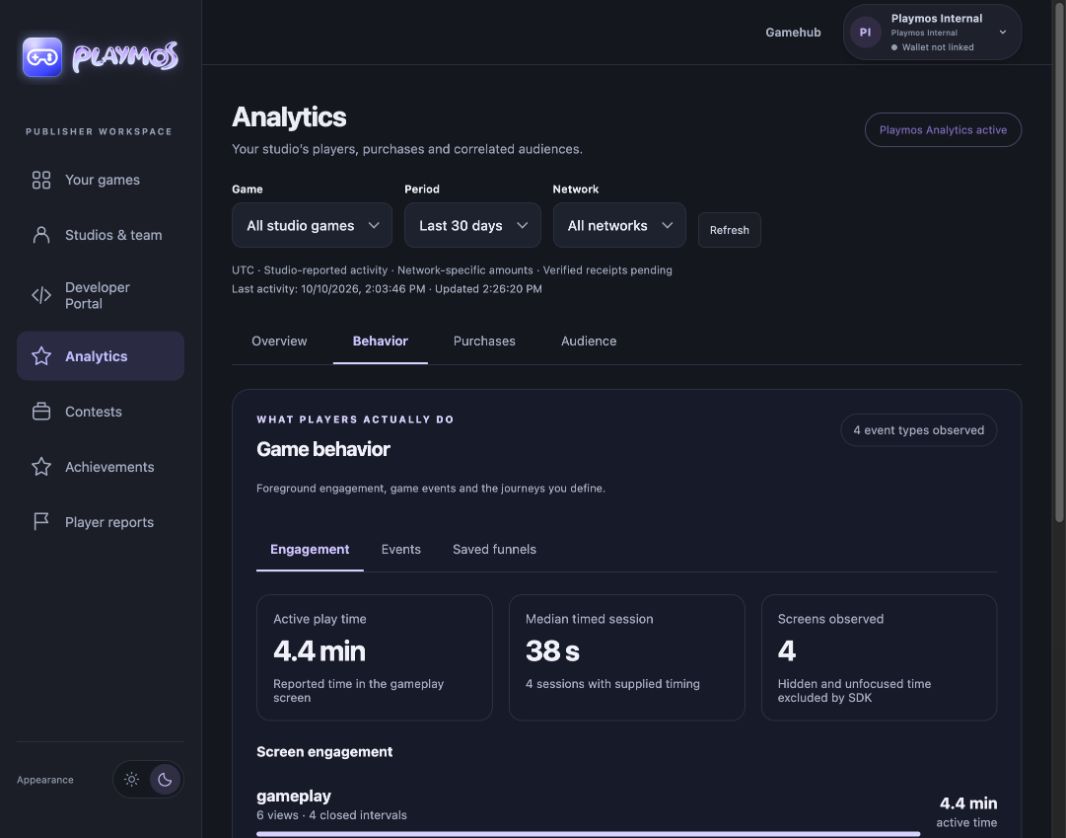](https://playmos.io/assets/analytics-behavior-dark-BaayC3vT.jpg)Engagement: foreground time and screen coverage.[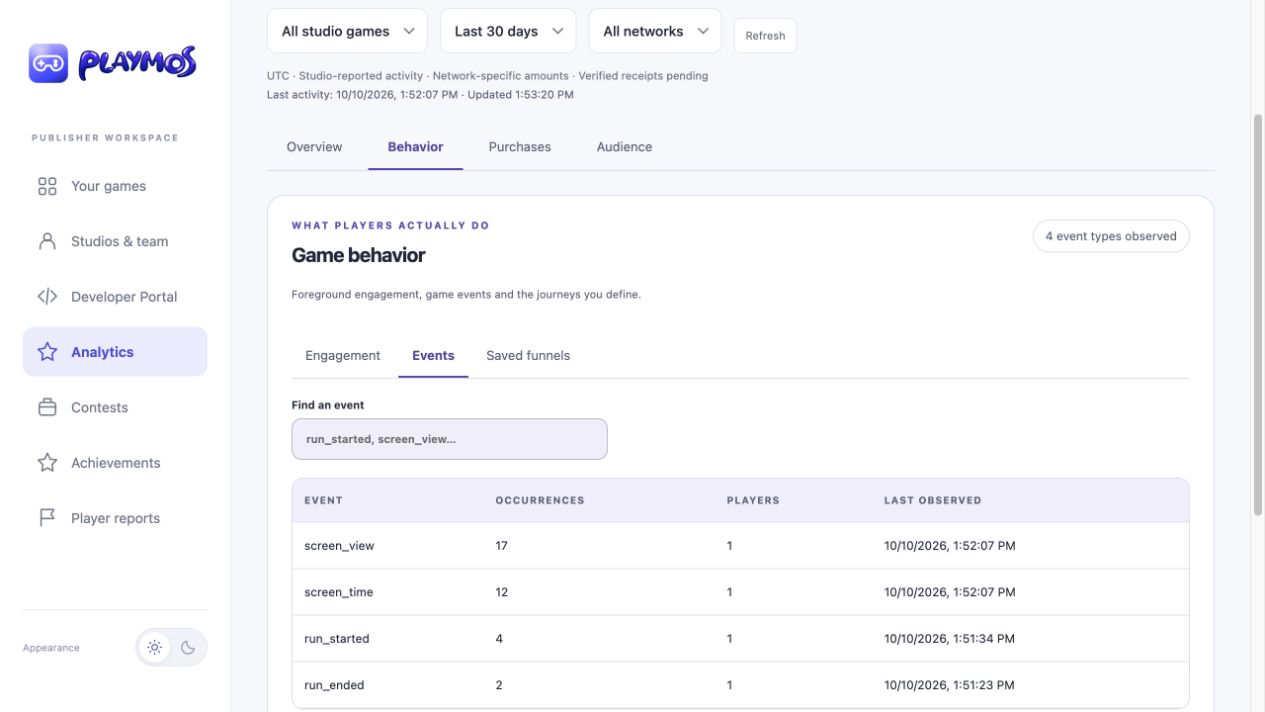](https://playmos.io/assets/analytics-events-light-BF_Y-R1B.jpg)Events: inspect the game behavior behind each total.
In your publisher workspace, select a game and period, then open **Behavior** to inspect engagement, events or saved funnels. Choose **Overview** for conversion and retention. Basic activity is available to studio members; correlated reports require Playmos Analytics access.
## If it did not work
Check consent, destination configuration and accepted-delivery records before changing your game’s event names.
**Try one variation** Decline consent in a fresh test session. Confirm the game does not collect those telemetry events.
[Continue with the next guide →](https://playmos.io/docs/financials)
## Gameplay hooks after consent
~~~
playmos.analytics?.screenViewed("gameplay");
playmos.analytics?.customEvent("run_started", {mode: "practice"});
// On the actual run outcome:
playmos.analytics?.customEvent("run_ended", {score: 120, reason: "death"});
playmos.analytics?.screenViewed("results");
~~~
---
# Integrate skill contests.
Try it first
## Rehearse one contest before paid entry
**You need** A saved contest plan and an approved competitive game for later activation.
- Create the plan and review its entry price, timer, split and winners.
- Open Contest testing → Rehearse prizes and inspect the allocation.
- Use Inspect prize pool before connecting Add to your game.
**Check your result** The rehearsal allocation matches the saved terms; pool readiness is checked separately.
Your studio defines the game and its rules. The SDK provides pool preparation, entry receipts and settlement primitives.
## Rehearse your contest in the portal
Open [Developer Console → Contests & pools](https://playmos.io/publisher/developer?tab=contests). Load a saved plan, adjust price, splits and winner shares, select a quick scenario: **Normal round**, **Pending payment**, **Rejected score**, **Tied scores** or **No scores**. Use **Run rehearsal** to rerun after editing rules. Inspect the proposed prizes and download the report before changing your release.
Playmos · Publisher workspace
[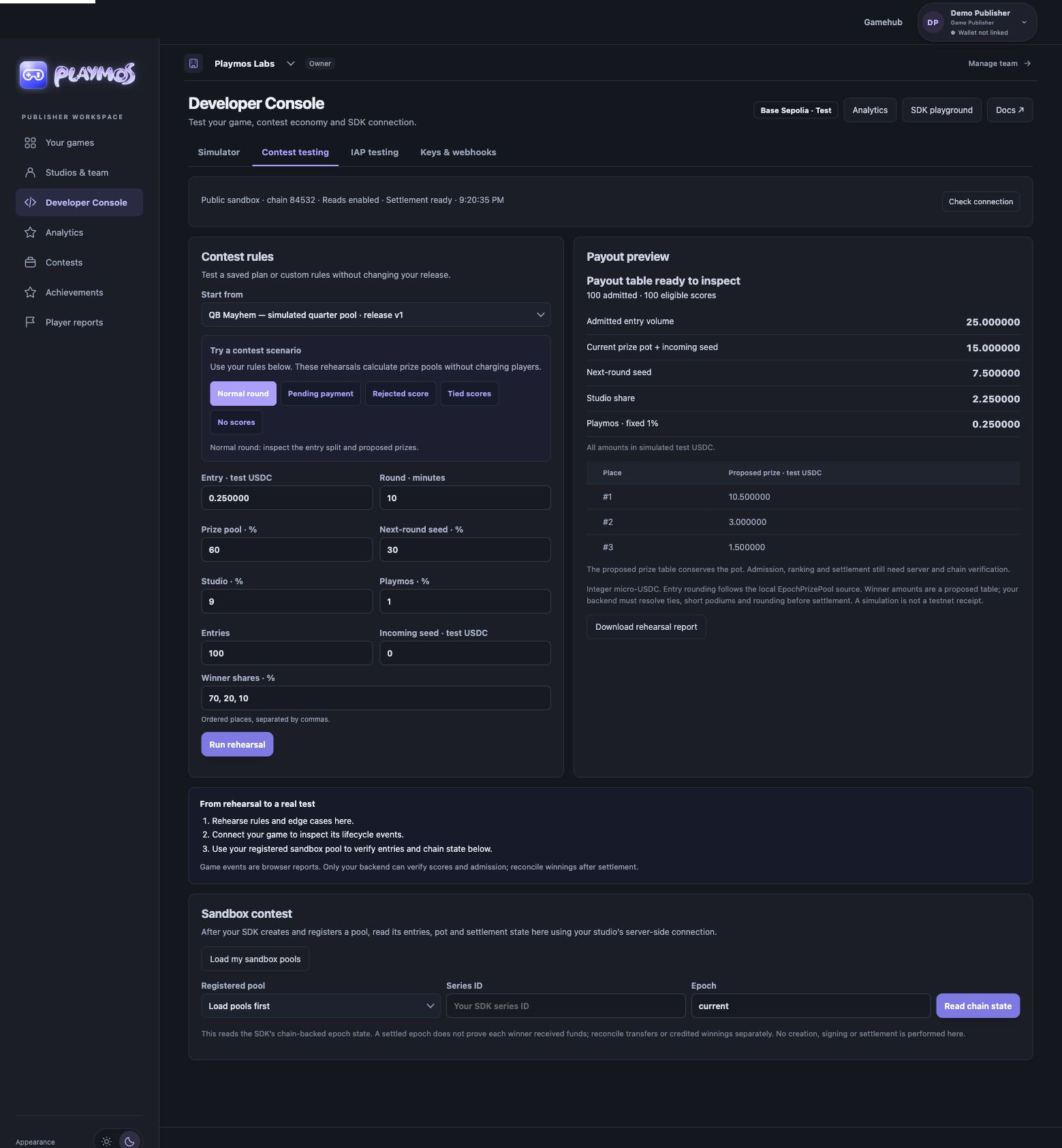](https://playmos.io/images/portal/contest-scenarios.jpg)
**Contest rules and proposed prizes**Local quarter-entry rehearsal with 100 entries, a 15 test USDC pool and proposed prizes of 10.50, 3 and 1.50. No funds transferred.[View full size ↗](https://playmos.io/images/portal/contest-scenarios.jpg)
Save your contest, then choose **Rehearse this contest’s prizes** to load its exact saved rules. In the console, use **Rehearse prizes**, **Inspect prize pool** and **Add to your game** to stay in one workspace. The integration helper starts with a read-only series check and preserves paid-entry recovery. After registering your own pool, open **Inspect prize pool** and use **Load my sandbox pools** and **Read chain state** to inspect its series/epoch. Reconcile winner transfers separately.
## Prepare your studio’s pool
Use `epochs.preparePool()` to obtain an unsigned transaction and the fee sink. Inspect it, sign from your studio wallet, broadcast, then register ownership with the supported wallet proof. Preparation alone neither broadcasts nor proves readiness.
Create a series with `epochs.prepareSeries()`, sign its returned transaction, and read the series until `created=true`. Use the actual pool/series configuration for price, split and timer; do not copy shared sandbox values into a studio release.
## Choose the right contest path
| Path | Use |
| --- | --- |
| Rolling epochs | Own-pool lifecycle: epochs.preparePool / registerPool / prepareSeries / enter / get / executeSettlement / prize / withdraw |
| Round-based integration | Existing supported round lifecycle: rounds.open / getWithMeta / settle and enterRound. Keep roundKey and identity pinned. |
## Verify paid admission
Your backend checks a paid entry before admitting a scored attempt. Round-based entries must preserve the exact `roundKey` and `wallet#attemptId` identity across pay and admission. Epoch integrations use their returned pool, series and epoch identifiers without translating them into the legacy round path.
~~~
import { Playmos } from '@playmos/sdk';
export async function enterYourRound(
playmos: Playmos, gameId: string, roundKey: string,
wallet: string, attemptId: string, amount: string,
) {
return playmos.enterRound({
gameId,
roundId: roundKey,
roundKey, // Use the same exact key for server admission.
identity: `${wallet}#${attemptId}`, // A unique identity for each paid attempt.
playerId: wallet,
amount,
idempotencyKey: attemptId,
});
}
~~~
## Your game owns score authority
Record the score only through your trusted game backend. Existing first-party games keep their deterministic replay validation. Studio integrations need their approved validation model; a browser event cannot settle a contest.
## Settle, then expose winnings
A submitted settlement can still be `settling`. Read the relevant round or epoch until terminal success. Current epoch pools try to send prizes during settlement. Confirm `WinnerSent` in a canonical receipt and the recipient balance; `WinnerCredited` means transfer failed and the amount remains recoverable through `withdraw` or `pushLeftover`. Keep sent, credited, withdrawn and refunded amounts distinct. Old contest obligations survive release changes and takedown.
**Own-pool setup is a separate integration gate.**
The shared sandbox skill game is not your studio pool. This page does not provision a pool, approve a publisher or enable production contests. Continue with the studio pool guide for signing, ownership, series and operator details.
[Full studio pool guide](https://playmos.io/docs/pools)
## Legacy round operations
On a supported legacy PrizePool, a secret-key backend uses `rounds.open`, player `enterRound`, then `rounds.lock` and `rounds.settle`. The payout rule can distribute the prize to one or several ranked wallet addresses. `closeAt` is advisory; it is not the epoch contract’s hard clock. A public key cannot operate or pay winners.
Keep an explicit, persisted attempt identity on your game path. A no-wallet sandbox entry can instead return a synthetic `sandbox#entry_…` identity; retain that response and never invent a wallet for a player who did not sign. A sandbox smoke is not a game template or production admission proof.
When settlement returns `settling`, check the same round’s state rather than blindly submitting another settlement. At settlement, current PrizePool and EpochPrizePool contracts attempt to send each winner’s tokens directly and emit `WinnerSent`. If a token transfer is refused, they retain that amount in `withdrawable` and emit `WinnerCredited`; show a recovery action through [payout notices and withdrawals](https://playmos.io/docs/payouts). Verify the canonical receipt and winner event before saying paid. A prize pool balance is not a paid winner.
For optional score verification, read [Playmos Anti-Cheat](https://playmos.io/docs/anticheat). Explore gameplay checks and fair reviews. Early access integration is still in progress.
## If it did not work
A rehearsal does not create a pool or transfer prizes. Resolve ownership and series readiness before paid entry.
**Try one variation** Change the entry count in the rehearsal only. Predict the pool and winning amounts before recalculating.
[Continue with the next guide →](https://playmos.io/docs/pools)
## Prepare an unsigned pool transaction
~~~
import { Playmos } from '@playmos/sdk';
export async function prepareYourPool(
playmos: Playmos, studioWallet: `0x${string}`, operator: `0x${string}`,
) {
const prepared = await playmos.epochs.preparePool({ studioWallet, operator });
// Inspect unsignedTx and returned feeSink. Your studio wallet signs.
// Preparation does not broadcast or register a playable game.
return prepared;
}
~~~
---
# Playmos Live
Try it first
## Check whether your hosted multiplayer path is ready
**You need** A supported game build and the current environment’s capability report.
- Inspect provider, simulation and exact-build readiness.
- Where active, join two authenticated clients and complete a server-admitted run.
- Reconnect or restart and read the saved authoritative result.
**Check your result** The server receipt and restored state agree; local predictions remain presentation only.
Add live players to a competitive leaderboard game. Share the course, chase a verified ghost and keep each player’s result independent.
**Premium managed multiplayer**
Playmos operates the game servers. Integrate the public @playmos/live client and enroll your studio with Playmos to connect players, approve your game build and set your monthly spending cap.
## Compete together. Keep your own time.
A shared room brings players together without turning the game into a head-to-head contest. In Tabletop Rivals, everyone starts from the same conditions, cars pass through one another and fixed hazards affect each run equally. Live drivers, recorded ghosts and NPCs are labeled separately.
Each player earns an independently verified time. A provisional finish becomes final after the rollback window closes. Other drivers can continue; the finished player can find another chase. Room placement does not authorize a prize or payout.
## One integration, different games
| Piece | Your integration |
| --- | --- |
| Game rules | Deterministic initial state, sanitized input, fixed-step simulation and an integer score reader. Seed randomness and pin the exact game/build/rules/seed/tick rate. |
| Player UI | Read controls, predict the local entity, render snapshots and show searching/reconnecting/pending/confirmed states. |
| Managed worker | Playmos operates rollback, matchmaking, replay capture, confirmed results and usage metering around the approved simulation. |
The same player API supports a time trial, runner or other scored game. Other players’ actions must not alter the eligible score. Ghosts must match the exact competition context and carry a private service signature binding their replay. A client-generated hash is not verified evidence.
## Configure services in Studio
Use Game services: Play, Competition, Review. Managed hosting is the default; choose a registered self-hosted worker when needed. Room limits and region stay under Advanced. Your agent can read and save the same revision-checked draft through MCP. Missing worker, verification, pool and recovery capabilities block activation. Setup, worker deployment and hosted acceptance remain distinct; the new service modules are source candidates.
## Connect your player
After publication, install `@playmos/live@0.1.0`. Before publication, use Playmos’s exact tested archive. Obtain a short-lived player session from your authenticated backend. Keep studio secret keys on that backend.
~~~
import { connectPlayer } from '@playmos/live';
const player = connectPlayer({
sessionToken: playerSessionToken,
readInput: readControls,
simulate: stepLocalPlayer,
selectState: (snapshot, assignment) => snapshot.cars.find(
car => car.id === assignment.playerId),
onSnapshot: renderWorld,
onSearch: showSearch,
onStatus: showConnectionStatus,
onError: showError,
});
await player.findRace({ name: 'Racer' });
~~~
Your connection supplies `readInput`, `simulate`, `selectState` and `onSnapshot`. The helper exposes `player.state` for prediction and manages the connection lifecycle across searches. Close it with `player.leave()` when the game exits. The lower-level `PlaymosLive` client is available for custom flows.
## Phone and physical controllers
Use the standalone `@playmos/controller` SDK package for in-game QR pairing, the full-screen phone gamepad, physical Gamepad API input and Hub iframe passthrough. It works on your own game site and requires no Live multiplayer or game-server allocation. Physical input is local; phone pairing uses the managed controller relay. Follow the [complete controller integration guide](https://playmos.io/docs/controllers).
## Bounded rollback and confirmation
The default authority runs at 60 Hz with a twelve-frame (200 ms) rollback window. Late inputs within the window can be replayed; confirmed results cannot change. The browser batches and retransmits inputs, caps prediction at six frames and reconciles snapshots. Those bounds describe input age, not a supported-ping guarantee. Same-runtime deterministic replay is tested; cross-engine bitwise determinism is not claimed.
## Simple matchmaking
Compatible game/build/mode pools group up to four players. Full groups start immediately; two or more start after two seconds. After eight seconds the racer can start a solo chase with compatible recordings and NPCs. Cancellation and heartbeat expiry prevent abandoned searches from reserving players. Your game selects compatible competition contexts for each matchmaking pool.
## Hosted game servers and spending caps
Managed Playmos Live is operated by Playmos. Studios can also run their own engine behind the source-candidate Node worker shim and register its HTTPS endpoint. The premium Playmos rollback authority remains private; the public worker shim does not include it. The public browser entry contains client code; `@playmos/live/server` gives studio backends allocation, status, stop and usage controls.
Hosting uses server runtime with a monthly spending cap. The service reserves the bounded lease cost before provisioning and meters confirmed start/stop time. Reuse a saved allocation key on retries. Unknown provider operations retain their reservation until reconciled. Your studio’s approved rate and spending cap apply to every allocation. These charges are separate from contest commerce fees.
Free browser-game ZIP hosting is a different service: see [Host and publish your game](https://playmos.io/docs/hosting). Paid contest admission and settlement still use [the commerce SDK](https://playmos.io/docs/contests).
## If it did not work
If the managed provider or pinned runtime is unavailable, stay in practice. Source implementation is not hosted acceptance.
**Try one variation** Disconnect and reconnect a test client. Its local prediction must not overwrite the authoritative saved result.
[Continue with the next guide →](https://playmos.io/docs/anticheat)
## A reusable player lifecycle
~~~
// Render the local player from the predicted state.
const predicted = player.state;
if (predicted) drawLocalPlayer(predicted);
// Starting another chase replaces the previous connection.
await player.findRace({ name: 'Racer' });
// Leaving stops the stream and controls immediately.
await player.leave();
~~~
---
# Playmos Anti-Cheat
Try it first
## Trace a result to its evidence
**You need** A supported validation model and a recorded test run.
- Inspect the accepted run inputs and authoritative result.
- Compare a valid run with an intentionally invalid input or result.
- Review the rejection evidence before enabling competitive rewards.
**Check your result** The invalid attempt cannot write a trusted score or grant a reward.
Keep the competition about skill. Playmos Anti-Cheat helps game teams check scores, spot suspicious play and give legitimate players a fair shot.
It combines gameplay checks with smart review to help you understand what happened in a run before deciding what to do next.
**Early access.** The SDK tools are built, with hosted game integration still in progress. Protection needs to be connected to each game; it is not automatically active across Playmos today.
## Protect the run. Respect the player.
A great score should be celebrated. A made-up score should never win. Playmos Anti-Cheat helps tell the difference by checking the gameplay behind a result, rather than taking the submitted score at face value.
- **Check the score.** Replay supported gameplay against the game's rules to catch results that do not add up.
- **Catch altered runs.** Flag conflicting submissions, reused run evidence and unexpected changes to the game version.
- **Spot suspicious patterns.** Look for repeated replays, unusual timing and bursts of attempts that deserve a closer look.
- **Keep decisions grounded.** Give reviewers evidence and context instead of turning every unusual result into an accusation.
## What can it spot?
| Pattern | What it tells your team |
| --- | --- |
| A score that does not match the gameplay | The result needs to be checked before it can count. |
| The same replay used by different players | There may be copied runs or coordinated automation. |
| Unusually regular inputs | The run may deserve a closer look alongside other evidence. |
| A rapid burst of attempts | Check for automation, retries or an issue with the game. |
| An exceptional score or perfect streak | Compare the run with the game's rules and other verified results. |
| Verification delays or service problems | Investigate the system and keep the player informed. |
A pattern is a reason to investigate, not a verdict. Skilled players, accessibility tools and connection problems all deserve context.
## Smarter reviews, fairer decisions
Optional AI-assisted review helps make suspicious patterns easier to understand. It can suggest watching a run, asking a person to review it or gathering more evidence.
It does not ban players, change scores or decide payouts. Your team stays in charge of the decision.
Reviews use a limited summary of gameplay signals. Player names, wallets, emails, IP addresses and credentials are not sent to the AI reviewer. Routine runs are filtered first, and repeat reviews are limited to help keep costs predictable.
## How should your team respond?
Start with the run and the evidence. Separate a result that fails the game rules from a player who simply performs unusually well.
- **A result fails verification:** keep it out of competitive scoring through your game's integration.
- **A run looks suspicious:** review the evidence before taking action against the player.
- **Verification is unavailable:** show a pending result and investigate the service issue; do not punish the player.
- **Repeated abuse is confirmed:** apply your published competition policy, explain the decision and give the player a way to appeal.
Account restrictions and appeals need your own policy and implementation today. Automated bans and fund confiscation are not part of Playmos Anti-Cheat.
## Built for your game
Your game sets the rules. Playmos Anti-Cheat gives your developers tools to record a run, check the result and review suspicious activity on your backend.
Replay checks work with games that can reproduce gameplay reliably. Valid gameplay alone cannot prove that a human played it, so automation needs additional evidence and review.
Shared verification tools are available for approved validators. Player devices do not currently provide shared security for the game pool.
## Getting started
Choose the competition you want to protect, define what makes a valid run and have your developers connect verification before a result reaches the leaderboard.
The first rollout should focus on collecting evidence and reviewing outcomes. Make sure legitimate players can understand delays and disputed results before introducing restrictions.
**Available with a connected backend:** the [Publisher Anti-Cheat console](https://playmos.io/publisher/anticheat), case evidence, player history and recorded review decisions. Replay checks, run integrity checks, approved-validator verification and optional anomaly review are available in SDK source. Package publication and hosted score-verification integration are still pending. Platform restriction controls and appeals are planned.
Ready to connect your game? The [developer setup and reference](https://playmos.io/reference/anticheat.md) covers installation, gameplay recording and backend integration.
## If it did not work
If your simulation lacks an approved adapter, use practice rather than accepting browser scores as authoritative.
**Try one variation** Replay the same accepted result in an isolated test. It must not create an extra competitive reward.
[Continue with the next guide →](https://playmos.io/docs/contests)
---
# Run your studio’s contest pool.
Try it first
## Inspect your pool before admitting entries
**You need** Studio test keys, Base Sepolia admin/operator access and a registered pool or a local setup to create one.
- Inspect the pool address, chain and confirmed ownership.
- Read the immutable series terms and wait for created=true.
- Reconcile entry and settlement receipts against those exact identifiers.
**Check your result** Your studio, pool, series, price and operator all match the intended test contest.
Deploy and register your own EpochPrizePool, create an immutable series, then admit entries and settle past windows.
## Keep admin and operator signing local
| Identity | Role |
| --- | --- |
| Studio API secret | Server-only prepare / register / studio reads. |
| Admin EOA | Deploy, prove ownership, create series and manage roles. |
| Operator EOA | Sign the results for completed epochs. Playmos does not hold this key. |
| Player wallet | Pay entry and withdraw credited winnings. Use a publishable API key in the player client. |
These Base Sepolia examples use normal EOAs for admin and operator. Mainnet contests require the approved multisig configuration and a written legal decision before launch. Smart-wallet contract creation and operator ECDSA recovery have different requirements; do not assume a Base app smart wallet can deploy this pool or act as its operator. Protect the local key file and keep it out of source control. For an existing pool deployed with the admin as operator, the admin calls `grantRole(OPERATOR_ROLE, operatorAddress)` and verifies `hasRole` on-chain before using a new dedicated operator. For a new pool, pass the operator at prepare so no later role grant is needed.
## 1. Create the local setup
~~~
export PLAYMOS_API_URL=https://api.sandbox.playmos.io/v1
npx --yes --package=@playmos/sdk@0.3.38 playmos-studio init
# Fund the admin EOA with Base Sepolia ETH.
# Set PLAYMOS_SECRET securely in this process environment.
npx --yes --package=@playmos/sdk@0.3.38 playmos-studio pool create \
--series your-series --entry 250000 --epoch 3600
npx --yes --package=@playmos/sdk@0.3.38 playmos-studio pool own
~~~
The CLI is shipped inside `@playmos/sdk`; there is no separate `playmos-studio` npm package. `init` writes local admin/operator material. `pool create` prepares, signs locally, deploys and records the pool/transaction. `pool own` completes or resumes the ownership handshake. Inspect command output before proceeding.
## 2. Confirm ownership
The prepare API returns unsigned transaction data and deployment bytecode. Preparing is not broadcasting. After the deployed address has a successful receipt, registration first returns a proof message. Inspect its studio, pool, wallet and chain, sign it locally with the admin, then register the signature. Continue only when `ownership === 'confirmed'`.
~~~
import { Playmos } from '@playmos/sdk';
export async function registerYourPool(
ops: Playmos, prepared: import('@playmos/sdk').EpochPreparedPool,
poolAddress: `0x${string}`,
signMessage: (message: string) => Promise<`0x${string}`>,
) {
// Preserve the same dedicated operator and sinks used for deployment.
const input = { studioWallet: prepared.admin, admin: prepared.admin,
operator: prepared.operator, feeSink: prepared.feeSink, poolAddress };
const pending = await ops.epochs.registerPool(input);
if (pending.ownership === 'confirmed') return pending;
if (!pending.proof) throw new Error('No ownership challenge returned.');
// Inspect the studio, pool, wallet and chain named in this message.
const signature = await signMessage(pending.proof.message);
const owned = await ops.epochs.registerPool({
...input, walletProof: { signature },
});
if (owned.ownership !== 'confirmed') throw new Error('Ownership is not confirmed.');
return owned;
}
~~~
## 3. Create the first series
~~~
npx --yes --package=@playmos/sdk@0.3.38 playmos-studio series create \
--name your-series --entry 250000 --epoch 3600 --dry-run
# Review chain, roles and split; remove --dry-run to sign and send.
~~~
The CLI proves the RPC chain, checks admin/operator roles and avoids resending a recorded series transaction. Programmatically, call `epochs.prepareSeries`, inspect and sign `unsignedTx`, then call `epochs.getSeries` until `created === true`. A prepare response alone does not open a series.
## Use the actual series terms
| Bucket | Default basis points |
| --- | --- |
| Current epoch prize | 6000 (60%). |
| Next-window seed | 3000 (30%). |
| Studio sink | 900 (9%). |
| Playmos fee sink | 100 (1%), locked. |
All four buckets sum to 10000. Seed can be zero and the first three shares can change at series creation; Playmos’s 100 bps remains fixed. Entry is integer micro-USDC: `250000` means 0.25 USDC. A new clock, entry or split requires a new series. New immutable sink addresses require a new pool. Read addresses and fee terms from the prepare/chain response rather than copying them from another game.
## 4. Enter the current window
Players call `epochs.enter` with their wallet provider, pool, series and a persisted attempt identity. The returned `epochId` comes from the mined entry event when confirmed. Preserve it across admission and scoring; the clock may advance before the transaction mines. Re-entry is supported and `identityEntryCount` records the paid count.
~~~
import { Playmos } from '@playmos/sdk';
export async function enterYourEpoch(
publishableKey: string, provider: import('@playmos/sdk').Eip1193Provider,
pool: `0x${string}`, series: string, attemptIdentity: string,
) {
const player = new Playmos({
apiKey: publishableKey,
wallet: { provider },
contracts: { epochPrizePool: pool },
rpcUrl: 'https://sepolia.base.org',
});
const entry = await player.epochs.enter({ series, identity: attemptIdentity });
// Persist the returned epochId, identity and txHash for server admission.
// Confirmed entries use the mined event's epochId, not a guessed clock window.
return entry;
}
~~~
A client-supplied transaction hash or browser `confirmed` flag does not authorize a paid round. The trusted backend must match a successful receipt from the expected chain, pool and series, with the exact attempt identity and the authenticated player's event payer. Refuse bytes32-shaped proof identities; the SDK's low-level compatibility hasher passes those through. Identity strings can be predictable and are received/echoed by the service, so they are not authentication.
Your backend must atomically consume each paid event once, using chain + pool + transaction hash + `logIndex`; a smart-wallet bundle can contain several entries. Persist the paid epoch for scoring and settlement. Define sale, admission and score deadlines explicitly; the contract's epoch end is not a studio grace-period policy. The Hub uses its paid-seat horizon for score/settlement eligibility.
The published SDK 0.3.38 includes RPC-backed epoch views, backend `verifyEntry`, exported event/error ABIs and read-only `epochs.resumeEntry`. Bind verification to the authenticated payer and atomically consume the returned event replay key on your backend. Retain the existing payment's hash/identity when a read fails; do not charge again to retry admission. Both the original seven-field and studio-share eight-field `Entered` signatures are supported.
## Keep purchases and attempts within the competition
For paid replay, block a new entry purchase during an active run and reuse an unused paid attempt before selling another. Allow another paid attempt after completion while the competition is open. The server checks the exact competition ID and closing time at quote creation, immediately before signing and when admitting a new run. Unused entries expire at closing; they remain in payment history and never carry admission into the next competition. Reload resumes the server-owned active attempt. A previously started run follows your published bounded finish and scoring policy, so an ongoing turn does not silently hold another competition open.
Cancellation before submission creates no paid admission. Pending or uncertain payments remain recoverable with their original key; define a late-confirmation and refund policy before accepting entry fees. See the [in-game checkout workflow](https://playmos.io/docs/stablecoin-quickstart#competition-lifetime).
## 5. Settle a completed window
Your trusted backend validates scores and selects winners. The operator signs `settlementTypedData`. In SDK 0.3.38, `epochs.executeSettlement` sends the signed result directly through the client’s configured wallet; that wallet pays gas. The separate server HTTP route `POST /v1/epochs/:epochId/settle/signed` accepts a studio secret and relays the operator signature through the service when that capability is configured. Do not treat these as the same transport. For an own pool, do not use the service-signer `epochs.settle` path as a substitute for your operator. The current window is still accepting entries; settle a past one.
~~~
import { Playmos } from '@playmos/sdk';
import { settlementTypedData } from '@playmos/sdk';
export function operatorSettlement(
pool: `0x${string}`, series: string, pastEpochId: string,
winners: `0x${string}`[], amountsMicro: string[],
) {
return settlementTypedData({
pool, chainId: 84532, series, epochId: pastEpochId,
winners, amounts: amountsMicro, // Integer micro-USDC; never USD decimals.
});
}
export async function executeSignedSettlement(
client: Playmos, pool: `0x${string}`, series: string, pastEpochId: string,
winners: `0x${string}`[], amountsMicro: string[], signature: `0x${string}`,
) {
// Your operator EOA signs operatorSettlement(...) locally.
// client needs a wallet provider: this SDK method sends from that wallet.
// The separate HTTP /settle/signed service relay is not called here.
const receipt = await client.epochs.executeSettlement({
epochPrizePool: pool, series, epochId: pastEpochId,
winners, amounts: amountsMicro, signature,
});
// A broadcast is not terminal settlement. Read epochs.get for this window.
return receipt;
}
~~~
A transaction hash or `pending` response is not terminal success. Read `epochs.get`, its `terminal` state and read provenance. Empty-window roll and refund are different outcomes from a winner payment.
## 6. Withdraw or refund
`epochs.prize` reads the contest prize pool. Read the pool's `withdrawable(wallet)` for a wallet's credited balance and use `epochs.withdraw` for its wallet-signed pull. A timeout does not activate refunds automatically: the protocol's permissionless `refundEpoch` must first make the oldest eligible paid window Refunded. Then `claimableRefund` / `claimRefund` credit the retained pool share; the player withdraws afterward. Fee, studio revenue and seed already carried onward are excluded. This protocol escape hatch is separate from discretionary refunds. Missing `amountMicro` is unknown, not zero. See [payout and withdrawal states](https://playmos.io/docs/payouts).
**Epochs and legacy rounds are different contracts.**
Own pools use prepareSeries → enter → the clock closes → operator settlement. rounds.open / lock / settle are refused on a studio EpochPrizePool. The public shared-sandbox skill entry is an integration smoke, not your pool or your published fee split.
Current pools move seed into carry at entry time. It can attach to a later paid epoch before the source settles; settlement pays `pool + incomingSeed`. `outgoingSeed` is a compatibility slot that stays zero.
The CLI supports init, pool create, pool own and series create. There is no operator run command; the operator loop remains your backend/script.
## If it did not work
Prepared unsigned data is not a deployed pool. Resume the recorded deployment or ownership handshake before creating another.
**Try one variation** Compare the rehearsal terms with the registered series. Explain which immutable on-chain terms govern an actual entry.
[Continue with the next guide →](https://playmos.io/docs/contests)
## Prepare an immutable series
~~~
import { Playmos } from '@playmos/sdk';
export async function prepareYourSeries(ops: Playmos, pool: `0x${string}`) {
return ops.epochs.prepareSeries({
epochPrizePool: pool,
series: 'your-series',
epochDuration: 3600,
entry: '250000', // Integer micro-USDC: 0.25 USDC.
poolBps: 6000, seedBps: 3000, studioBps: 900, feeBps: 100,
});
// Inspect and sign unsignedTx locally, then broadcast on its chainId.
// Read epochs.getSeries until created === true before accepting entries.
}
~~~
---
# Show what was paid.
Try it first
## Trace a receipt to an actual transfer
**You need** A studio-owned test receipt and the intended recipient address.
- Distinguish IAP revenue from contest entry funds and prize credit.
- Inspect the relevant settlement or withdrawal transaction.
- Confirm its canonical receipt and recipient balance.
**Check your result** You can show whether funds transferred or remain claimable, with a transaction and recipient.
Separate studio revenue, credited player prizes, withdrawal transactions and completed transfers.
## Studio IAP revenue
Configure your [payout wallet](https://playmos.io/docs/studio-setup) before paying with your own studio key. IAP’s Playmos fee is 1%; use the receipt’s exact `amount`, `fee` and `net` rather than rounding displayed cents into a ledger. A studio pool has its own immutable split; its studio share is paid to the configured sink at entry.
## Legacy round payout notices
`rounds.payoutNotices({ roundId, wallet })` reads `GET /v1/rounds/:id/payout-notices`. The optional wallet filter must be a 20-byte address. Top-level `status` is the round’s status; each notice has its own status and integer `amountMicro`.
| Notice | What the player sees |
| --- | --- |
| claimable, positive amount | Available to withdraw. No transfer to the player is proven. |
| funded, positive amount, valid nonzero txHash | A recorded funding transaction; reconcile that transfer. |
| Zero amount | No prize, even if a notice row exists. |
| Missing or invalid funding hash | Unverified; do not label paid. |
The shared sandbox’s documented path uses pull credits (`prizepool_pull_credit`). A settled round can still have claimable prizes. Never infer payment from `notices.length`.
## Player withdrawals
Read the balance through an RPC pinned to the key’s chain. The player uses `rounds.withdraw` for legacy PrizePool or `epochs.withdraw` for EpochPrizePool. The round notice route has no epochs twin; epochs use `epochs.prize` for the prize pool and `withdrawable(wallet)` for the pool’s credited balance.
Render pending, confirmed and failed withdrawal outcomes separately. A returned hash is not confirmation. Never turn an unavailable amount read into $0.00.
## Operator push
`rounds.pushWinnings` is a secret-key operation for settled legacy rounds and replays recorded notices. A 409 means the round is not settled. Calling it does not guarantee a funded notice; the pull-credit path stays claimable until a player withdrawal.
## Bank payouts are not available
Wallet revenue uses the configured payout address. `payouts.setMode('usdc')` does not forward the service-required `payoutWalletAddress`; do not use that helper as a complete wallet setup. Configure IAP with the server-only `payouts.setAddress` helper or through `POST /v1/studio/payout`. A later wallet change remains pending until independent approval. For the lower-level mode route, explicitly send both `mode` and `payoutWalletAddress` to `POST /v1/payouts/mode` on your backend. The SDK exposes `createOnboardingLink` and fiat mode, but the sandbox’s Bridge bank onboarding/off-ramp is a stub. Do not offer it as working ACH/SEPA or infer bank completion from a returned link.
## If it did not work
A prize pool total or WinnerCredited event is not money received. Inspect the recoverable credit and original payout path.
**Try one variation** Compare WinnerSent with WinnerCredited in existing test evidence. Explain which proves a transfer and which needs recovery.
[Continue with the next guide →](https://playmos.io/docs/financials)
## Read round payout notices
~~~
import { Playmos } from '@playmos/sdk';
export async function readRoundPayouts(
client: Playmos, roundId: string, wallet: `0x${string}`,
) {
const result = await client.rounds.payoutNotices({ roundId, wallet });
return result.notices.map(notice => {
const positive = /^\d+$/.test(notice.amountMicro) && BigInt(notice.amountMicro) > 0n;
const transaction = /^0x[0-9a-f]{64}$/i.test(notice.txHash || '')
&& !/^0x0{64}$/i.test(notice.txHash || '');
return { ...notice,
display: !positive ? 'No prize'
: notice.status === 'funded' && transaction ? 'Funded'
: notice.status === 'claimable' ? 'Available to withdraw' : 'Unverified',
};
});
// Legacy PrizePool only. Epoch prizes use epochs.prize / epochs.withdraw.
}
~~~
---
# Integrate your game engine.
Try it first
## Connect one browser export without replacing your engine
**You need** A working browser export and a JavaScript host page.
- Keep gameplay in your engine and add the SDK in the host page.
- Wire one explicit event across the engine/host boundary.
- Test the exported build inside the real Hub iframe.
**Check your result** The exported game still plays and the chosen integration works through its host.
Keep payment UI in a supported browser host and fulfillment on your game server.
## Unity WebGL host-page path
The public Unity path uses `@playmos/sdk` alongside the WebGL build. Install it in a Vite host app, put a Buy button and payment-status output beside the canvas, and use the [browser purchase example](https://playmos.io/docs/browser). Open the host in a browser; Unity Editor Play Mode does not exercise this payment flow.
~~~
npm create vite@latest playmos-unity-host -- --template vanilla-ts
cd playmos-unity-host
npm install
npm install @playmos/sdk@0.3.38
npm run dev
~~~
Keep your Unity build on that page. If you pass receipt IDs to the engine, treat them as display/input only: the trusted game server verifies them before granting an item. Never put an `sk_` key in Unity assets, JavaScript or a bridge message.
## Choose the game-server language
Use the published .NET package, Node SDK, Python package or direct HTTP for server verification. The [language guide](https://playmos.io/docs/languages) lists pinned versions and each surface’s limitations. A thin server client’s confirmed flag alone is not sufficient to match a purchase or deduplicate a grant.
## Engine availability
| Surface | Current public path |
| --- | --- |
| Web / Phaser / HTML5 | Bundled JavaScript SDK and a trusted backend. |
| Unity WebGL | Browser host + server verification. com.playmos.sdk is not a public UPM install. |
| Godot HTML5 | No public Playmos engine package; use a separately integrated web host if building your own adapter. |
| Unreal | No public Playmos engine package; a system-browser flow needs your own secure callback/session design. |
| Three.js | Use the web SDK as application code; there is no separate engine package. |
| Native mobile, subscriptions, Bridge virtual accounts | No public supported SDK/product path in this iteration. |
Publisher release review and the portal’s iframe launch are separate from engine SDK availability. A local WebGL build is not a published listing.
## If it did not work
Consult the support matrix first. A generic host-page bridge does not imply a native adapter exists.
**Try one variation** Resize and pause the exported game in the Hub. Confirm the host integration survives both transitions.
[Continue with the next guide →](https://playmos.io/docs/browser)
## Unity host · payment controls
~~~
import { Playmos } from '@playmos/sdk';
export function bindSandboxPurchase(button: HTMLButtonElement, output: HTMLElement) {
const client = new Playmos({ apiKey: 'pk_test_playmos_sandbox', settle: 'server' });
const storageKey = 'playmos-demo-purchase';
button.onclick = async () => {
button.disabled = true;
const key = sessionStorage.getItem(storageKey) || crypto.randomUUID();
sessionStorage.setItem(storageKey, key); // Persist BEFORE sending.
try {
const payment = await client.pay({
gameId: 'game_sandbox_iap', amount: '0.01',
sku: 'extra-life', playerId: 'sandbox-player', idempotencyKey: key,
});
sessionStorage.setItem(`${storageKey}:id`, payment.id);
const receipt = await client.verify(payment.id);
output.textContent = JSON.stringify(receipt, null, 2);
// Display only. Your backend owns verification and a single item grant.
} catch (error) {
const id = (error as { detail?: { paymentId?: unknown } }).detail?.paymentId;
if (typeof id === 'string') sessionStorage.setItem(`${storageKey}:id`, id);
output.textContent = error instanceof Error ? error.message : 'Request failed.';
// Once an ID exists, recover with client.verify(id), not another purchase.
} finally { button.disabled = false; }
};
// Reset the saved key and ID only when intentionally starting a NEW purchase.
}
~~~
---
# Move value in your game economy.
Try it first
## Inspect a server-owned test wallet operation
**You need** A studio-authorized testnet economy and documented fee terms.
- Read the agent wallet identity and permitted operation.
- Record the intended transfer and its stable attempt key on your backend.
- Inspect the returned status and receipt before changing inventory.
**Check your result** The server can trace the authorized test operation to one wallet and receipt.
Use server-owned agent wallets and transfers on testnet. This is a separate flow from IAP and contest entry.
## Keep agent operations on the backend
`agents.createWallet`, `agents.fund` and transfers from NPC wallets require your secret test key. The old public Town demo secret is a fenced shared-demo exception; it does not make studio secrets safe in a client. This guide uses your server key instead.
## Create and fund a test fixture
Create both NPC wallets, then fund them as a separate test setup step. The fund helper is a sandbox treasury-to-agent operation, not a player faucet or production funding promise. Do not call it on every item purchase or retry.
~~~
await server.agents.createWallet({ agentId: 'npc_miner' });
await server.agents.createWallet({ agentId: 'npc_shop' });
await server.agents.fund({ agentId: 'npc_miner', amount: '0.50' });
~~~
## Define transfer terms
`amount` is a decimal USD string. Persist `idempotencyKey` once per transfer. `feeBps` is per-call pricing, unlike fixed IAP/pool fees; a positive fee requires an explicit `feeSink`. A zero-fee transfer needs no fee destination.
## Reconcile the transfer
Transfers use `settling`, `settled` and `failed`. Read `transfers.get` or `transfers.wait` for the same ID if still settling. Confirm the actual hash and amounts before updating your game’s ledger. IAP’s `confirmed` status is not the transfer status.
**Custody differs from studio pool keys.**
Studio admin/operator keys stay with the studio. Agent wallets are created through the service, which holds their signing capability and relays their transfers. Do not describe the agent economy as having the same key-custody boundary as your own contest pool.
## If it did not work
A service signer is not permission to enable production custody. Keep unavailable or pending operations unfulfilled.
**Try one variation** Retry an already-recorded test operation using its original key. Explain why it must not authorize another transfer.
[Continue with the next guide →](https://playmos.io/docs/wallets)
## Server · agent transfer
~~~
import { Playmos } from '@playmos/sdk';
export async function transferBetweenAgents(secretKey: string, purchaseKey: string) {
const server = new Playmos({ apiKey: secretKey }); // sk_test_ on your backend.
await server.agents.createWallet({ agentId: 'npc_miner' });
await server.agents.createWallet({ agentId: 'npc_shop' });
// Fund separately once for your test fixture; never on every purchase retry.
const transfer = await server.transfer({
from: 'npc_miner', to: 'npc_shop', amount: '0.10',
feeBps: 0, idempotencyKey: purchaseKey,
});
return transfer.status === 'settling'
? server.transfers.wait(transfer.id) : transfer;
// Transfer terminal success is settled, not payment confirmed.
}
~~~
---
# Use HTTP payment challenges.
Try it first
## Inspect an HTTP payment challenge
**You need** A supported endpoint and a Base Sepolia test client.
- Request the protected resource and inspect its payment challenge.
- Check network, recipient and atomic-unit amount before authorizing payment.
- Retry the same protected operation using its payment proof.
**Check your result** The resource is released only after the matching payment is verified.
An advanced Playmos x402-shaped envelope over the transfer settlement core.
## Choose this after the basic payment flow
This service product is server-only: use your `sk_test_` key, Base Sepolia and an enabled x402 settlement capability. Public `pk_` keys and live/mainnet x402 are refused. Use [IAP pay → verify](https://playmos.io/docs/quickstart) for game purchases. This route is for HTTP services that deliberately integrate Playmos challenges. It is not a claim of interoperability with every stock x402 client or facilitator.
## Local shape versus service challenge
`createPaymentRequirement` and `createX402Challenge` build a local 402 response with a `PAYMENT-REQUIRED` header. They do not register a settleable challenge on the service. Use `client.x402.challenge` and `fulfill`, or `client.x402.pay` which performs that sequence.
## Keep units explicit
The SDK takes `amount: '0.10'`. The envelope’s `maxAmountRequired` is atomic USDC: `'100000'`. Network is key-selected Base Sepolia for test keys. Decode and validate challenge inputs; server-issued terms and fees are authoritative, not edits from the client.
## Inspect the settlement result
The result can remain `pending` or `settling`; only `settled` is terminal success, and `failed` is failure and the actual transaction hash. A locally constructed 402 body is not evidence that money moved. Persist a stable requirement ID before creating the challenge and retain the returned requirement to reconcile interrupted fulfillment with the same terms. A new ID creates a new operation.
## If it did not work
Do not translate display decimals directly into atomic units or assume compatibility with every x402 implementation.
**Try one variation** Change the expected amount in an isolated verification test. A mismatched proof must not release the resource.
[Continue with the next guide →](https://playmos.io/docs/payments)
## Challenge shape and service payment
~~~
import { Playmos } from '@playmos/sdk';
import { createPaymentRequirement, createX402Challenge } from '@playmos/sdk';
export function localHttpChallenge(payTo: `0x${string}`) {
const requirement = createPaymentRequirement({
payTo, amount: '0.10', network: 'base-sepolia',
});
return createX402Challenge(requirement, { feeBps: 0 });
// Response shape only: 402, PAYMENT-REQUIRED, atomic maxAmountRequired.
}
export async function payHttpRequirement(
client: Playmos, payTo: `0x${string}`, savedRequirementId: string,
) {
// The SDK mints a service challenge, then fulfills it on Playmos rails.
return client.x402.pay({ payTo, amount: '0.10', feeBps: 0, id: savedRequirementId });
// Inspect settled / settling / failed and the actual transaction hash.
}
~~~
---
# API reference.
Try it first
## Look up one operation before implementing it
**You need** A known task and the matching API host and test credentials.
- Find the endpoint’s method, authentication and required identifiers.
- Compare its response with a real test request.
- Follow the lifecycle guide for retry and fulfillment behavior.
**Check your result** You know which fields are authoritative and how to recover that operation.
SDK methods call the versioned Playmos service. Use the SDK for typed inputs, retries and payment flow orchestration.
## API origins
| Environment | Origin |
| --- | --- |
| Test / Base Sepolia | `https://api.sandbox.playmos.io/v1` |
| Live / Base | `https://api.playmos.io/v1` — capability and production approval required |
Authenticate with `Authorization: Bearer `. The key prefix selects the environment. Explicit network overrides must agree.
## Core endpoints
POST`/v1/payments`
**pay() / enterRound()**
Create an IAP or entry intent. Explicit server settlement is test-only.
GET`/v1/payments/:id`
**verify(id)**
Studio-scoped payment read with verification provenance.
POST`/v1/payments/:id/tx`
**SDK-managed**
Report a transaction for verification; reporting is not confirmation.
GET`/v1/payments`
**Server API · sk_ required**
Filter studio payments; capped cached listing, not a complete ledger.
GET`/v1/rounds/:id`
**rounds.getWithMeta()**
Read round state and chain-read metadata.
POST`/v1/epochs/pools/prepare`
**epochs.preparePool()**
Prepare an unsigned studio pool transaction.
GET`/v1/epochs/:epochId`
**epochs.get()**
Read the relevant epoch using its pool and series context.
GET`/v1/webhook_endpoints`
**Server API · sk_ required**
Inspect studio-owned endpoint registrations and recorded attempts.
GET`/v1/health`
**Service diagnostics**
Capability, chain-read and sandbox signer readiness. Global health is not per-studio analytics.
**Read the relevant product’s status.**
IAP / round-entry payments use confirmed. Round settlements can use settling → settled. Epoch and transfer results have their own typed statuses. Do not collapse these into a generic success flag.
[Languages and package support](https://playmos.io/docs/languages)
## Studio setup and webhook API
| Method / path | Purpose |
| --- | --- |
| POST /v1/keys | Self-serve test studio/key issuance; live keys remain gated. |
| POST /v1/studio/payout | Set payout wallet with your server secret. |
| GET /v1/keys/me · POST /v1/keys/revoke | Inspect or revoke studio credentials. |
| POST /v1/webhook_endpoints | Register endpoint and return its signing secret. |
| GET /v1/webhook_endpoints | Inspect registration and recorded attempts; no secret readback. |
## Contest API
| Method / path | Contract |
| --- | --- |
| POST /v1/rounds · POST /v1/rounds/:id/lock · POST /v1/rounds/:id/settle | Legacy operator lifecycle; sk_ required. Not studio EpochPrizePool. |
| POST /v1/rounds/:id/cancel | Legacy cancellation; reconcile its terminal state. |
| GET /v1/rounds/:id/payout-notices · POST /v1/rounds/:id/push-winnings | Legacy notices and operator push; see payout states. |
| POST /v1/epochs/pools/prepare · POST /v1/epochs/pools | Unsigned pool prepare, then ownership registration. |
| GET /v1/epochs/pools | Studio pool listing. |
| POST /v1/epochs/series/prepare · GET /v1/epochs/series | Prepare unsigned series; read actual creation state. |
| GET /v1/epochs/current · GET /v1/epochs/current/prize | Current window and prize, scoped by pool/series. |
| POST /v1/epochs/enter · POST /v1/epochs/enter/confirm | SDK entry plan and mined-event confirmation. |
| GET /v1/epochs/:epochId · GET /v1/epochs/:epochId/prize | Past/current window and player prize reads. |
| POST /v1/epochs/:epochId/settle/signed | Server relay of studio operator-signed results; sk_ and configured relay required. |
| GET /v1/epochs/:epochId/attestation | Read the available signed winner payload. |
`epochs.executeSettlement`, `withdraw` and refund pulls in SDK 0.3.38 send through the client’s wallet. They do not call the similarly named service relay route. Preserve pool, series, epoch and chain context on every read and send.
## Economy, HTTP and payout API
| Method / path | Purpose |
| --- | --- |
| POST /v1/agents/wallets · GET /v1/agents/wallets/:agentId | Server-owned agent wallet creation/read. |
| POST /v1/agents/wallets/:agentId/fund | Sandbox test fixture funding. |
| POST /v1/transfers · GET /v1/transfers/:id | Transfer and same-ID reconciliation. |
| POST /v1/x402/challenges · POST /v1/x402/settle | Service-minted challenge and fulfillment. |
| POST /v1/payouts/mode · POST /v1/payouts/onboarding_link | Payout configuration surfaces; fiat onboarding is a stub. |
## If it did not work
A listed endpoint is not a complete integration. Check studio ownership, host and release availability when a route is absent.
**Try one variation** Find the same operation’s recovery guide. Explain which failures allow a retry and which need a read first.
[Continue with the next guide →](https://playmos.io/docs/troubleshooting)
## Read a payment
~~~
const result = await playmos.verify(paymentId);
console.log({
id: result.id,
status: result.status,
verifiedVia: result.verifiedVia,
txHash: result.txHash,
});
~~~
---
# Choose your language.
Try it first
## Choose an installable supported package
**You need** Your target runtime and package manager.
- Check the published version and platform support below.
- Install that exact package in a small sample project.
- Run one documented test request before adding it to the game.
**Check your result** The package resolves and your runtime can run the supported API.
JavaScript handles browser wallets. Server packages and HTTP handle verification and backend work.
## Published packages
| Package | Version / public availability |
| --- | --- |
| JavaScript / TypeScript | [@playmos/sdk](https://www.npmjs.com/package/@playmos/sdk) 0.3.38; browser and Node. Node 22 is supported. |
| C# / .NET | [Playmos.Sdk](https://www.nuget.org/packages/Playmos.Sdk/0.1.1-preview) 0.1.1-preview; server REST, no browser wallet signing. |
| Python | [playmos](https://pypi.org/project/playmos/0.1.0a1/) 0.1.0a1; server REST. |
| Go | No public Playmos package; use direct server HTTP. |
| Engine bridges | See the [engine support matrix](https://playmos.io/docs/engines); no public Unity UPM. |
~~~
npm install @playmos/sdk@0.3.38
dotnet add package Playmos.Sdk --version 0.1.1-preview
pip install playmos==0.1.0a1
~~~
Registry versions were checked on October 7, 2026. Preview/alpha clients do not necessarily expose every field available through JavaScript or HTTP. Check the response before relying on a chain-provenance field or a feature beyond the package’s public methods.
## Verify over HTTP
On your server, read `GET /v1/payments/:id` with the secret belonging to the studio that created that purchase. Require a successful HTTP response and matching ID, player, SKU, canonical amount, `status === 'confirmed'` and `verifiedVia === 'chain'`.
~~~
curl --fail-with-body "https://api.sandbox.playmos.io/v1/payments/$PAYMENT_ID" \
-H "Authorization: Bearer $PLAYMOS_SECRET"
~~~
## Python server verification
~~~
import json, os
from urllib.request import Request, urlopen
from urllib.parse import quote
def verify_purchase(payment_id, expected):
req = Request(
"https://api.sandbox.playmos.io/v1/payments/" + quote(payment_id, safe=""),
headers={"Authorization": "Bearer " + os.environ["PLAYMOS_SECRET"]},
)
with urlopen(req, timeout=15) as response:
receipt = json.load(response)
ready = (receipt.get("id") == payment_id
and receipt.get("status") == "confirmed"
and receipt.get("verifiedVia") == "chain"
and all(receipt.get(k) == expected[k]
for k in ("playerId", "sku", "amount")))
return ready, receipt
# Only grant once in your database transaction after ready is true.
~~~
## C# and Go
For .NET, `PlaymosClient.VerifyAsync(id)` is the published server method. Treat `IsConfirmed` as one status check, not complete purchase validation. If your package’s model omits provenance, use the HTTP response directly. For Go, build a request with a context/deadline, require a 2xx status, decode JSON and apply the same matching rules before a durable grant.
## If it did not work
A source candidate or planned language binding is not an available registry release; use supported REST or the browser host path.
**Try one variation** Compare the installed version with this guide’s example version. Identify unsupported calls before using them.
[Continue with the next guide →](https://playmos.io/docs/quickstart)
## Node server · equivalent verification
~~~
import { Playmos } from '@playmos/sdk';
export async function verifyOnYourServer(
secretKey: string, paymentId: string,
expected: { playerId: string; sku: string; amount: string },
) {
if (!/^sk_(test|live)_\S+$/.test(secretKey)) {
throw new Error('Use your server-only secret key.');
}
const server = new Playmos({ apiKey: secretKey }); // sk_… stays on your server.
const result = await server.verify(paymentId);
if (result.status !== 'confirmed' || result.verifiedVia !== 'chain'
|| result.id !== paymentId || result.playerId !== expected.playerId
|| result.sku !== expected.sku || result.amount !== expected.amount) {
return { readyToGrant: false, result };
}
// Use canonical decimal strings for expected amounts.
// Atomically record a single grant for this payment ID in your database.
return { readyToGrant: true, result };
}
~~~
---
# Keys and environments.
Try it first
## Check where each credential belongs
**You need** A studio test connection and access to your server’s secret configuration.
- Keep publishable configuration in the client and server credentials in the vault or your backend.
- Bind managed access to the intended studio, game and exact build.
- Test revocation and confirm an old connection can no longer authorize access.
**Check your result** A game build cannot read server secrets and removed access stops working.
Separate environments and capabilities at the code boundary, not just in the UI.
## Publishable and secret keys
| Key | Where it belongs |
| --- | --- |
| pk_test_ / pk_live_ | Browser/client integration. Permissions remain limited by the service. |
| sk_test_ / sk_live_ | Trusted backend only. Never paste into this playground or ship in a game bundle. |
| Studio admin / operator private keys | Studio-controlled signing environment. Never upload them to Playmos. |
## Test and live
Test keys resolve to Base Sepolia (84532); live keys resolve to Base (8453). Mock mode performs no network or chain transaction. Sandbox server settlement is test-only. A reachable live URL is not production readiness.
## Errors and recovery
| Condition | Response |
| --- | --- |
| Invalid amount / missing field | Correct the typed input before sending. SDK amounts are decimal strings. |
| 400 validation_error / wrong key type | Some server-only service routes reject publishable keys with 400 validation_error. Check ApiError.detail.status and detail.code. |
| 401 / 403 / studio mismatch | Check credentials, environment and resource ownership on your backend. |
| 409 / idempotency conflict | The key was reused with different terms. Verify and reconcile the original purchase first. Retry it only with its original terms and key. Use a new key only for a genuinely new purchase after resolving the original. |
| 429 / sandbox rate limit | Respect backoff. Retry the same purchase key, not a new purchase. |
| Pending / timeout | Keep the receipt/key. Retry verification; a timeout does not prove failure. |
| Degraded chain read | Show stale/unverified state and retry later. Never invent confirmed totals. |
## Production integration checklist
- Scope credentials and records to the verified studio and game.
- Verify payment provenance and expected purchase terms server-side.
- Deduplicate fulfillment and webhook events durably.
- Pin the SDK version and test payment, admission, score and payout recovery.
- Freeze and scan hosted releases before public eligibility.
- Keep operator/private service access behind your approved network controls.
## Mainnet availability
Live keys and funded mainnet operation remain gated by founder/compliance approval. A URL, key-shaped string or typed SDK method does not enable production. When that gate opens, key, chain and USDC change together; a dedicated chain-matched RPC is required for mainnet reads. Own-pool mainnet deployment is a new reviewed pool, not a migration of an existing Sepolia address.
The sandbox documents caps of 1.00 per server-settle request, 5 requests per minute and 20.00 per day. Honor actual service limits and response headers; these are test-service limits, not production pricing. Offline `mock: true` performs no network/chain transaction and carries mock provenance.
For diagnostics, typed error meanings and ambiguous settlement recovery, continue with [Troubleshooting](https://playmos.io/docs/troubleshooting).
## If it did not work
Check host, environment and key expiry before rotating. Never put a recovery credential or private signing material in game code.
**Try one variation** After revoking test access, repeat the same protected read. It must fail without exposing credential material.
[Continue with the next guide →](https://playmos.io/docs/studio-setup)
## Server-owned verification
~~~
import { Playmos } from '@playmos/sdk';
export async function verifyOnYourServer(
secretKey: string, paymentId: string,
expected: { playerId: string; sku: string; amount: string },
) {
if (!/^sk_(test|live)_\S+$/.test(secretKey)) {
throw new Error('Use your server-only secret key.');
}
const server = new Playmos({ apiKey: secretKey }); // sk_… stays on your server.
const result = await server.verify(paymentId);
if (result.status !== 'confirmed' || result.verifiedVia !== 'chain'
|| result.id !== paymentId || result.playerId !== expected.playerId
|| result.sku !== expected.sku || result.amount !== expected.amount) {
return { readyToGrant: false, result };
}
// Use canonical decimal strings for expected amounts.
// Atomically record a single grant for this payment ID in your database.
return { readyToGrant: true, result };
}
~~~
---
# Find the failing step.
Try it first
## Recover the original operation
**You need** Its saved purchase or attempt key, payment ID and exact environment.
- Record the current state and verification source.
- Match studio, host, game, chain and payer to the original request.
- Retry the appropriate read or resume operation, then inspect the result.
**Check your result** You recover without creating a duplicate charge, grant or deployment.
Keep the payment ID and purchase key. Diagnose the operation that failed before attempting another charge or settlement.
## Payment recovery
| Symptom | Next action |
| --- | --- |
| Server-settle timeout with paymentId | Save error.detail.paymentId and verify that ID. A created/cache result is unconfirmed. |
| READY health but payment remains created | Read the actual payment. Health measures capabilities, not the success of a particular purchase. |
| No ID after an interrupted create | Retry the same terms and saved idempotency key. |
| 429 / rate limit | Honor Retry-After/backoff; do not mint new purchase keys. |
| Own key says payment not found | Check studio/environment. The shared demo’s ID is not visible under your own secret. |
| Own IAP says payoutAddress missing | Set the studio wallet using POST /v1/studio/payout. |
| Degraded chain read | Mark the read unavailable; never treat cached confirmation as a fresh grant. |
## Wallet and network checks
| Symptom | Next action |
| --- | --- |
| USDC visible but test payment fails | Check Base Sepolia USDC first, then testnet ETH; mainnet balances do not fund testnet. |
| Login shows 8453 | Align wallet list, signed message and server verification to 84532. |
| Fallback send changes chain | Pin chain on every send path, including older buttons. |
| Nothing to withdraw | Read the correct pool/chain and distinguish credited prizes from a completed withdrawal. |
| Wallet says insufficient funds on entry | Also check RoundNotOpenError, series readiness and the actual entry window. |
## Pool and operator checks
| Symptom | Next action |
| --- | --- |
| pool_not_deployed | Deploy the prepare transaction, wait for its receipt, then register the mined address. |
| ownership pending | Sign the returned proof with the bound studio admin, then re-register. |
| Smart-wallet deploy or operator signature fails | Use the supported admin/operator EOA path. |
| Series has created=false | Read the recorded create transaction and series. Do not repeatedly send a new create. |
| rounds.open refuses an own pool | Use epochs.prepareSeries → epochs.enter → operator-signed settlement. |
| Settlement times out | Read the same epoch/round before retrying. A send may already have landed. |
| Local key file unreadable in Docker | Fix ownership/access for the process user; do not make it world-readable. |
## Typed SDK errors
| Error | Interpretation |
| --- | --- |
| InvalidAmountError / MissingFieldError | Correct amount or required fields before sending. |
| ConfigError | Key/network/RPC/provider configuration mismatch. |
| AuthError | Invalid key, forbidden capability or wrong studio. |
| WalletConnectionError / WalletTimeoutError | Wallet interaction was cancelled or timed out. |
| InsufficientGasError / PaymentFailedError | Inspect chain funds or transaction failure. |
| RoundNotOpenError / AlreadyEnteredError | Admission state rejected the attempt; inspect the exact round identity. |
| NothingToWithdrawError | No credited balance on the relevant withdrawal path. |
| ApiError | Inspect error.code and error.detail?.status / error.detail?.code. The SDK does not expose raw service nextAction or requestId fields. |
## Settlement recovery
Legacy rounds can return `settling` after submission. Read the same round instead of making a blind second settle request. Raw HTTP responses may contain recovery hints, but the SDK ApiError exposes HTTP status and service code in detail. Keep the round/payment ID in your own purchase record and reconcile status before retrying. For own pools, preserve the operator-signed payload and reconcile the epoch’s chain state before any resend.
Use [the playground’s connection check](https://playmos.io/docs/playground) to see current service capabilities. Do not send keys, private wallet material or full unredacted logs in a support report.
## If it did not work
Keep pending and unknown distinct from authoritative failure. Escalate with IDs and sanitized errors, never secrets.
**Try one variation** Compare a pending response with an authoritative failed receipt. Explain why only one permits a genuinely new purchase.
[Continue with the next guide →](https://playmos.io/docs/payments)
## Retain the purchase key on retry
~~~
import { Playmos } from '@playmos/sdk';
export async function sandboxPayment(idempotencyKey: string) {
const playmos = new Playmos({
apiKey: 'pk_test_playmos_sandbox',
settle: 'server', // Base Sepolia only; no player wallet required.
});
const payment = await playmos.pay({
gameId: 'game_sandbox_iap',
amount: '0.01',
sku: 'extra-life',
playerId: 'sandbox-player',
idempotencyKey, // Persist once per purchase. Reuse on retry.
});
const verified = await playmos.verify(payment.id);
return { payment, verified };
}
~~~